Few weeks back, Microsoft launched the public preview of Unified Tenant Configuration Management (or UTCM), which we covered here and here. While you can use the UTCM API on its own, Microsoft does not plan to launch a standalone product, instead bundling the UTCM bits as part of Tenant Governance, which just launched in preview. So let’s talk about it.
Before I forget, the launch of Tenant governance also bring us the general availability of the UTCM APIs. In other words the UTCM API is now available under the /v1.0 Graph API endpoint and is officially supported!
What is Tenant Governance?
Many customers end up with multiple Microsoft 365 tenants due to variety of reasons, including but not limited to: mergers divestitures and acquisitions, compliance requirements, test/dev environments, “viral” subscriptions, and so on. While many such tenants are created for valid reasons, it’s not uncommon to have limited governance or even visibility into them, raising a plethora of issues. Microsoft experienced this first hand with the Midnight Blizzard attack and Tenant Governance is one of the steps they’ve taken to address such issues going forward.
In a nutshell, Tenant Governance is a product which aims to address the issues around visibility (discoverability) of tenants relevant to the organization, help establishing governance relationships between them and enforce a set of required settings and configurations (“baselines”). The latter is where UTCM steps in, allowing you to monitor drift from the desired config for all your governed tenants, and in the future, remediate any deviations from the baseline.
Lastly, Tenant Governance allows you to provision new tenants in a controlled manner via the Secure tenant creation flow, a feature that helps you establish a governance relationship from the get go. It also helps keep billing centralized to one of your commerce billing accounts. We will discuss Tenant Governance’s individual features later on.
For now, let’s talk about the licensing requirements. Microsoft is planning to offer two flavors of Tenant Governance. Tenant Governance Basic will be available for customers with Microsoft Entra P1 licensing or equivalent, and will support the bulk of features. Tenant Governance Premium will offer better scalability and the Related tenants feature, and will be available to tenants with Microsoft Entra ID Governance or Microsoft Entra Suite SKUs. Refer to the official documentation for more details on licensing.
Governance relationships basics
The building block of the product is a governance relationship, a new object type representing unidirectional connection between two tenants, with one tenant being the governed one, and the other the governing one. As part of establishing said connection, you have to define the set of permissions that will be granted to the governing tenant, by means of pointing to an existing governance policy/template. You can go as broad or as narrow as needed here, but of course it is strongly advised to stick to the principle of least privilege.
Before we cover the actual process, we need to clear few details first. Knowing the potential impact of this feature, Microsoft is understandably putting a set of guardrails in place. Creating a governance relationship requires manual action from admin users in both tenants. For a tenant that Microsoft deems sufficiently “linked” to the governing one, a two-step process can be used, consisting of sending a governance request from the governing tenant and approving it in the receiving tenant. Currently, the subset of scenarios where this flow is enabled is limited to both tenants sharing the same Azure billing or having existing governance relationship established. In addition, request can be sent to any “related” tenant (see the next section).
For all other scenarios, a three-step process is enforced instead. A governance invitation must be sent first, which always happens from the governed tenant side. Receiving a governance invitation enables then enables the governing tenant to send a governance request, which after approval, establishes the governance relationship. At this point, the governing side is able to manage objects and policies within the governed tenant and a corresponding governance relationship object can be found in both tenants.
Next, each tenant can control whether governance invitation can be sent to it. As discussed above, invitations are mandatory for the three-step flow, so if you ever plan to govern any other tenant, you should toggle the value of this setting, found under the Tenant governance settings page, to Enabled (default is Disabled). You can also use the Graph API for this, but note that the operation is only supported for delegate permissions (TenantGovernance-Setting.ReadWrite.All):
#Toggle the value of the "Allow other tenants to send governance invitations to this tenant" setting
PATCH https://graph.microsoft.com/beta/directory/tenantGovernance/settings

{
  "canReceiveInvitations": true
}

Lastly, you need to set up Governance policy templates, to define the level of permissions that will be granted as part of establishing the governance relationship. You can either use the GDAP model and assign Entra ID admin roles, or leverage a multi-tenant application for automation scenarios (requires TG Premium). For the sake of brevity, I’ll refer you to the official documentation for more details on this. But do make sure to at least configure the default template!
Establishing governance relationships
To keep things simple, we will only cover the three-step process here. As the two-step one can technically be seen as a corner case, most of the details will remain the same, albeit a bit simpler to configure. Consult the official documentation for details on both flows, as needed.
We start the process from the (to be) governed tenant, where we need to issue a governance invitation. As a reminder, an invitation will then enable the (wannabe) governing tenant to send a governance request, which is otherwise only allowed for tenants that share the same billing, or have already established governance relationships. On the Governing tenants page, click the Sent invitations tab, then hit the New invitation button. In the pane on the right, enter the GUID or a domain name for the intended tenant, then hit the Send invitation button. Do note that the process will fail with a 403 error if the receiving tenant has not enabled the corresponding setting (see above).
You can of course also use the Graph API to send an invitation. The operation is again only possible via delegate permissions (TenantGovernance-Invitation.ReadWrite.All), so an admin with the Tenant Governance Administrator role will be required. The payload is simply the GUID of the tenant. Here’s an example:
#Issue a governance invitation
POST https://graph.microsoft.com/beta/directory/tenantGovernance/governanceInvitations

{
  "governingTenantId": "xxxxxxxx-xxxx-xxxx-xxxx-xxxxxxxxxxxx"
}
On the receiving side, the invitation will appear under the Governed tenants > Received invitations tab, with an email notification sent to any Global administrators.
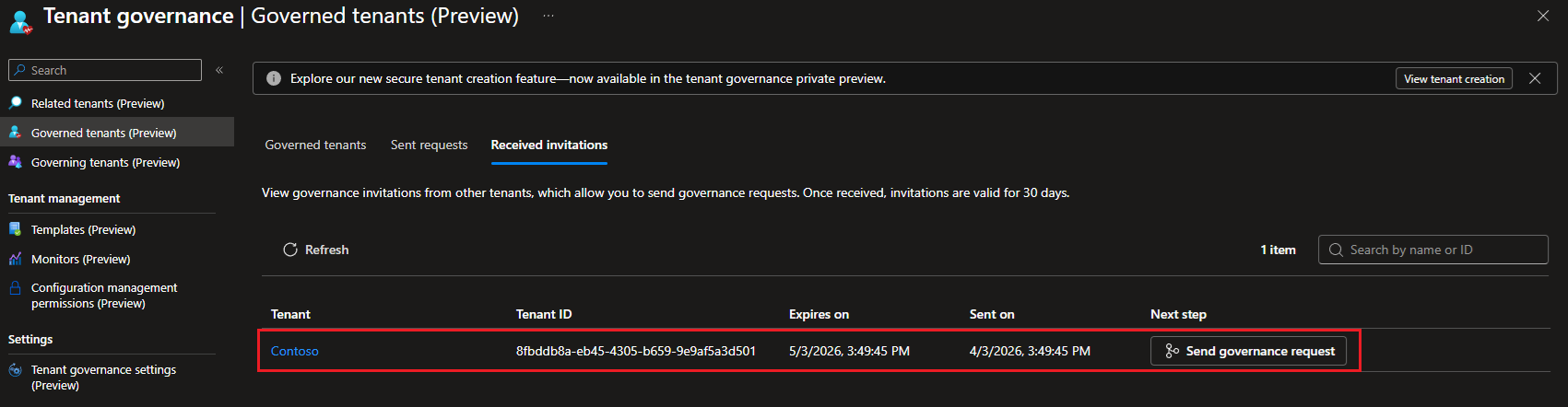 To issue a new governance request, hit the Send governance request button, as shown on the screenshot above. Another way is to open the Governed tenants page, select the Sent requests tab and hit the New governance request button therein. As we are using the three-step process, do not be surprised if the list of tenants in the first two tabs of the wizard is empty. Instead, use the Received invitations tab. Follow the wizard prompts to select the tenant and policy template, then send the request.
If you prefer to issue the governance request via the Graph API, a user with either the Tenant Governance Administrator or the Tenant Governance Relationship Administrator role is needed, as well as an application with the TenantGovernance-Request.ReadWrite.All permissions granted, since again only the delegate permissions model is supported. The request body should contain the governedTenantId and the governance policy template you plan to use. For example:
#Issue a new governance request
POST https://graph.microsoft.com/beta/directory/tenantGovernance/governanceRequests

{
  "governedTenantId": "8fbddb8a-eb45-4305-b659-9e9af5a3d501",
  "governancePolicyTemplate@odata.bind": "https://graph.microsoft.com/beta/directory/tenantGovernance/governancePolicyTemplates/default"
}
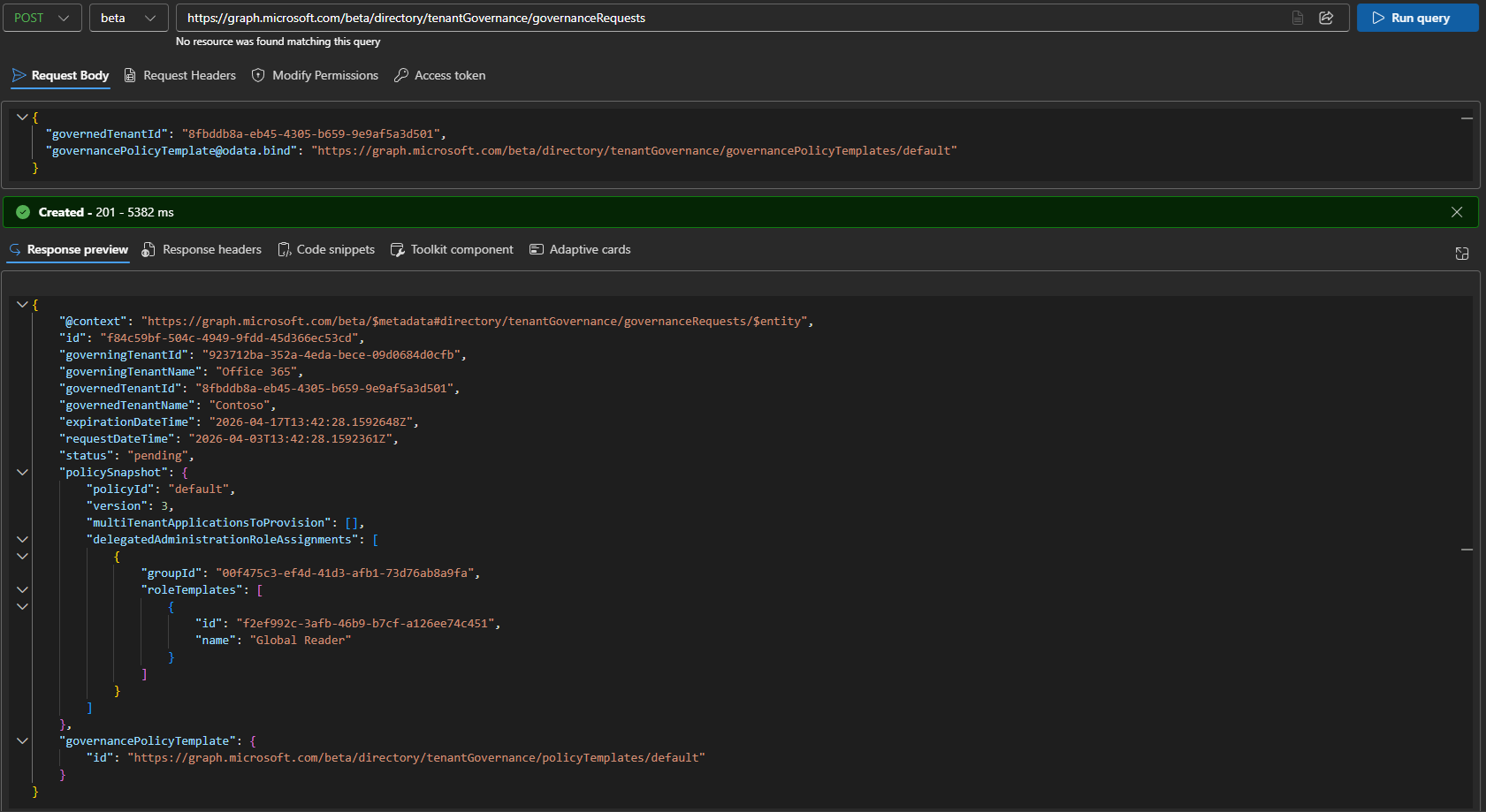 As a note here, there seem to be multiple scenarios when issuing a requests results in a 200 OK response from the server. In my experience, those are all failed requests, and no matching governance request object will be created. Instead, a 201 reply with the governance request object’s properties listed is what a successful execution looks like. Hopefully, the experience gets improved a bit for the GA release.
The last step in the three-step process is the actual acceptance of the governance request. At this stage, the following should have happened already: the (to be) governed tenant sent an invitation, the (to be) governing tenant received it and used it as a basis for sending a governance request. The governance request is what “carries” the permissions, in form of the associated governance template, which is why yet another review step is needed at this point. Should the (to be) governed tenant accept the request, the attached role assignments and/or application permissions will be granted to the corresponding principals in the governing tenant.
To accept the governance request, an admin from the (to be) governed tenant needs to navigate to the Governing tenants page and select the Received requests tab. Click the Request ID link therein to bring the details pane, where you can see the associated metadata, most importantly the set of permissions that will be granted should you accept the request. Click the Accept button to establish the governance relationship, or the Reject one to refuse it. As a side note, clicking the tenant Name link brings you to the related tenants entry instead, which is not what you are after at this point.
 To act on a governance request via the Graph API, use the PATCH method. As above, only delegate permissions are available (TenantGovernance-Request.ReadWrite.All) and the running user must hold the Tenant Governance Administrator role. For the request’s body, specify the desired status value: pending, accepted, or rejected. Here’s an example:
PATCH https://graph.microsoft.com/beta/directory/tenantGovernance/governanceRequests/f84c59bf-504c-4949-9fdd-45d366ec53cd

{
    "status":"accepted"
}
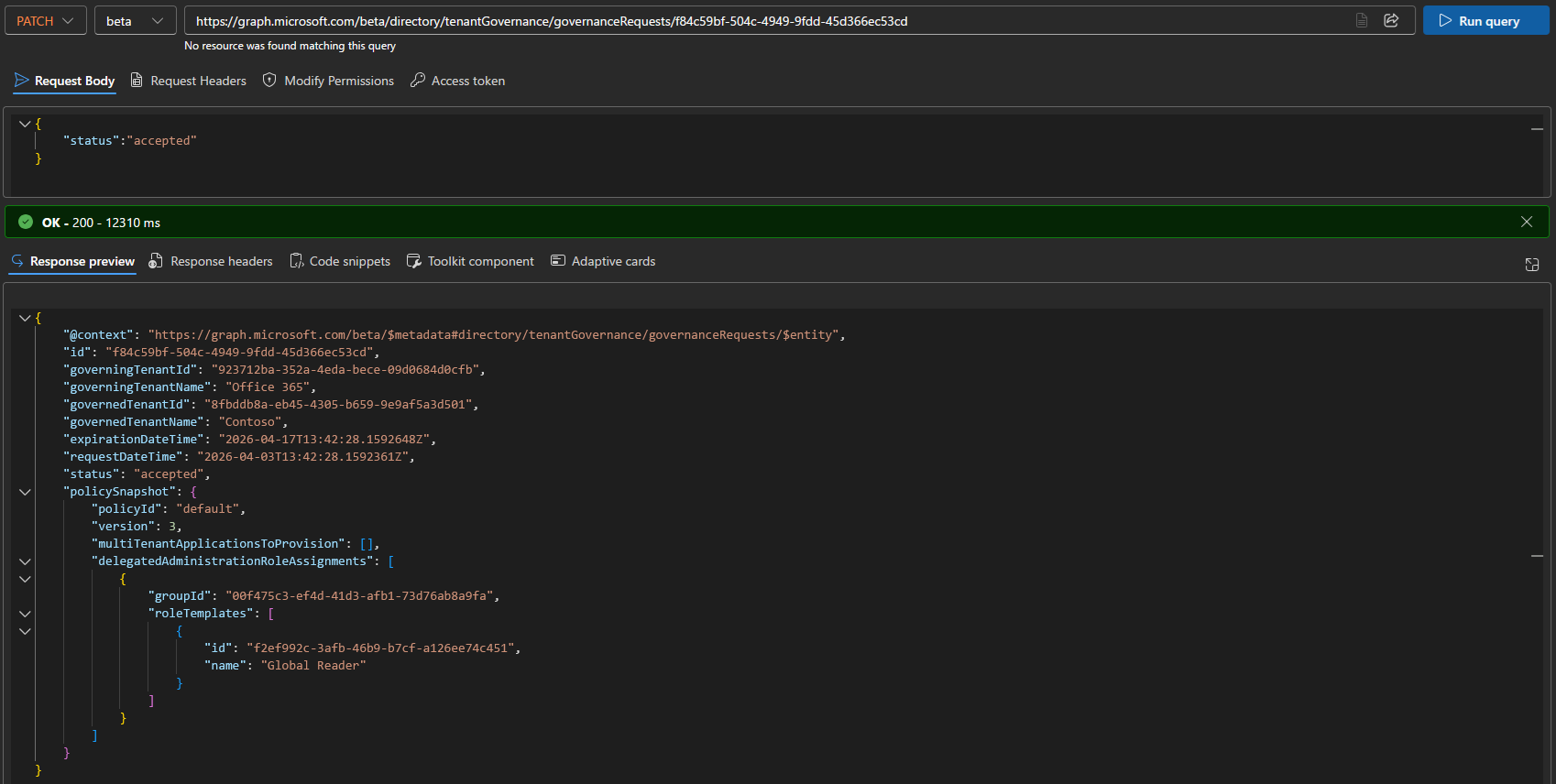 What happens at this point is that a governance relationship object is provisioned in both tenants. On governed tenant’s side, the requested admin role(s) are associated to the corresponding principals. If you opted to provision a multi-tenant app instead, the corresponding service principal is added and consent is granted to the requested permissions. An email will also be sent, notifying the establishing of the relationship.
The governing tenant can now leverage the granted permissions to perform any allowed task within the governed tenant. For tenants that want to take advantage of the monitoring and drift detection capabilities bundled as part of Tenant governance, there is some more good news – a basic UI is now available to configure monitors, but it’s still a long way from supporting the full set of UTCM features. As a reminder, we covered UTCM here and here.
To close off this section, few quick mentions. Either tenant can terminate an existing governance relationship, though is the termination request is initiated from the governing tenant, a confirmation will be needed on the governed tenant side. The corresponding operation is also supported via the Graph API. You can also update an existing relationship by modifying the associated governance template. We didn’t mention basic operations such as listing existing objects or viewing metadata, but those operations are obviously possible via both the UI and the Graph API. Also, there is an expiration window for requests: 14 days for a governance request and 30 days for an invitation one. For more details, refer to the official documentation.
In part 2, we will examine the tenant discovery process in detail before moving on to the Secure Tenant Creation process and finally closing off our initial look at Tenant Governance.
1 thought on “Introduction to Microsoft Tenant Governance part 1: basics and establishing relationships”