Back in my script kiddie days, I loved playing with Windows Forms. They say first love never dies, and sure enough, I get the itch every now and then. It happened again earlier this week, and the chosen target was no other than the dreaded Directory Templates and settings in Entra ID/Microsoft 365. I’ve covered said objects numerous times previously, most recently in this article on how to manage them via the Graph SDK for PowerShell. What was always an annoying and convoluted process only got worse with the switch to Graph, and Microsoft doesn’t seem very interested in making things easier on the admin.
Running the tool
Meet my latest creation, intended to alleviate the pains of working with Directory setting templates objects as well as their associated setting objects. It is a PowerShell script leveraging Windows Forms to present an easy to work with dialog to view, add, update or remove Directory setting within your organization. No more dealing with GUIDs, JSONs and all that crap, the complexity is hidden behind the easy to use GUI. Group-specific settings are also supported, but more on that later.

You can download the script for my GitHub repository. For best experience, you should run it via PowerShell 7.4+, although it should (mostly) work on older versions, including Windows PowerShell. Apart from the host requirements, you will need a version of the Graph SDK for PowerShell that includes the required cmdlets, say 2.25.0 or above. Test it with older versions if you must, I haven’t bothered doing so.
As with all things Graph, we also need to take care of the required permissions. The official documentation will tell you that GroupSettings.ReadWrite.All should be sufficient for all operations. In reality, this does not hold true. To get the full set of directory setting templates, you will need the Directory.Read.All permissions. Directory.ReadWrite.All is needed if you want to make changes to them. Some templates might have additional requirements, for example the “Consent Policy Settings” one requires the Policy.ReadWrite.Authorization scope.
The script uses delegate permissions, which means that the user you are authenticating with must also have a matching role within Entra. Global reader should be sufficient for read-only operations; Groups administrator one for updating any group-related setting object. The rest might require more privileged role, refer to the official documentation for more details. You can also update the authentication bits to use application permissions if needed, they are supported for all operations.
The script will first connect to the Graph and fetch all directory setting templates and settings objects. It will then invoke the Directory Settings dialog, listing the full set of available templates under the dropdown control on top. If a matching settings object exists for the selected template, its corresponding values will be populated under the DataGridView control; otherwise said control will be cleared. At any time, you can use the Refresh button to reload the set of templates and settings.
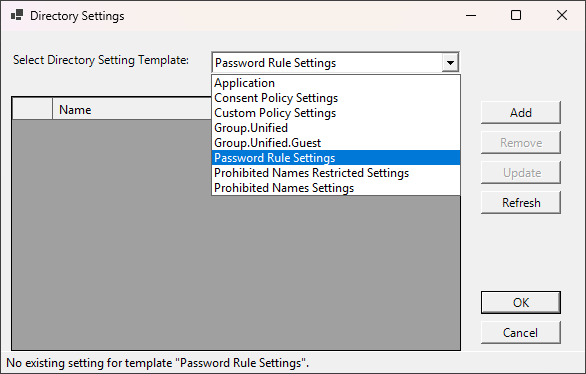
Depending on the presence of a settings object for the selected template, the Add, Update and Remove buttons will be set to enabled or disabled as necessary. Keep in mind that you can only ever have a single setting object per template, which also applies to group-specific setting objects. By disabling the corresponding controls we aim to minimize the possibility for any server side errors, as handling those in a form can be tricky (see below).
To create a new setting object based on a given template, first hit the Add button. This will populate the default values from the selected template, but not write anything to the server. At this point, you are free to make any changes to the defaults. To commit the new settings object, hit the Update button. The OK and Cancel buttons are there to enable closing the form via the Enter/Escape keys, they don’t do much on their own.
Similarly, if you are editing the values for an existing setting object, use the Update button to confirm the changes. Pressing the Update button executes the corresponding cmdlet to either create a new setting object for the selected directory setting template or update the existing one, as needed. We then refresh the server-side data to ensure the changes were committed as expected and avoid any potential issues with overwriting already updates setting objects. You can of course force a manual refresh as well, when needed.
Handling group-specific setting objects
The last control we need to cover is the group selection button. But first, some context. As you are probably aware, directory setting templates come with two distinct flavors – one representing tenant-wide configurations and another one which can be assigned to specific (group) objects to control some aspects of their behavior. The latter category is in fact only limited to the Guest access settings for Unified groups at present, with some new additions coming in the near future (as in, we cannot talk about them just yet).
With the above in mind, you can see why fetching the tenant-wide setting objects does not cover all scenarios. But in order to include group-specific ones, we must issue a separate query per group. Thus, doing this for all groups within the tenant is an overkill and outside of the scope of the tool. Instead, we offer the possibility to query individual group settings on demand by allowing you to enter the GUID of the corresponding group. The relevant control is visible under the status strip only when a group-specific template is selected.
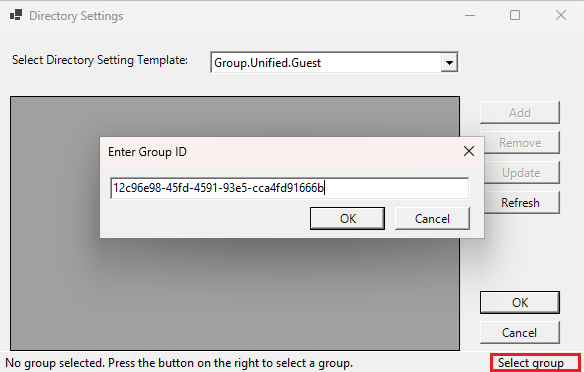
Hitting the Select group button on the status strip (as shown on the screenshot above) brings a simple modal dialog where you can enter the GUID of the group you want to manage settings for. We then fetch the settings object corresponding to the selected group/template combo, if such exists, and toggle the remaining controls to allow you to make changes as needed. In a future version of the tool, we might consider replacing this with a “group picker”, or at least allowing to search for a group by name, but for this initial releases, this simple implementation gets the job done with fine.
Validation and other QoL stuff
The tool will try to validate the setting values where possible. As each directory settings template object includes a definition for the type of values it accepts, we can make sure that only true/false value is entered for any Boolean property, for example. Similarly, we can validate GUID and URI values, to an extent. We can even go a step further and also account for the allowed ranges for the Lockout threshold within the Password Rule Settings and similar. That said, these are by no means exhaustive checks, so make sure you provide valid input 🙂
In addition, some other quality of life features are available. For example, working with the Banned password list, part of the “Password rule settings” template, requires you to separate individual entries with the tab char. While the tool does properly process such entries (see the first screenshot above), adding new entries to the Banned password list is not exactly easy to do within the data grid view. At best, you can paste the tab-separated values therein.
To address this, a simple multi-line textbox is surfaced whenever you try to edit (or view) the BannedPasswordList value. It gives you an easy to use experience akin to the one used within the Entra portal, where each password entry can be put on a new line. The tool will then “translate” to the required format, without burdening you with any details. It will also strip duplicate values, trim whitespaces and remove “empty” entries. The screenshot below illustrates how this all works:
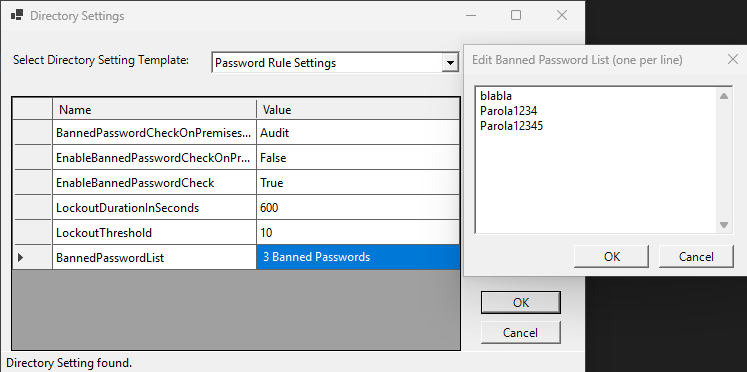
One last note with respect to the BannedPasswordList. Microsoft enforces a length requirement for each individual entry on the list, which must be between 4 and 16 characters. The corresponding checks are implemented in the script in addition to the transformations listed above. This is not a requirement the tool is forcing upon you, blame Microsoft! Also, there is no check for complexity requirements for any of the password entries, so strings like “aaaaa” or “pass1” are all valid.
Other potential improvements
Above, we mentioned one potential improvement for future versions of the tool, namely more robust group selection options if the form of a pickup control or search functionality. Of course, as with any other script, there are a myriad other things you can potentially improve. For example, we can make it easier to configure the group naming policy setting, as represented via the PrefixSuffixNamingRequirement value. Many of the list/array-type values can potentially benefit from a treatment similar to the one we gave the BannedPasswordList setting, and so on.
More streamlined approach to the permission requirements for the PowerShell cmdlets is another thing we can consider for future versions of the tool, including providing a read-only experience. As some of the methods come with highly-privileged permission and user role requirements, I imagine many admins will be wary, and justifiably so. The current implementation is also bit light on the error handling when it comes to permission-related exceptions, which in turn can result in a lackluster experience… which you are free to improve on!
Speaking of error handling, much of the logic used by the tool is nested within the form controls’ event handlers. This has the unfortunate side effect of forcing us to use non-terminating exceptions in many parts, as otherwise the form itself will break. While we’ve implemented some logic to handle the Graph responses, whenever a cmdlet fails to execute because of a missing parameter, non-existent variable and so on, the resulting terminating error cannot be handled. Should you run into any such scenarios, be sure to ping me about it, or open an issue on GitHub.
Providing some output for changes performed via the tool might also be beneficial. Currently, no such option is available but you can get additional details for the executions of the various operations by toggling verbose output (i.e. set the value of the built-in $VerbosePreference variable to Continue).
Lastly, do let me know if you find the Add button behavior confusing, and what your thoughts on the desired experience are. As always, any other comments and feedback are welcome!
3 thoughts on “Free tool to manage directory settings in Entra ID”