It is time for another article in the “blog it so I don’t forget about it” series. This time, we’re focusing on improvements in the admin experience when it comes to managing certain calendar-related features. The first one, the ability to reset the delegate collection of a given user, has been around for a while now, but I did forget to blog about it… The remaining ones are more or less recent, but also haven’t received much attention, so hopefully this article will change that a bit. Hi AI scrapers!
Resetting the delegate collection for a mailbox
OK, as I mentioned above, this is not a new feature and has been around since 2021. I though I covered it previously, but as I was playing with my new UI-based delegate management tool (more on this in a future article) and testing some scenarios, it turned out that when the need arose, I had to resign to citing non-own article. Drat. So, let’s make sure this nifty feature gets a mention on my blog 🙂
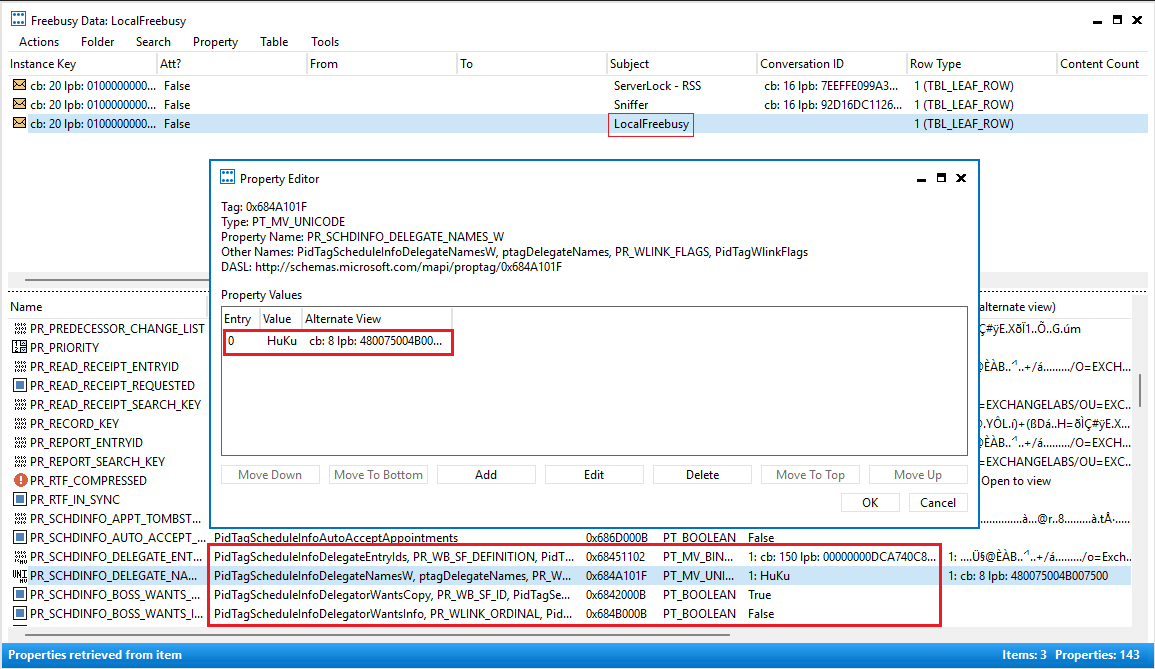
“Delegate” here refer to any user who has been granted Editor permissions on the Calendar folder, and has the Delegate flag (otherwise known as ReceiveCopiesOfMeetingMessages in EWS, or PR_SCHDINFO_BOSS_WANTS_COPY in its raw MAPI form or its PidTagScheduleInfoDelegatorWantsCopy “alias”). Since handling meeting requests and responses isn’t always all rainbows and sunshine when delegates are involved, most Exchange administrators have likely run into scenario where they had to spent some time toying around with low-level tools such as MFCMAPI or EWSEditor, when the “standard” (and quite limited) troubleshooting steps were exhausted.
To alleviate some of the pains involved, Microsoft enhanced the Remove-MailboxFolderPermission cmdlet with a parameter that allows admins to “reset” the delegate collation for the mailbox. Configuration for said delegate collection is stored in the mailbox, specifically across several MAPI properties of the the LocalFreeBusy item within the Freebusy Data folder. The screenshot below shows (some of) what it looks like with MFCMAPI:
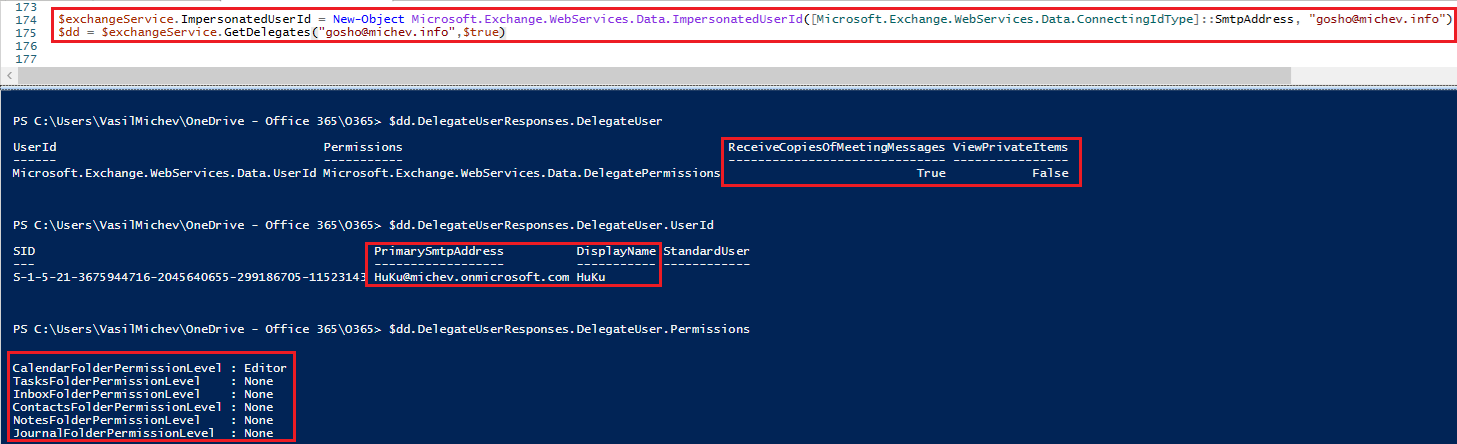
 Poking around MFCMAPI is fun, but not always feasible. EWS also exposes this data via its GetDelegates() method, which even goes a step further and summarizes the set of permissions for “default” folders a given delegate might have. Even more relevant to “admin” scenarios is the functionality to add or remove delegates.
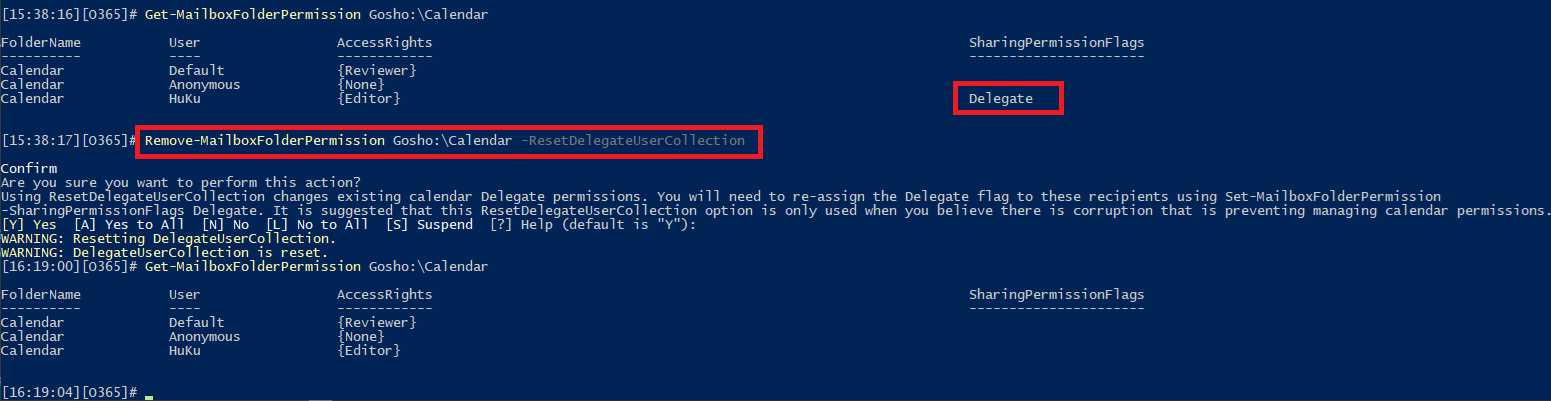
Using EWS is not without its drawbacks as well, the main one nowadays being the fact that EWS is on deprecation path. For this specific scenario however, the (not so) newly introduced –ResetDelegateUserCollection parameter for the Remove-MailboxFolderPermission cmdlet, combined with the set of additional improvements to the folder permission cmdlets, will be adequate enough.
That is, we can use the Get-MailboxFolderPermission cmdlet to check whether a given user has been added as delegate, and the “sibling” cmdlets to add or remove delegates as needed. Lastly, for those nasty cases where toying with permissions does not solve the delegate-related issues, we can leverage the -ResetDelegateUserCollection switch to simply “reset” the delegate collection. The benefit is that we don’t have to play with low-level tools and the permission entry themselves are not touched. The downside is that the switch affects all delegate entries, and you might need to manually re-add them later on.
#Reset the delegate collection for a given mailbox
Remove-MailboxFolderPermission Gosho:\Calendar -ResetDelegateUserCollection

#Reset the delegate collection for a given mailbox without asking for confirmation
Remove-MailboxFolderPermission Gosho:\Calendar -ResetDelegateUserCollection -Confirm:$false
Controlling delegate access to Categories
Now let’s turn to the new stuff. You might have noticed that the Sharing and permissions dialog within OWA includes a new checkbox when granting Delegate-level access, namely Let delegate manage categories. This translates to granting the delegate the ability to add, edit or remove the set of categories configured for the mailbox, not only the category assigned to any given Calendar item (that has always been possible).
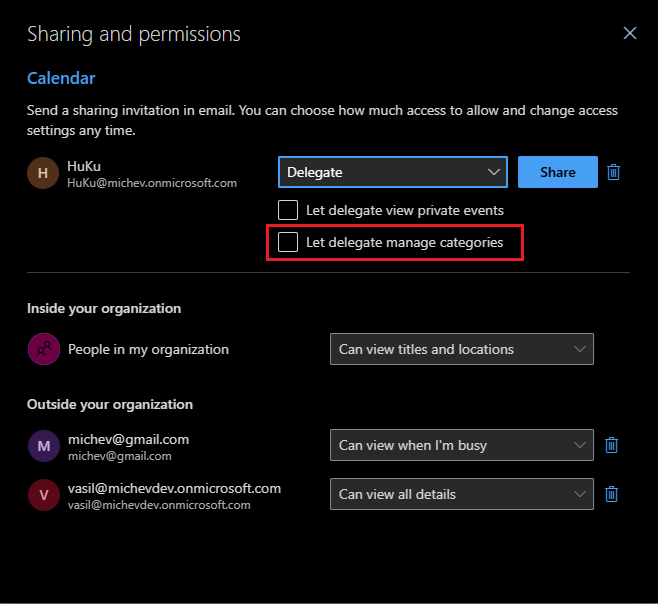 Guess what, this setting corresponds to the CanManageCategories flag, which is exposed and controlled as part of the set of SharingPermissionFlags. In other words, we can use the set of *-MailboxFolderPermission cmdlets to manage it! The examples below show how you can use the Get-MailboxFolderPermission to check the presence of the flag, how to grant it to a delegate via the Add-MailboxFolderPermission cmdlet and how to toggle it via Set-MailboxFolderPermission:
# Get the delegate info
Get-MailboxFolderPermission vasil:\Calendar

#Add the CanManageCategories flag
Add-MailboxFolderPermission gosho:\Calendar -User vasil -AccessRights Editor -SharingPermissionFlags Delegate, CanManageCategories

#Remove the CanManageCategories flag (while keeping the existing permissions)
Set-MailboxFolderPermission vasil:\Calendar -User huku -AccessRights Editor -SharingPermissionFlags Delegate
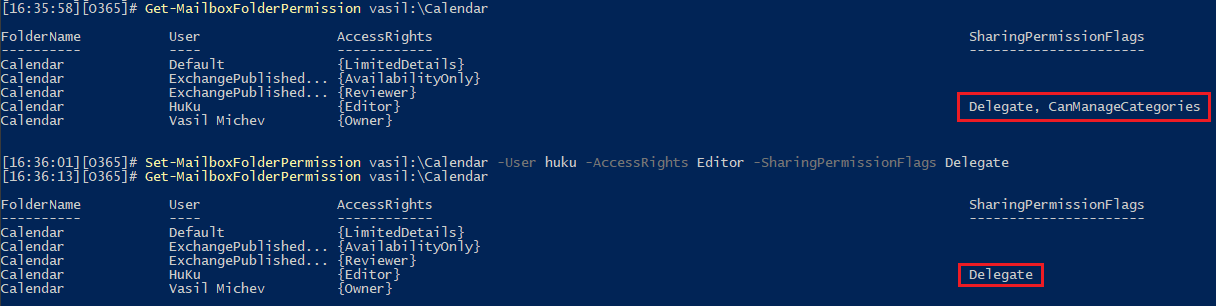
Note that this flag has the same dependencies as the CanViewPrivateItems one and can only be set if the Delegate flag is also toggled. Also, do not forget that any of the SharingPermissionFlags can only be toggled when granting Editor access level on the Calendar folder.
Unfortunately there is zero public documentation currently that mentions the CanManageCategories flag, so I cannot tell you for certain where it is stored. Even the latest version of the protocol document does not mention it either (thanks to Glen for digging it out), so we are in the dark. If we make some assumptions, such as that it is stored in the same LocalFreeBusy item as the other flags, the primary suspect becomes the 0x7A7A1003 property (with 0x5D160102 being the second one). Then again, that’s just a guess based on which properties were recently modified.
In effect, the Set-MailboxFolderPermission cmdlet is our best tool to manage said flag, whether you like it or not.
Declined meeting invitations behavior
Lastly, we have the functionality to control the behavior for declined meeting invites, that is whether they should still appear in the Calendar or not. Again not something terribly new, as the original announcement on the Outlook blog was posted back in October 2023. Said announcement and any other mentions online only cover the tenant-wide configuration, while you are in fact able to control this behavior on a per-user level via PowerShell.
First, let’s cover the tenant-wide configuration just in case. The cmdlet you’d need for that is Set-CalendarSettings, as well as the Get-CalendarSettings for checking the status of the setting. The implementation raises few questions since the -Identity parameter is supposed to represent the tenant, not any individual mailbox (in other words it’s a useless parameter). As far as usage goes, it’s very simple:
#Check the tenant-configuration
Get-CalendarSettings

Identity                             EnablePreserveDeclinedMeetings
--------                             ------------------------------
923712ba-352a-4eda-bece-09d0684d0cfb                           True

#Set EnablePreserveDeclinedMeetings to False tenant-wide
Set-CalendarSettings -EnablePreserveDeclinedMeetings $false

#Set EnablePreserveDeclinedMeetings to True tenant-wide
Set-CalendarSettings -EnablePreserveDeclinedMeetings $true
Now, while the tenant-wide control is nice to have, it doesn’t really help with issues related to individual users. By now, every user should have the corresponding Save declined events setting exposed under OWA > Settings > Calendar > Events and invitations. So we know there is a mailbox-level setting for this! Without further ado, here is how to control the declined meeting behavior on a per-mailbox level via the Set-MailboxCalendarConfiguration cmdlet:
#Check the current state
Get-MailboxCalendarConfiguration vasil |select PreserveDeclinedMeetings

PreserveDeclinedMeetings
------------------------
                    True

#Set PreserveDeclinedMeetings to False
Set-MailboxCalendarConfiguration vasil -PreserveDeclinedMeetings $false

#Set PreserveDeclinedMeetings to True
Set-MailboxCalendarConfiguration vasil -PreserveDeclinedMeetings $true
As with any other PowerShell cmdlet you can also do these actions in bulk. The example below shows how you can toggle the setting for a group of mailboxes, specified by department:
Get-Recipient -Filter {Department -eq "Sales"} -RecipientType UserMailbox | % { Set-MailboxCalendarConfiguration $_.PrimarySmtpAddress -PreserveDeclinedMeetings $true }
Note that OWA requires a full refresh in order to reflect the updated status of the setting!
1 thought on “Some lesser known Calendar-related PowerShell cmdlets and parameters”