While I barely use my personal Microsoft account nowadays, its associated Outlook.com mailbox and OneDrive storage are still around. As I’m currently over the 90% usage quota, every time I log in I am presented with the annoying banner and few reminders to switch to a paid plan. Finally, my curiosity got the best of me, and I decided to check what exactly is “eating” all of that storage. Spoiler alert, it was photos 🙂
OneDrive gives you some basic breakdown under the Manage storage page, but that’s mostly useless. You can hit the Free up space > OneDrive link, which takes you to the Largest files in your OneDrive view, to get a list of all your files, sorted by size. Unfortunately, there’s not much you can do with this list, as there is no export functionality, and you cannot even change the sort order, let alone add or remove columns. More importantly for me, it only lists individual items, ignoring folders.
I guess I will build my own storage report then, with Graph and PowerShell! In fact, we already did something similar a year ago, and as (personal) OneDrive is built on top of SharePoint storage, we can leverage the exact same building blocks. There are of course some differences, which we will cover in more detail as we go, but the process remains largely unchanged: get a token, enumerate the items, produce some better organized output and additional insights. Let’s go!
Handling authentication
First, we need to handle authentication. The Graph API supports working with personal OneDrive items, so this part should pose no challenges. Unless you want to leverage the principle of least privileges, that is. If we get a token for the built-in app, with client ID value of 85b39081-b66a-43d9-aa80-56c7742c6672, read-write access is inevitable, and we want to avoid that. The alternative is using our own Entra ID integrated app, which allows us to get a token with read-only permissions.
Before we do that, it’s worth mentioning that even with our own app, we cannot restrict the permissions to item metadata, as the Files.Read.All scope still allows the app to fetch the content of any and all items within the user’s OneDrive. It is puzzling why we still do not have a “metadata” only scope. But let that be a warning – running scripts such as this one can potentially expose the content of any item you have stored within your OneDrive, so be very careful who you trust!
So, to obtain a token with “minimal” permissions, we need to register an Entra ID app. Follow the standard set of steps, and make sure to select Personal Microsoft accounts only. Under API Permissions, select Microsoft Graph and then Delegate permissions. Locate the Files.Read.All scope and add it. Finally, under Authentication, you’ll need to Add Redirect URI. The Mobile and desktop applications flavor is what you’ll need, and the value should be set to http://localhost in order to ensure compatibility across the board. Once you are done, copy the Client ID value, as we need it for the authentication bits.
Working with personal Microsoft accounts always happens in the context of the user itself, so delegate permissions. As we do not want to handle the authentication on our own, we leverage the MSAL binaries to obtain an access token. The binaries are bundled into all Microsoft 365/Azure PowerShell modules nowadays, so alternatively you can just leverage the versions that come as part of those. Here are few examples:
#Install via NuGet
Register-PackageSource -Provider NuGet -Name nugetRepository -Location https://www.nuget.org/api/v2
Install-Package -Name Microsoft.IdentityModel.Abstractions -Source nugetRepository
Install-Package -Name Microsoft.Identity.Client -Source nugetRepository -SkipDependencies

Load the MSAL binaries
Add-Type -LiteralPath "C:\Program Files\PackageManagement\NuGet\Packages\Microsoft.IdentityModel.Abstractions.8.16.0\lib\net8.0\Microsoft.IdentityModel.Abstractions.dll"
Add-Type -LiteralPath "C:\Program Files\PackageManagement\NuGet\Packages\Microsoft.Identity.Client.4.82.1\lib\net8.0\Microsoft.Identity.Client.dll"
or
#Load the MSAL binaries as part of the ExO PowerShell module
Get-Module ExchangeOnlineManagement -ListAvailable -Verbose:$false | select -First 1 | select -ExpandProperty FileList | % {
    if ($_ -match "Microsoft.Identity.Client.dll|Microsoft.IdentityModel.Abstractions.dll") {
        Add-Type -Path $_
    }
}
And here’s a sample code to obtain an access token:
$appID = "xxxxxxxx-xxxx-xxxx-xxxx-xxxxxxxxxxxx"
$redirectUri = "http://localhost"

$Scopes = New-Object System.Collections.Generic.List[string]
$Scope = "Files.Read.All"
$Scopes.Add($Scope)

$app =  [Microsoft.Identity.Client.PublicClientApplicationBuilder]::Create($appID).WithRedirectUri($redirectUri).WithAuthority("https://login.microsoftonline.com/consumers/")
$app2 = $app.Build()

$result = $app2.AcquireTokenInteractive($Scopes).ExecuteAsync().Result
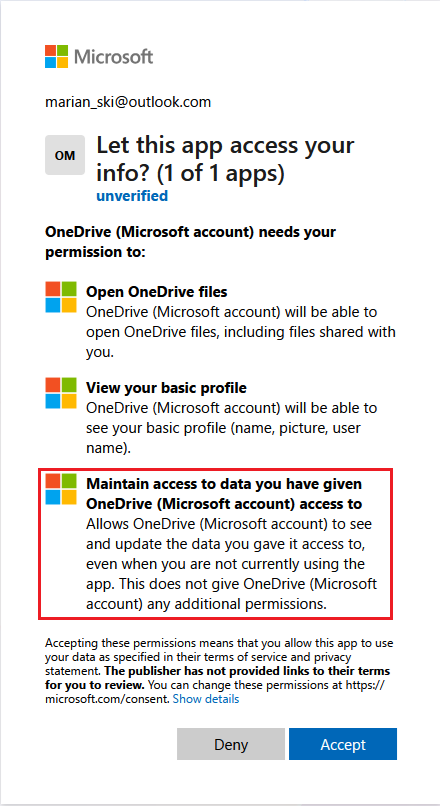
As part of the authentication process, the user will be prompted to consent to the permissions requested by the app. Since we are leveraging the MSAL methods, said permissions will always include the offline_access scope as well, which is by design, and something that cannot be avoided, even though it comes with obvious security implications. For this reason, make sure to remove the application once you are done with the cleanup!
Enumerating items
Now that we have a token, we can proceed with enumerating the set of items found within the user’s OneDrive. We need one request to fetch the drive properties, quota included. Something to consider here is the “split” between “pure” OneDrive data and Outlook attachments. In other words, the used quota value you get via the /drive endpoint will not necessarily be equal to the sum of individual OneDrive items.

GET https://graph.microsoft.com/beta/me/drive?$select=quota

GET https://graph.microsoft.com/beta/me/settings/storage/quota?%24expand=services
Enumerating the items is quite simple, as we don’t have to deal with multiple sites or libraries. Thus, a single request will do the trick, with the only consideration being whether we want to include versions. Yes, you can have item versions in personal OneDrive, and if you are syncing your Windows files to it, or are a heavy OneDrive user, you should account for their size in order to get a proper picture. The script supports the -IncludeVersions switch to address such scenarios.
One of the following requests will be used to fetch all items, depending on whether you want versions included:
#Get all items within personal OneDrive with versions included
$uri = "https://graph.microsoft.com/v1.0/me/drive/list/items?`$expand=driveItem(`$select=id,name,webUrl,parentReference,file,folder,package,shared,size,createdDateTime,lastModifiedDateTime,lastModifiedBy),versions(`$select=id)&`$select=id,driveItem,versions,webUrl&`$top=100"

#Get all items within personal OneDrive
$uri = "https://graph.microsoft.com/v1.0/me/drive/list/items?`$expand=driveItem(`$select=id,name,webUrl,parentReference,file,folder,package,shared,size,createdDateTime,lastModifiedDateTime,lastModifiedBy)&`$select=id,driveItem,versions,webUrl&`$top=5000"
Note that we use a different page size for the “include versions” scenario in order to avoid issues with size of the response. In similar manner, we add some artificial delay to alleviate throttling concerns when fetching item versions. Lastly, we need to do some adjustment to folder sizes when items contained within the folder have multiple versions.
Handling output
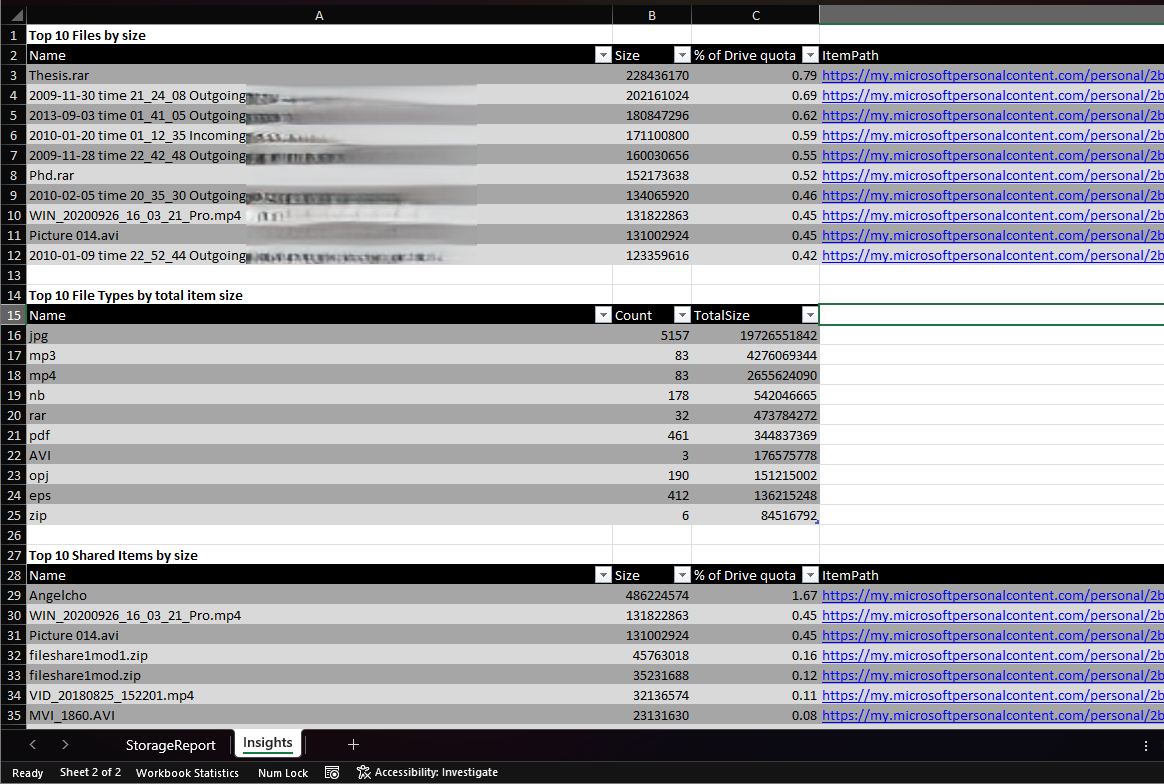
The last part of the code handles the output. A CSV file will be generated within the working directory, listing all of the items found in the user’s OneDrive. For each item found, details such as whether the item is shared or who and when last modified it are presented, which should help with the decision making process. Optionally, if the ImportExcel module is installed, you can leverage the -ExportToExcel switch to generate an XLS file with additional insights, such as what are the top file types, or some basic duplicate item detection.
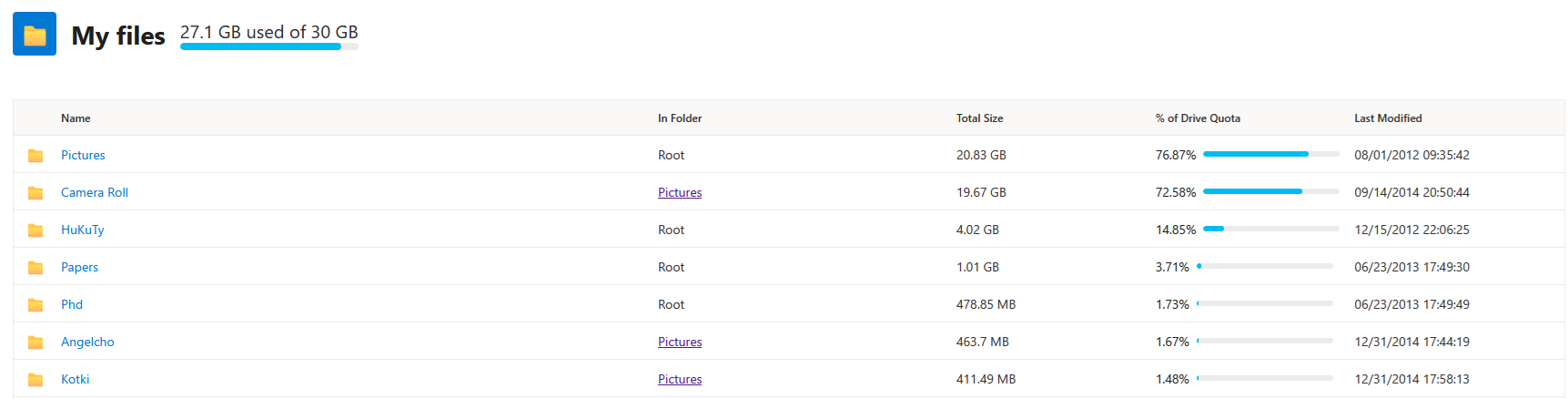
In addition, an HTML report is also generated with a style resembling that of SharePoint’s Storage Metrics page. Said report includes direct links to files and folders, allowing you to quickly navigate to the item in question and get additional context, if needed. The original plan was to save this file directly within the user’s OneDrive, but the combination of the required write permissions and the fact that MSAL methods always fetch a refresh token results in unwanted security implications with this approach, so at the end of the day I decided to store the HTML file locally.
How to run the script
To get a copy of the script, use this link. Do make sure you have configured an Entra ID application with the Files.Read.All permission before running the script, and add the corresponding application ID (line 271) and redirect URI (line 272). There are three parameters supported by the script:
- IncludeVersions – specify whether to include item versions statistics in the output.
- ExportToExcel – if the ImportExcel module is installed, use this switch to generate a better-looking Excel file with additional insights, instead of default CSV file.
- Verbose – use this switch to output additional processing details as the script progresses.
And here are some examples on how to run the script:
#Generate a report of all items within a user's OneDrive
.\Graph_Personal_OneDrive_storage_report.ps1


#Include item versions
.\Graph_Personal_OneDrive_storage_report.ps1 -IncludeVersions


#Generate an Excel file with additional insights
.\Graph_Personal_OneDrive_storage_report.ps1 -ExportToExcel

Closing remarks
Before closing the article, let’s quickly discuss the footprint the script leaves, and what steps you should take to clean it up. It goes without saying that you should never run code you found on the internet, unless you understand what it does!
As mentioned above, the script relies on the MSAL methods to obtain an access token. This will result in a long-lived refresh token generated as well, which can potentially be used to access your OneDrive for prolonged period of time. While the script does not cache or use said refresh token, you should nevertheless be wary of this approach! To minimize the impact, we use a custom-created Entra ID app, where you alone control access and permissions. As downside, this comes with some overhead and might not be appropriate for less experienced users.
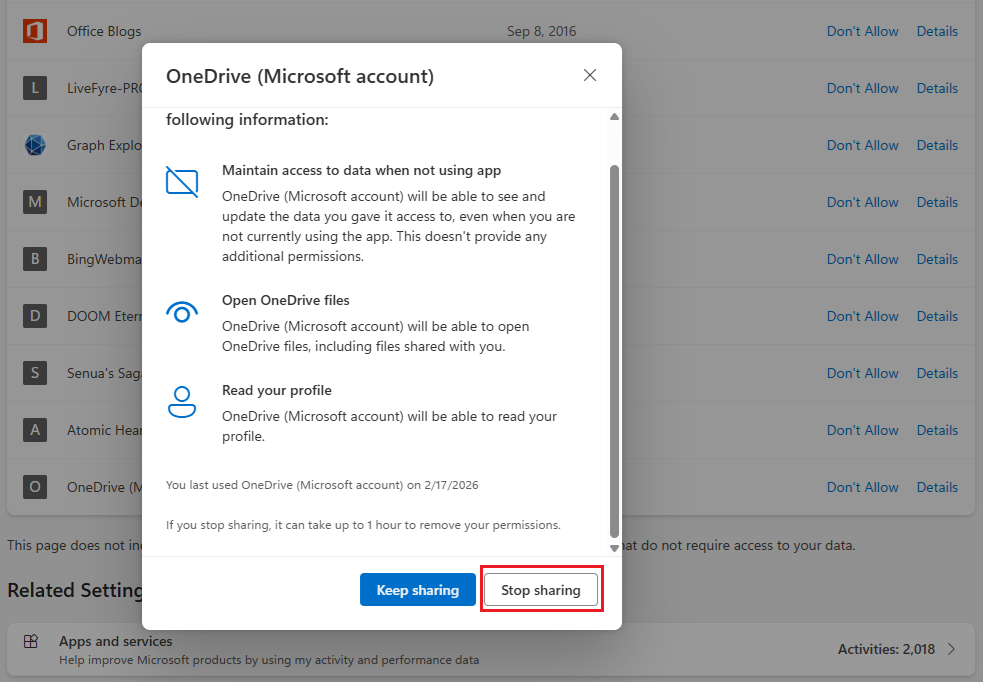
Even when all those precautions in place, I would still recommend that you remove the consent for the application from your Microsoft account page, once you are done with the cleanup. To do so, navigate to Privacy > App access, or use this direct link. Locate the application in the list and click the Details link on the right, then hit the Stop sharing button. If you ever want to run the script again, you will be prompted to re-consent, so no big deal.
 Lastly, I want to mention that there is a slight discrepancy in the amount of used storage as reported by the drive endpoint in comparison to the sum of all individual item sizes. I haven’t been able to figure out where this stems from, with the Outlook attachments service being the prime suspect. The difference ranges between positive 250MB and negative 70MB, depending on which values we are comparing, so it’s hardly a deal breaker… but it annoys me a lot! Oh well, something to improve on!
1 thought on “Storage report for personal OneDrive”