Earlier this year, we explored the newly added functionality to restrict access for multi-tenant Entra ID integrated apps. Now Microsoft has provided a simple UI to manage the feature, so you no longer have to rely on the Graph API methods.
You will find the relevant bits under the Entra ID admin portal > Entra ID > App registrations. Select the application object, then navigate to the Authentication (Preview) page and switch to the Supported accounts tab. The screenshot below shows the default configuration, with our app configured as multi-tenant one and with no tenant restrictions enforced.
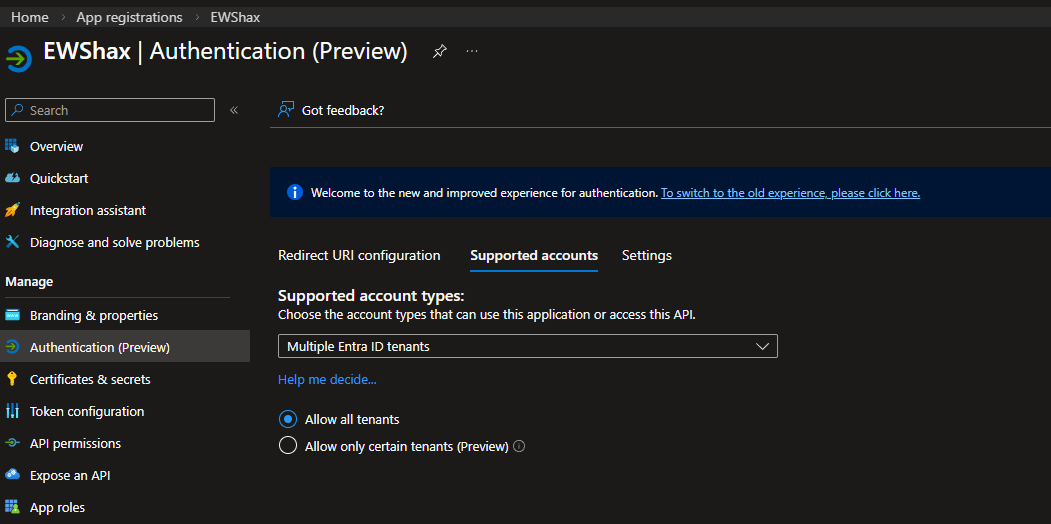 To restrict your application to a set of tenants, select the Allow only certain tenants (Preview) option. Since at least one tenant value must be provided, you will immediately be presented with an error message, which you can get rid of by clicking the Manage allowed tenants button. This in turn will bring forth the Manage allowed tenants (Preview) pane on the right, where you can add up to 20 different tenants, referencing each either by its ID value or by performing a lookup based on any of its verified domains, including the default .onmicrosoft.com one.

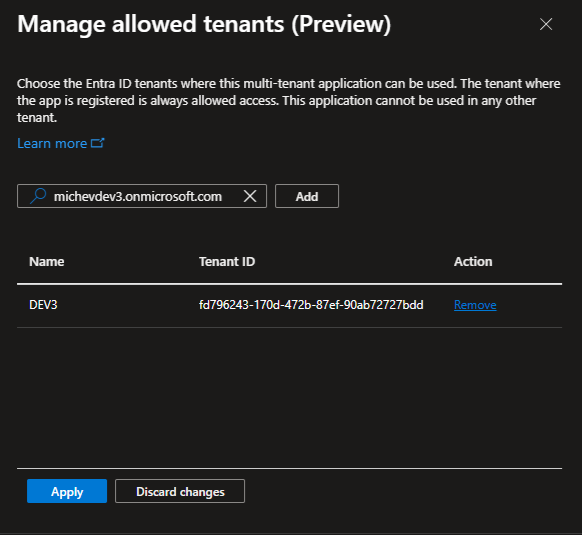 Confirm the changes by hitting the Apply button. This will take you back to the Supported accounts tab, where you can now see the updated list of Allowed tenants. To add additional tenants or remove existing ones from the allowed list use the same Manage allowed tenants button and the controls within its associated pane.
When you are done, hit the Save button. Once the changes are successfully committed, you will be presented with a Update application Authentication notification, assuming everything checks out.
As we discussed in our previous article, and as indicated by the red asterisk/error message on the second screenshot above, an app cannot have an “empty” allowed tenants list. If you want to clear the list, you’ll need to select the Allow all tenants option instead.
Lastly, remember that the tenant allow list can only be configured when the audience (aka Supported account types setting) for the app is set to Multiple Entra ID Tenants (“AzureADMultipleOrgs”). Switching it to any other value will clear up the list of allowed tenants. The UI will present a helpful warning for such scenarios:
 And that’s all there is to it. While certainly not some groundbreaking feature, this new UI will make it easier to configure the tenant restrictions for your multi-tenant Entra ID integrated applications, when the need to do so arises. Adding support for tenant lookup based on domain name (via the findTenantInformationByDomainName method) was a nice touch, and so was the warning/confirmation for switching the audience type. Good job!
1 thought on “New UI to manage allowed tenants for Entra ID integrated applications”