Applications (aka app registrations) are a cornerstone in Entra’s extensibility model, powering products and automation for customers and ISVs. While the majority of customers will likely only need applications restricted to the given tenant (single-tenant app), larger enterprises, conglomerates and ISVs have a plethora of use cases where an application created in a given tenant must be made available across multiple other tenants. While you only need to toggle a single value for this, by default it makes the application available to any tenant, even though they still need to know its identifier at the least. Some concerns can be expressed about such approach, but until recently, the only way to restrict applications from being added to a random tenant was to add code to check for and control access based on the access token.
To address this Microsoft recently added the signInAudienceRestrictions resource, which allows you to specify the set of tenants allowed to leverage your application. Exposed as a property for the application resource, this new resource has two values you can choose from: unrestrictedAudience, which is the default one and matches the experience we’ve had until now (as in no restrictions on which tenant can add the app), as well as allowedTenantsAudience, which allows you to list the set of tenants that the application can be added to, including the home tenant.
When configuring allowedTenantsAudience you must provide a list (string collection) of allowedTenantIds, which should include at least one GUID. You can optionally include the home tenant, as in the tenant in which the application registration object resides. To do so, you can either list it as part of the allowedTenantIds value, or set the isHomeTenantAllowed property to true. In fact, this is the only value supported currently, though it presence suggests future improvements.
To update the set of allowed tenants for an app, we need to PATCH the value of its signInAudienceRestrictions property (do note that said property is not returned by default, so if you want to check its value, you must use the $select operator). The required permissions for this operation are Application.ReadWrite.All or equivalent plus a corresponding privileged role when using the delegate permissions model, as noted in the official documentation. Here’s an example:
PATCH https://graph.microsoft.com/beta/applications/xxxxxxxx-xxxx-xxxx-xxxx-xxxxxxxxxxxx

{
  "signInAudience": "AzureADMultipleOrgs",
  "signInAudienceRestrictions": {
    "@odata.type": "#microsoft.graph.allowedTenantsAudience",
    "isHomeTenantAllowed": true,
    "allowedTenantIds": [
      "yyyyyyyy-yyyy-yyyy-yyyy-yyyyyyyyyyyy"
    ]
  }
}
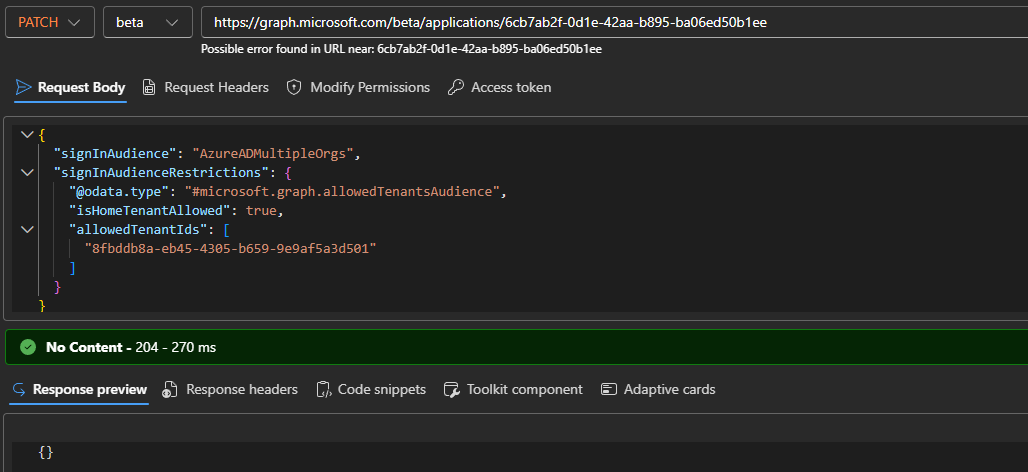
A successful execution is indicated by a 204 – No Content response and empty output. As noted above, if you want to confirm the new value has been successfully saved, you must issue a GET request with the $select operator:
GET https://graph.microsoft.com/beta/applications/xxxxxxxx-xxxx-xxxx-xxxx-xxxxxxxxxxxx?$select=signInAudienceRestrictions
To update the property via the Graph SDK for PowerShell, you can leverage the Update-MgBetaApplication cmdlet. Do note that you need the beta module/endpoint for that, as the property is currently only exposed therein, as part of the preview. As another consequence of the preview status, you cannot currently view or expose said property via the Entra ID admin center, not even as part of the application’s manifest.
Also, do remember that this property only has effect on multi-tenant applications. If you have a single-tenant one, you must first set the value of the signInAudience property to AzureADMultipleOrgs.
As to how the feature prevents other tenants from accessing the application, check out the screenshot below. Any attempt to provision a service principal for the application in a tenant not added to the set of allowedTenantIds will result in an error being generated, namely an AADSTS7000119 one. The error message will be along these lines:
Client application ‘ExOPS app’ with identifier ‘xxxxxxxx-xxxx-xxxx-xxxx-xxxxxxxxxxxx’ is not allowed to be used by tenant ‘Blabla’ with identifier ‘yyyyyyyy-yyyy-yyyy-yyyy-yyyyyyyyyyyy’
or
Application xxxxxxxx-xxxx-xxxx-xxxx-xxxxxxxxxxxx settings does not allow ServicePrincipal creation in yyyyyyyy-yyyy-yyyy-yyyy-yyyyyyyyyyyy tenant due to SignInAudienceRestrictions configuration.

The error is generated before the consent process is triggered, so you cannot work around it by provisioning service principal corresponding to the application in question even as a placeholder.
Should you need to allow the application to be run in additional tenants, add their GUIDs to the allowedTenantIds list via another PATCH request. To revert the changes and remove any restrictions on the application, you will need to update the type kind property (as in, @odata.type) value to unrestricted. Here is an example on how to do that:
PATCH https://graph.microsoft.com/beta/applications/xxxxxxxx-xxxx-xxxx-xxxx-xxxxxxxxxxxx

{
    "signInAudienceRestrictions": {
    "@odata.type": "#microsoft.graph.unrestrictedAudience"
  }
}
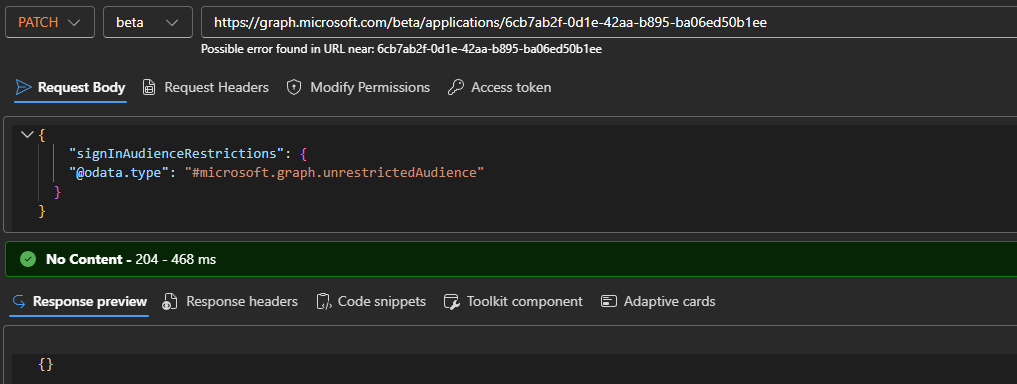
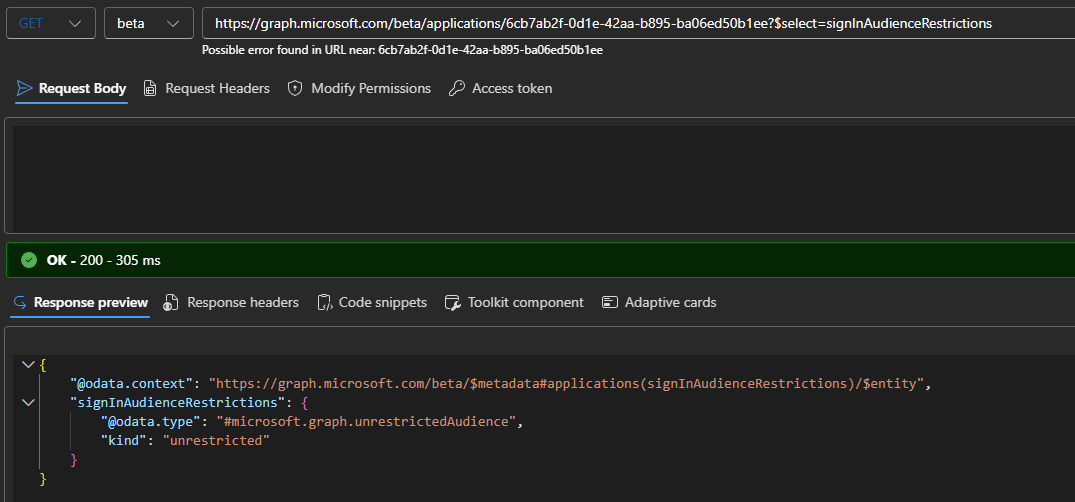
Remember that the allowedTenantsAudience value requires at least one tenant to be listed, so you cannot just “null” it as an attempt to revert the restrictions. Instead, you have to set the “kind” value to unrestrictedAudience. At this point some of you might be getting a bit agitated as to what the heck this kind property I mentioned above is. Issuing a GET request with $select=signInAudienceRestrictions gives you the answer:
I’m sure it could have been handled better, but please don’t blame the messenger 🙂
/// UPDATE: Microsoft just updated the documentation to mention that the allowedTenantIds property has a limit of 20 values. Which all sounds kinda limiting to me…
1 thought on “Control which tenants can access your Entra ID integrated applications”