Delegate management remains one of Outlook’s most important features, and not only for the “assistant to the CEO” type of scenario. Which makes one wonder as to why has Microsoft neglected delegation when releasing the Outlook REST APIs and the new Outlook client. Even the recently announced “replacement” methods that were supposed to address few of the EWS-related gaps fail to bring parity to the Graph API, when it comes to delegate management. Granted, Microsoft did publish an update to the set of PowerShell cmdlets that allows admins to perform (most of the) actions on behalf of end user. And we do get a new Calendar delegation experience in OWA. But no parity with that Outlook and EWS have supported for decade now.
Introduction and prerequisites
So, meet our new tool – a WinForms-based PowerShell script that allows you to view and set delegation permissions, both as an admin and as an end user, all while leveraging an interface that matches the Outlook experience. In this initial release, the focus was on providing parity with Outlook, keeping things as close to the original implementation as possible. Only a minor new addition can be seen when compared to the built-in tool, namely the ability to delegate management of categories. We’ll talk more about new, missing and planned features later on.
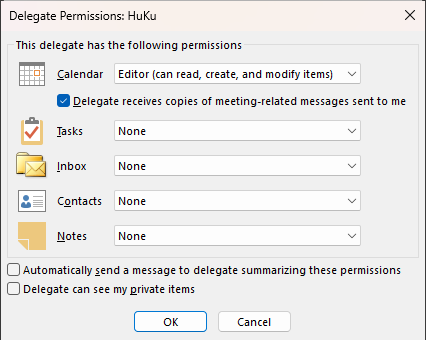
For now, let us go over a quick introduction of the tool. Behind the pretty facade (shown on the screenshot below next to the built-in Outlook one), the tool is using the ExO PowerShell module and specifically the set of *-MailboxFolderPermission (and few other) cmdlets for the bulk of the implemented logic. As to why, the answer is simple: the “replacement” APIs are a wrapper for those same cmdlets and offer nothing more in terms of functionality. Plus, by leveraging the existing cmdlets we can also ensure that the tool can be run by both users with admin access and “regular” users managing their own delegates (with some caveats, discussed later on).

Which naturally brings us to the prerequisites. Apart from the Exchange Online module (preferably version 3.9.0+, but 3.7.2 at minimum), the PowerShell host must be running version 7.1+ or above due to some code gimmicks. In all honesty, there is no obstacle to creating a version of the tool that runs on Windows PowerShell, but progress requires some sacrifice. Anyway, in terms of permissions, the user running the tool must be able to run the set of *-MailboxFolderPermission cmdlets, which by default is available to anyone with the Mail Recipient Creation role. In addition the tool will use the Get-ExORecipient and Get-MailboxFolderStatistics cmdlets, available to practically anyone with an admin role.
More interesting is the end user scenario, i.e. being able to run the tool to manage your own delegates. This is made possible due to the fact that the *-MailboxFolderPermission cmdlets are included by default in the MyBaseOptions role, part of the Default Role Assignment Policy. End users can after all add or remove permissions to folders in their own mailbox, this is not something unexpected. Same applies to the Get-Recipient cmdlet and its sibling, Get-ExORecipient. One issue we need to address is the lack of access to the Get-MailboxFolderStatistics cmdlet, but luckily, the MyBaseOptions role features the Get-MailboxFolder cmdlet, which we can use instead.
As to why we need said cmdlets, the answer is localization. While EWS’s GetDelegates() method returns the permissions for the set of default folders it supports, no replacement method is readily available. Not only we need to query the permissions on each folder individually, we need to actually know the folder name, which in turn depends on the localization settings for the mailbox. Annoying, but doable, both for “admin” and “end user” scenarios.
Lastly, since the tool relies on the Exchange Online cmdlets, you can use the standard controls to block end user access to it.
Some implementation details
As we started talking about some of the implementation details, let’s do a tour of the code. The first thing the script does is to establish a connection to Exchange Online. It tries to determine whether it was run as an admin or an end user and leverages the corresponding cmdlets later on. A simple validation is performed against the Owner and Delegate input values, both of which must correspond to a valid user mailbox (shared and resource mailboxes are also allowed for the Owner value). Valid input is any identifier that uniquely designates the mailbox.
The script will then try to determine what permissions, if any, the given Delegate has. As mentioned above, this requires us to iterate over each of the “standard” folders for the specified Owner (Calendar, Inbox, Contacts, Tasks and Notes). As said folders can use localized names, we can’t hardcode their values. We leverage either the Get-MailboxFolderPermission or the Get-MailboxFolder cmdlet depending on what’s available in the current session. In scenarios where neither of the cmdlets is available, but we can still leverage the *-MailboxFolderPermission cmdlets to make permission changes, a “fallback” can be used… but we cannot guarantee the tool will work as expected then.
Once permissions are retrieved, we are ready to surface the form. As you can imagine, a big chunk of the code handles all the controls and events related to the form, making sure that all scenarios are accounted for. For example, the “Delegate can see my private items” checkbox must only be selectable when the user in question is already a delegate, or we are adding him as such. As a reminder, “delegate” is a person with Editor permissions on the Calendar folder and has the “Delegate receives copies of meeting-related messages sent to me” flag toggled.
Lastly, we need to handle actual changes to delegate permissions, by means of the Apply-PermissionChanges function. This is essentially a wrapper to call the Add-, Set– and/or Remove-MailboxFolderPermission cmdlet as needed, along with the set of parameters corresponding to the selection we made in the form. The tool logic along with the server-side validation for the cmdlets ensures that only supported configuration changes can be made. With one notable exception, which we talked about in our recent article, which can cause issues with clearing (or incorrectly displaying) the “delegate” flag.
Some of you are probably aware that delegation also includes Send on behalf of permissions and might be wondering why we haven’t mentioned the Set-Mailbox cmdlet yet. After all, said cmdlet is the only way to manage Send on behalf of in ExO? It’s not in fact the only way, as toggling the SharingPermissionFlags flag’s Delegate value does have the side effect of adding (or removing) Send on behalf of permissions, in agreement with the delegation protocol‘s guidance.
How to run the tool
After downloading the tool from GitHub, you can run it by providing a value for the mailbox and delegate identities. In this initial version, there is no way to retrieve all delegates currently configured on a given mailbox, you can only invoke it with a given mailbox/delegate pair. In future versions, we will likely replicate the Outlook experience on that front as well, albeit no alternative currently exists to manage the MeetingRequestsDeliveryScope setting.
For now, you need to specify the identity of the mailbox for which you want to manage delegates via the -Owner parameter, as well as the identity of the user via the -Delegate one. If you don’t want the tool to make any changes, you can leverage the -ReadOnly switch. Here’s a summary of the available parameters:
- Owner – specify the identity of the mailbox for which to retrieve/manage delegates. Any valid identifier for a user, shared or resource mailbox is accepted. You can also reference this parameter as its alias, Manager.
- Delegate – specify the identity of the user (mailbox) representing the delegate. Any valid identifier for a user mailbox is accepted.
- ReadOnly – specify whether the tool runs in a read-only mode, or commits changes (default). Works much like a -WhatIf switch, but with lazier implementation. It will also disable the OK button on the form, just in case.
- Verbose – use this switch to force the tool to output additional information as it processes the request.
Here are some examples on how to run the tool:
#Manage delegation for delegate@domain.com on mailbox user@domain.com
. .\FORM_Delegate.ps1 -Owner user@domain.com -Delegate delegate@domain.com

#You can also designate mailboxes by name/alias
. .\FORM_Delegate.ps1 -Owner gosho -Delegate vasil

#Use the -ReadOnly switch to prevent changes
. .\FORM_Delegate.ps1 -Owner gosho -Delegate vasil -ReadOnly

As shown in the examples above, you can use any valid identifier to designate either the Owner or Delegate. That said, when running the script as an end user, make sure to provide the UPN as the Owner value, as the script will halt otherwise.
Future improvements
With this first release of the tool, we aimed to provide a parity with the Outlook experience, while at the same time bringing few improvements. There is no dependance on the Outlook client, or the EWS DLLs for that matter. At the same time, you’re able to manage delegation settings on behalf of users, all from the familiar interface, and while not having to play with any of the PowerShell cmdlets. An added bonus, we even included support for the undocumented CanManageCategories flag via the Delegate can manage categories checkbox.
That said, there are numerous other improvements that can be made to the tool. First and foremost, being able to see all the delegates for a given user. Outlook’s implementation relies on additional dialog for this, which can easily be replicated and in fact we already gave a working version of it. The issue is that the PowerShell cmdlets we rely on do not support working with the MeetingRequestsDeliveryScope setting currently and we have no idea whether this will change in the near future.
Aside from delegate scenarios, which mostly revolve around Calendar-ing, the tool can be improved with more robust folder-level permissions support. Exposing all the default and user-created folders instead of just the five currently supported ones, support for recursive permissions for subfolders, support for custom permission levels, and more. On the other hand, no one probably cares about the Notes folder nowadays, so removing the relevant controls and logic might be considered logical.
The tool can also be improved to handle other recipient types, as even Group mailboxes support folder-level permissions, but not proper delegation. In terms of output, it follows the cmdlet logic, meaning that only “add” scenarios will generate output. Adding some more robust output/logging capabilities is another potential improvement to consider for future releases.
Summary
In summary, we are presenting you with a free UI-based tool to manage user’s delegate settings. The tool leverages the (soon to be only supported method) set of *-MailboxFolderPermission PowerShell cmdlets and has no dependencies outside of the Exchange Online PowerShell module. It performs better than Outlook, has more robust implementation than OWA and can be used by both admins and end user alike. More importantly, unlike EWS-based tools, it requires no impersonation for use, thus alleviating some security-related concerns.
As always, feel free to improve the tool as you see fit, or provide us with your feedback in terms of its features.
First of all, thank you for the great article and for sharing the tool!
Am I understanding the tool correctly that the Outlook option “Delegate receives copies of meeting-related messages sent to me” is effectively evaluated based on the Calendar folder permission: AccessRights = Editor and ‘SharingPermissionFlags contains Delegate*’?
When I configure a delegate via EWS with ReceiveCopiesOfMeetingMessages = false, I still see Editor access rights and SharingPermissionFlags = Delegate when reading the permissions via PowerShell.
The tool is aligned with the PowerShell (and the “admin API”) delegate experience, so in effect, there is a bit of disconnect with EWS indeed. I also prefer the EWS way, but as it’s close to deprecation now, I figured it makes no sense to stick to it for the tool.
In fact, the difference in what “delegate” means also causes some display issues with the cmdlets and even OWA, as I detailed in https://michev.info/blog/post/7232/unable-to-reset-the-sharingpermissionflags-flag-when-using-set-mailboxfolderpermission