Microsoft introduced the feature to save items sent on behalf of/sent as shared (and later user) mailboxes over a decade ago. We’ve covered in several more times after the initial release, most recently due to a bug which caused sent items to be copied to all members of a Distribution group, when forwarding to said group was in play. But it looks like the feature still has some surprises in store, even after all this time.
Q&A thread raises some quetions
A recent question over at Q&A provoked some further investigation. The user had configured a user mailbox with both Send As and Full Access permissions, along with the MessageCopyForSentAsEnabled flag. When sending messages via the “standard” method, everything worked as expected, with a copy of the message stored in both the delegate’s and delegator’s Sent Items folder. However, when the mailbox was accessed in “direct” mode, either by leveraging the open another mailbox functionality in OWA or adding it as additional account in Outlook, the sent message was saved only in the delegator’s (own) mailbox.
Two things need to be clarified here. First, this functionality has been supported for user mailboxes for a while now, so there should be no difference with the “shared mailbox” scenario. Apart from the fact that it is certainly easier to understand when we talk about shared mailboxes instead of “delegator’s” one. The second point is that the feature was designed to ensure that sent messages are copied to the “delegator’s” (shared) mailbox and doesn’t affect whether they are stored within the sender’s mailbox. Which is what the goal was in this particular scenario.
Incidentally, I was also under the impression that toggling the flag should indeed result in storing a copy of sent messages in both mailboxes, or was just having a senior moment remembering how the feature is supposed to work. For a sanity check, I probed the Exchange MVP DL, and quickly got a response that confirmed what the expected behavior is, as well as a promise to clarify this in the official documentation to avoid further confusion.
So, we got an answer. Toggling the MessageCopyForSentAsEnabled/MessageCopyForSendOnBehalfEnabled flag does not result in storing a copy of sent messages in both mailboxes, it only ensures that the delegator’s one gets the copy. As for the delegate’s mailbox, as in the user doing the actual sending, the behavior depends on the client. In other words, a copy might or might not be stored within his Sent Items, depending on how we are doing the sending part. Let’s expand on this.
In fact, we have already discussed at length how “classic” Outlook behaves when multiple accounts and delegate permissions are at play. While things have changed a bit with the advent of the new Outlook and the modern OWA version, the following rule still applies – a copy of the sent message will be saved in the delegate’s mailbox, unless the operation is performed while accessing the shared (delegator’s) mailbox in “direct” mode. The latter scenario is only possible when the delegate is granted Full Access permissions in addition to Send As/Send on behalf of one and is accessing the mailbox as additional account in Outlook, or via the Open another mailbox functionality in OWA.
The easy way to illustrate this difference in behavior is to leverage the good old “classic” Outlook and the Send using dialog. When you have the delegator’s mailbox added as full-fledged account in Outlook, the corresponding account is available for selection under the Send using dialog, and indeed its value is leveraged by default. You can however override this behavior to use the delegate’s account instead by hitting the From dropdown > Other email address…, then selecting it under Send using, as illustrated below:
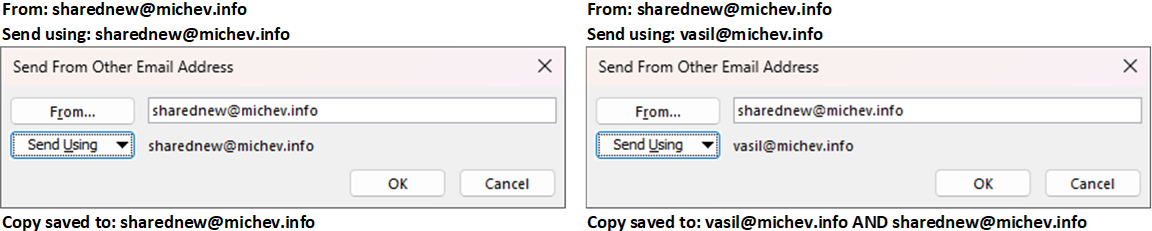
Effectively, the Send using value determines where the copy of the sent message will be stored. If the selected value matches that of the From field, which in our case is the delegator’s (shared) mailbox, a copy will only be saved in its own mailbox. If the Send using value matches the delegate’s account, the sent message will be stored within the delegate’s Sent Items folder, and subsequently copied to the delegator’s (shared) mailbox one, if MessageCopyForSentAsEnabled is toggled.
For the scenario we described in the beginning, leveraging the Send using feature might be an appropriate workaround, even though it involves some additional clicks. However, keep in mind that the Send using feature is only available when multiple accounts are configured in Outlook, so this is not a solution for scenarios where you want a standalone profile with only the delegator’s mailbox added as additional account. In addition, neither the New Outlook client nor OWA expose Send using as a feature. Which is sad, because the feature does have its uses. If nothing else, it does help to illustrate the root cause behind this behavior!
If you are accessing the delegator’s mailbox in non-direct mode, by having it added as additional mailbox in Outlook, via the automapping functionality or not accessing it at all, the Send using value is effectively set to the delegate’s mailbox, thus you will always see the sent message preserved in the delegate’s Sent Items folder. Depending on whether the relevant flags have been toggled, the message will be copied to the delegator’s (shared) mailbox afterwards.
Audit trail
It’s also important to know what data can be obtained from sources such as the Unified Audit Log or Message trace. This can help determine how the message was sent, and whether a copy of it was saved, in scenarios where you might not have direct access to the users (or mailboxes) involved.
Let’s start with the audit log. We can look at the SensAs operation:
#Fetch SendAs events for the past 10 days
$logs = Search-UnifiedAuditLog -StartDate (Get-Date).AddDays(-10) -EndDate (Get-Date).AddDays(1) -Operations SendAs

#Get the relevant properties out of AuditData
$logs.AuditData | ConvertFrom-Json | select CreationTime,Operation,*MailboxGuid,MailboxOwnerUPN,SendAsUserSmtp,@{n="Item";e={$_.Item.Subject}},SaveToSentItems
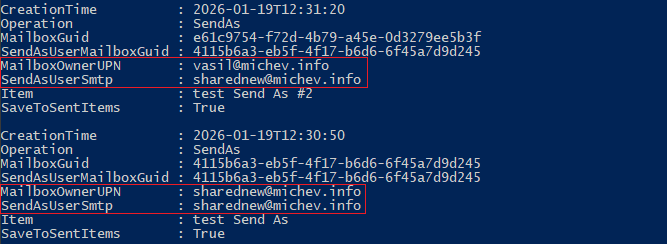
Note the difference between the values in the above example. Therein, MailboxGuid and MailboxOwnerUPN designate the delegate, whereas SendAsUserMailboxGuid and SendAsUserSmtp give us the delegator’s mailbox. If we correlate the values with what we learned above, we know that in the first example the message was “sent using” the delegate mailbox, whereas in the second one, the delegator’s one was used, perhaps in “direct” mode. The SaveToSentItems value is True in both scenarios, telling us that we should be able to find a copy of the sent message within the delegator’s (shared) mailbox. But only the first scenario will result in the copy being present in the delegate’s Sent Items.
Another useful application of the audit log is to look up any Create events. N0w, the documentation clearly states that such events are NOT generated for sending messages. However, creating a copy of the sent item does not fall in this category, thus you can expect to find such events in the UAL. As they can be mixed along “regular” create events though, you might want to apply additional filters to limit the number of entries retrieved:
#Fetch all Create events for the shared (delegator's) mailbox
Search-UnifiedAuditLog -StartDate (Get-Date).AddDays(-1) -EndDate (Get-Date).AddDays(1) -Operations Create -UserIds sharednew@michev.info
 One interesting observation from the above example, and any similar records for that matter, is the presence of an first-party (Microsoft) application with id of 51a0d90a-2243-4935-ad59-efc78b7197ee. No mentions of said app are to be found in the publicly available documentation, but based on the audit log evidence, we can make an educated guess to its involvement in the “save to Sent Items” feature. And, we can leverage its value to fetch only events relevant to our discussion:
#Fetch all events referencing 51a0d90a-2243-4935-ad59-efc78b7197ee
Search-UnifiedAuditLog -StartDate (Get-Date).AddDays(-10) -EndDate (Get-Date).AddDays(1) -FreeText 51a0d90a-2243-4935-ad59-efc78b7197ee

Now, since said object is not exposed in any admin interface, we cannot even be sure whether the referenced ID is that of the application (clientID) or the service principal (the representation of the app within the local tenant). All entries also contain a HostAppId value of c999ed3e-27ae-4cb3-b3a2-46b056af63d3, which is more likely to represent the “parent” app, given the fact that Glen mentions it in one of his articles. Either way, one of those two values should be helpful as filter.
In addition to the audit log events, message trace can also expose details relevant to our discussion. For best results, you will need to leverage the extended report. Therein, look for the SUBMIT event, and the custom_data field. Here’s an example:

The data contained within said field informs us that a copy of the sent message was stored within the delegator’s mailbox, as well as the purported sender address. Additional data you can obtain from the message trace includes the return_path and a list of agents that acted on the message, part of the message_info blob (you will find a mention of the Shared Mailbox Sent Item Agent therein).