Two years ago a simple question from Q&A prompted me to create a “proof of concept” script to export all the BitLocker keys backed up to Entra ID. The script is based on the Graph SDK for PowerShell and can also be run to generate a device-centric report, with any associated BitLocker recovery key listed next to the device object.
One of the things that always bothered me in this sample script, and many similar code samples found online, is the fact that the BitLocker keys are presented in plain text. Not exactly a secure approach. So I finally got to update the script to handle it better, using SecureString objects instead. And made few other improvements in the meantime. Let’s dig in.
First of all, get your copy of the “V2” version of the script from my GitHub repo. As the script uses delegate permissions, you need to run it with an admin user, see the official documentation for the list of supported roles. You will also need Graph API permissions, as follows:
- BitLockerKey.Read.All – needed to read the BitLocker recovery keys
- Device.Read.All – optional, needed to read device info, should you want additional properties added to the output
- User.ReadBasic.All – needed to “resolve” the owner of the device, should you want it added to the output
The script will try to detect whether it is being run with the required permissions, but the check is not smart enough to detect scenarios where you have “broader” scopes already added, i.e. Directory.Read.All. Feel free to update the relevant code as you see fit (lines 178-191). Similarly, if you want to run the script unattended, via application permissions, update line 195 to use the relevant parameters.
One scenario that the previous version of the script did not handle is when the device object has been added to a Restricted Management Administrative Unit (RMAU). For such devices the BitLocker recovery key is only exposed to users with scoped permissions to the RMAU in question, regardless of any tenant-wide role assignments. While the script still cannot fetch any such key, it will handle RMAU-restricted objects more gracefully.
Once an access token with the required permissions is successfully obtained, the script will fetch all the BitLocker keys found in your Entra ID tenant. To fetch the actual recovery key value, it will then iterate over each key entry found. While in theory the Graph SDK for PowerShell should handle throttling, you might run into issues at that point if you have thousands of keys backed up. To help alleviate some of the throttling-related issues, a small delay is introduced (line 297). Feel free to update it to a more suitable value, or better throttling control.
The only other Graph API call the script makes is to fetch all device objects, which only happens when you run it with one of the corresponding parameters. Speaking of which, here’s the full set of parameters supported by this version of the script:
- IncludeDeviceInfo – optional, use it to retrieve device details. Requires Device.Read.All permissions.
- IncludeDeviceOwner – optional, use it to retrieve device owner’s UPN. Requires User.ReadBasic.All permissions.
- DeviceReport – optional, switches the output formatting to device-centric report. Requires all the aforementioned permissions.
- AllowInsecureOutput – optional, generates plain text output in addition to the secure XML one (see below).
- InputFile – used to “unscramble” the secure string representation of the BitLocker recovery keys in previously generated output file (see below).
Here are some examples on how to run the script. By default (when you run it without any parameters), only minimal output will be returned. To include device details in the output, use the –IncludeDeviceInfo switch. To include the device owner’s UPN, use the –IncludeDeviceOwner switch (which automatically toggles –IncludeDeviceInfo as well). And should you want to dump (mostly) all device details and produce a device-centric report, use the –DeviceReport switch.
#Get list of BitLocker recovery keys and their values
.\GraphSDK_Bitlocker_reportV2.ps1

#Include data about the device
.\GraphSDK_Bitlocker_reportV2.ps1 -IncludeDeviceInfo

#Also include data about the device's owner
.\GraphSDK_Bitlocker_reportV2.ps1 -IncludeDeviceInfo -IncludeDeviceOwner

#Generate a report of all devices, with any associated BitLocker recovery keys included
.\GraphSDK_Bitlocker_reportV2.ps1 -DeviceReport
Two new parameters have been included to handle output. By default, the script will generate a XML file, which is the native way of storing secure strings. The representation of the BitLocker recovery key stored in such manner will only be accessible to the current user and current device. But this approach creates some issues when you actually want to get the unscrambled key value. To help with that, run the script with the -InputFile parameter and point to the location of the XML file:
#Generate the report (keys are scrambled)
.\GraphSDK_Bitlocker_reportV2.ps1 -DeviceReport

#Unscramble the keys from an existing output file
.\GraphSDK_Bitlocker_reportV2.ps1 -InputFile .\2026-03-13_12-28-55_BitLockerKeys.xml
The script will take the XML file content as input and generate both CSV and HTML files with all the relevant details and the unscrambled BitLocker recovery keys. No Graph API calls are made when you run the script this way, as we are simply using the existing data and the ConvertFrom-SecureString cmdlet. Alternatively, you can dot-source the script in order to leverage the corresponding Generate-HTMLReport function.
Lastly, if you believe all of this is just unnecessary, you can use the -AllowInsecureOutput change the script’s output to an “unscrambled” format, with all generated artefacts showing the BitLocker recovery keys in plain text. This approach is good for scenarios where you plan to immediately get rid of the output files or to secure them via any other means. But don’t say I didn’t warn you about storing the BitLocker keys in plain text!
Here are some examples on how the output of the script looks like. We start with the XML file, which always has the keys in their scrambled form. Below is a sample of the “device report” output with the scrambled BitLocker recovery key highlighted, and most of the available attributes trimmed for brevity:
 Here is how the HTML report generated based on the same XML file looks like. Note the Mask BitLocker keys checkbox, toggled by default to hide the key values from prying eyes. The second screenshot is the same data with the checkbox toggled off and the key values visible.
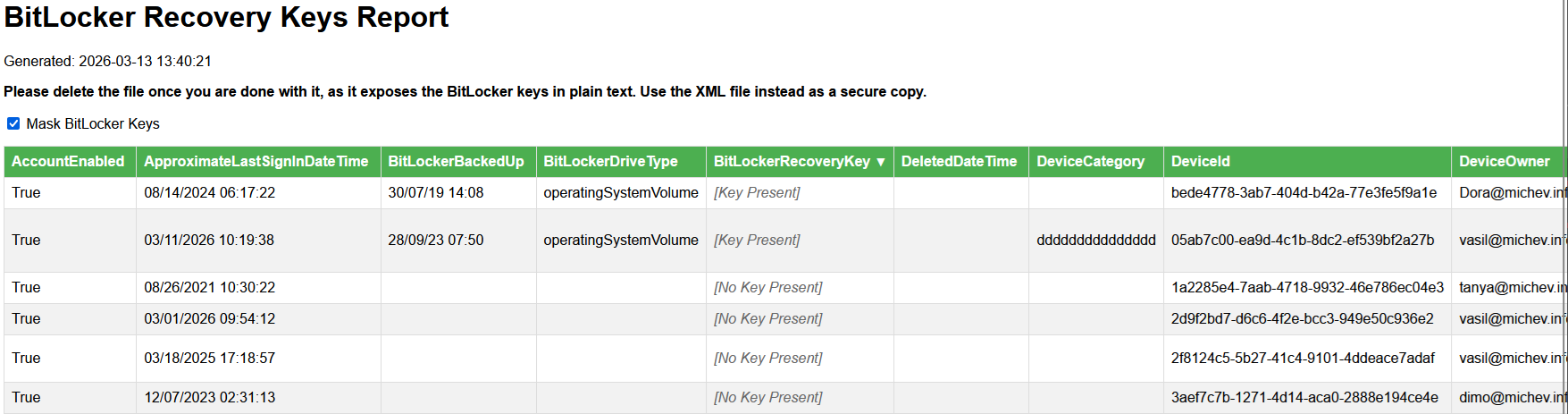
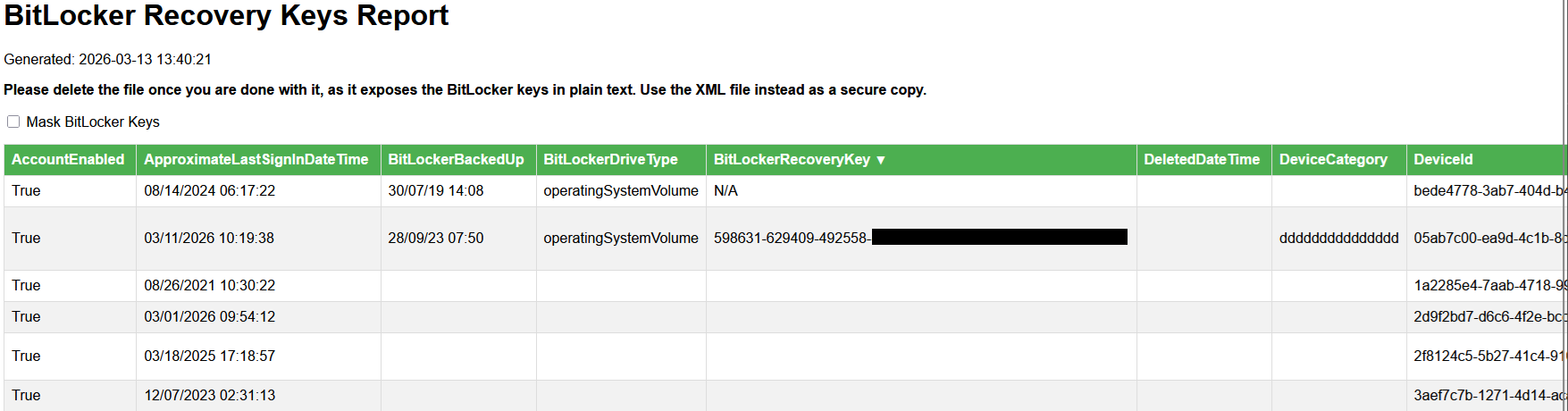
The HTML report offers some basic sorting capabilities, but it you want to manipulate the raw data in any way, best use the generated CSV file instead and process it with Excel or similar.
All the output files will be generated in the working directory. If you need to add additional properties to the output, you can insert them in between lines 253-257. For the device-centric report, all fields are already collected, but we hide some of them in the output. If you want to adjust that, edit the list of excluded properties on line 310.
And with that, we can close this article. Do let me know what you think of the new script, do you find the new security-driven approach suitable? Do you need an “raw” API version of it?
Hey there, thank you for this! It’s only giving me the domain controller’s bitlocker info. We’re in a hybrid on-premise domain controller environment server 2019 and connected to Microsoft 365 via Entra synchronization. My research is showing that I cannot get the local area network devices (pcs, laptops) bitlocker recovery codes off of Microsoft 365 Admin Center, that I must get them from the domain controller. I ran your script (beautiful), but like I said, it only gives me the domain controllers, not the pcs. I need the bitlocker recovery keys for all the pcs on the LAN. Is that even possible? Microsoft says it is, but they didn’t give me the step by step nor code how do that. I am in DIRE need.
The script only covers devices that are synced to Entra ID, it is not appropriate for on-premises scenarios.