Lately, we’ve talked a lot about directory settings in Entra ID/Microsoft 365. While they remain one of the more obscure bits of code within the suite, they allow us to control few important configurations, such as guest access to Microsoft 365 Groups. Therefore, it is important to understand how to manage them, and we even went as far as providing a free UI tool to simplify the process.
One of the reasons we’ve been focusing on directory settings was an ongoing private preview, or in other words knowing that Microsoft is planning to introduce some new functionality also controlled via directory setting templates and their associated setting objects. Said functionality includes support for Purview “container” labels for Entra ID Security groups, and support for controlling guest membership for security groups via directory settings. Which is what we will cover in this article!
Directory settings for Security groups
Two new directory setting templates have been introduced to support new security group functionalities, mirroring the set of templates for Microsoft 365 Groups. Those include the tenant-wide Group.Security template (with ID value of d209f6fa-3839-4d70-b83f-60b1c64d0e8f), as well as the object-specific Group.Security.Policies one (with ID value of 7e0abea2-5c20-405f-9658-bfc9a523fd49). Here’s how to get them:
Get-MgGroupSettingTemplateGroupSettingTemplate | ? {$_.DisplayName -like "Group.Security*"} | select *

Description          :
                               Setting templates define the different settings that can be used for the associated ObjectSettings. This template defines
                               settings that can be used for Cloud Security Groups tenant-wide.

DisplayName          : Group.Security
Id                   : d209f6fa-3839-4d70-b83f-60b1c64d0e8f
Values               : {AllowToAddGuests, EnableMIPLabels}

Description          :
                               Setting templates define the different settings that can be used for the associated ObjectSettings. This template defines
                               settings that can be used for Cloud Security Groups at a group level.

DisplayName          : Group.Security.Policies
Id                   : 7e0abea2-5c20-405f-9658-bfc9a523fd49
Values               : {AllowToAddGuests}
As you might have noticed from the output above, the set of settings exposed within the newly introduced templates is rather limited, especially when compared to the relevant set of settings for Microsoft 365 Groups. In fact, only two of the control we are accustomed with are available: AllowToAddGuests, which is a boolean indicating whether Guests are allowed to join; and EnableMIPLabels, indicating whether support for Purview labels is enabled for security groups (also a boolean).
The EnableMIPLabels setting is available only on the tenant-wide template and controls whether Purview container labels can be used with Entra ID security groups globally. On the other hand, AllowToAddGuests, which controls whether guests can be added to a security group, can be toggled either globally, or on a per-group basis. The output below shows the built-in descriptions for both settings:
DefaultValue Description                                                                                               Name             Type
------------ -----------                                                                                               ----             ----
true         Flag indicating if guests are allowed in any Cloud Security Group.                                        AllowToAddGuests System.Boolean
false        Flag indicating whether Microsoft Information Protection labels can be assigned to Cloud Security Groups. EnableMIPLabels  System.Boolean
Before we dig deeper, it is important to understand that guest access for Security groups can be controlled both by assigning a group-specific settings object (covered in the next section) as well as by assigning a Purview “container” label (covered later on). You do not need to use both methods! Labels might be the preferred solution, as they build on existing integrations and offer a (somewhat limited) UI support, but you can as well restrict Guest access by assigning a group-specific setting object. I cannot resist adding another shill for our UI tool to manage group settings!
Control Guest access for Security groups
To configure directory settings for security groups via directory settings, we will follow the standard procedure: instantiate a new directory setting object based on the group-specific template, configure the desired AllowToAddGuests setting value, then commit the changes. We can use the Graph SDK for PowerShell cmdlets or the Graph API methods for this task. The permissions needed are GroupSettings.ReadWrite.All, plus appropriate directory role if using the delegate permissions model. As a reminder, the task is made much easier by using our free tool 🙂
The examples below show how you can configure the tenant-wide Guest access settings object for Security groups:
Connect-MgGraph -Scopes "GroupSettings.ReadWrite.All"

#Verify whether a settings object already exist
$res = Get-MgGroupSetting | ? {$_.TemplateId -eq "d209f6fa-3839-4d70-b83f-60b1c64d0e8f"}

#Update the settings object if it exists
if ($res) { Update-MgGroupSetting -GroupSettingId $res.Id -Values (@{'name'='AllowToAddGuests';'value'='false'}) }

#Or create a new object
New-MgGroupSetting -TemplateId d209f6fa-3839-4d70-b83f-60b1c64d0e8f -Values (@{'name'='AllowToAddGuests';'value'='false'})
Guest access can also be controlled on a per-group basis, via the Group.Security.Policies template. You can configure the tenant-wide setting to disable Guest access, while toggling it on for specific Security groups, by means of creating a settings object and assigning it to the group in question. Here’s how:
Connect-MgGraph -Scopes "GroupSettings.ReadWrite.All"

#Create a new setting object using the Group.Security.Policies template
New-MgGroupSetting -TemplateId 7e0abea2-5c20-405f-9658-bfc9a523fd49 -GroupId xxxxxxxx-xxxx-xxxx-xxxx-xxxxxxxxxxxx -Values (@{'name'='AllowToAddGuests';'value'='true'})

#Update an existing setting object
$res = Get-MgGroupSetting -GroupId xxxxxxxx-xxxx-xxxx-xxxx-xxxxxxxxxxxx
if ($res) { Update-MgGroupSetting -GroupSettingId $res.Id -GroupId xxxxxxxx-xxxx-xxxx-xxxx-xxxxxxxxxxxx -Values (@{'name'='AllowToAddGuests';'value'='false'}) }
As those are group-specific settings, you must use the relevant -GroupId parameter and provide the identifier of the group. A more detailed explanation on how the process works can be found in our previous article. There is one “gotcha” you need to be aware of. If the group in question has a container label assigned already, the creation or update of the setting object might fail with the “Assigned label does not allow the group guest setting operation” error message. This is a nice segway to our next section 🙂
Sensitivity labels support for Security groups
Before we dive into the details, we need to make one thing clear. Currently, support for sensitivity labels for Security groups is limited to controlling Guest access, and the label assignment process itself is only possible via the Graph API and SDK and the Entra portal. No UI to assign labels to security groups is available within the Microsoft 365 Admin Center or the Purview portal. The process of enabling label support itself is controlled via the Group.Security directory setting template which as we know by now is also managed via the Graph API or PowerShell cmdlets only.
Enabling sensitivity label support for security groups is a tenant-wide configuration, leveraging the EnableMIPLabels setting value from the aforementioned Group.Security directory setting template. The examples below show how you can control this setting via the Graph SDK for PowerShell:
Connect-MgGraph -Scopes "GroupSettings.ReadWrite.All"

#Verify whether a settings object already exist
$res = Get-MgGroupSetting | ? {$_.TemplateId -eq "d209f6fa-3839-4d70-b83f-60b1c64d0e8f"}

#Update the settings object if it exists
if ($res) { Update-MgGroupSetting -GroupSettingId $res.Id -Values (@{'name'='EnableMIPLabels';'value'='true'}) }

#Or create a new object
New-MgGroupSetting -TemplateId d209f6fa-3839-4d70-b83f-60b1c64d0e8f -Values (@{'name'='EnableMIPLabels';'value'='true'})
It is important to note that if you haven’t previously enabled support for Purview labels, i.e. to control Microsoft 365 Groups settings, you must execute the Execute-AzureADLabelSync cmdlet to ensure labels are synced to Entra ID. And, you need to have at least one “container” label with the Groups & Sites scope enabled and External user access setting toggled. Any existing “container” label you might have used with Microsoft 365 groups will do, as Microsoft is extending them to cover the security group scenario as well. There is no way to create labels to cover only Entra ID security groups!
How to assign a sensitivity label to security groups
As mentioned above, the Entra admin portal does offer a simple UI to assign Purview labels to newly created and/or existing Entra ID security groups. To assign a label to an existing security group, open its Properties page and use the Sensitivity label dropdown control. The same control is also available when you hit the New group button to provision a new security group. On the negative, no other admin or user UI currently supports security groups labels, thus you will not be able to use the Microsoft 365 admin center or the My Groups portal for this task.
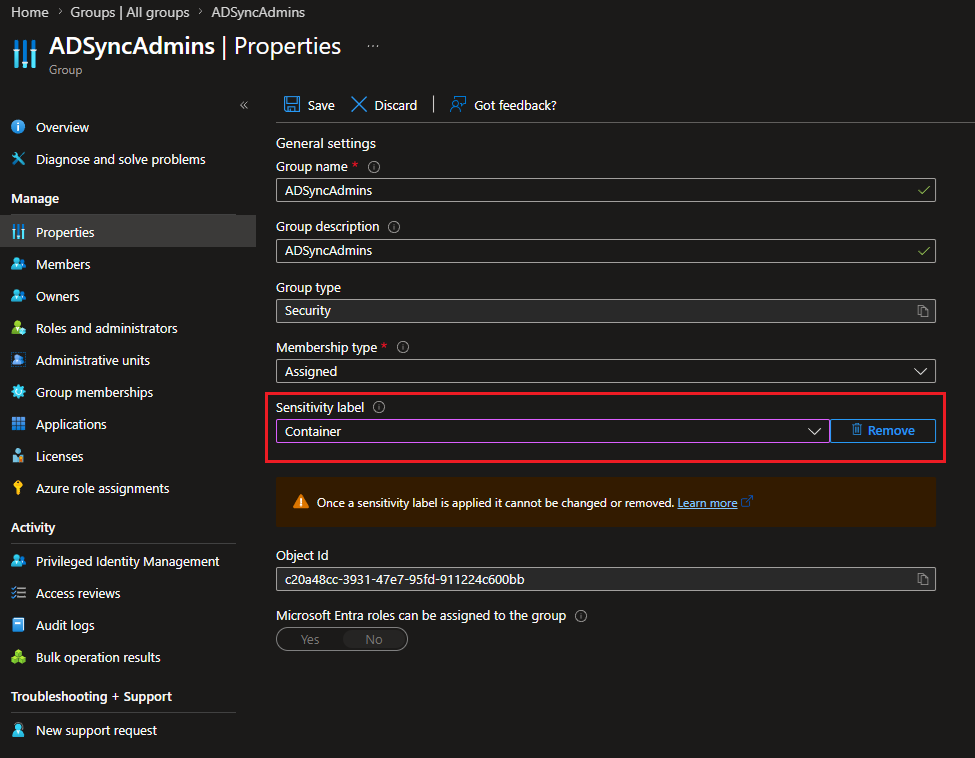
Another important thing to note is that once a label is assigned to the security group, it cannot be removed, as the note in the screenshot above alludes to. This is not a limitation of the UI – you will not be able to remove the label via PowerShell or the Graph API either. The same applies to replacing a label.
Speaking of which, here is how to assign a label via PowerShell (note that we only need the Group.ManageProtection.All scope to assign the label to existing groups!):
Connect-MgGraph -Scopes "Group.ManageProtection.All"

#Assign a label to security group
Update-MgGroup -GroupId c20a48cc-3931-47e7-95fd-911224c600bb -AssignedLabels @{labelId = "97de4155-a502-43c4-bf15-51cd8447c07e"}
And the corresponding Graph API method:
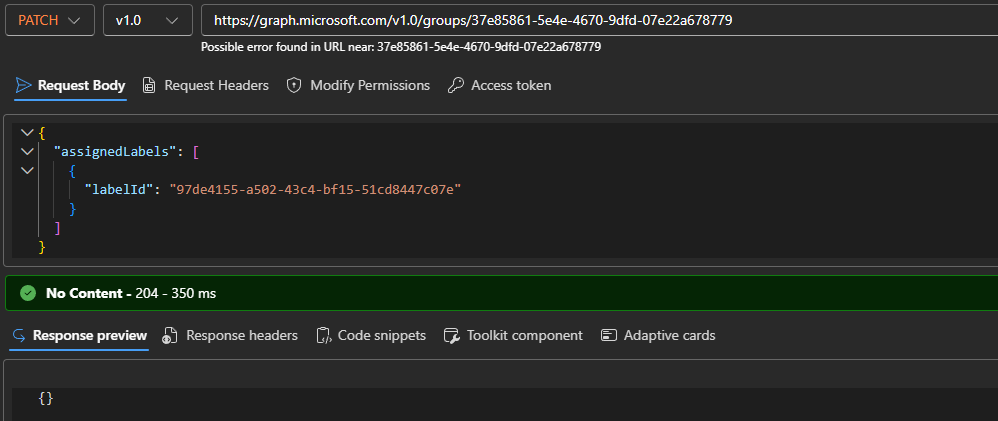
PATCH https://graph.microsoft.com/v1.0/groups/37e85861-5e4e-4670-9dfd-07e22a678779

{
  "assignedLabels": [
    {
      "labelId": "97de4155-a502-43c4-bf15-51cd8447c07e"
    }
  ]
}
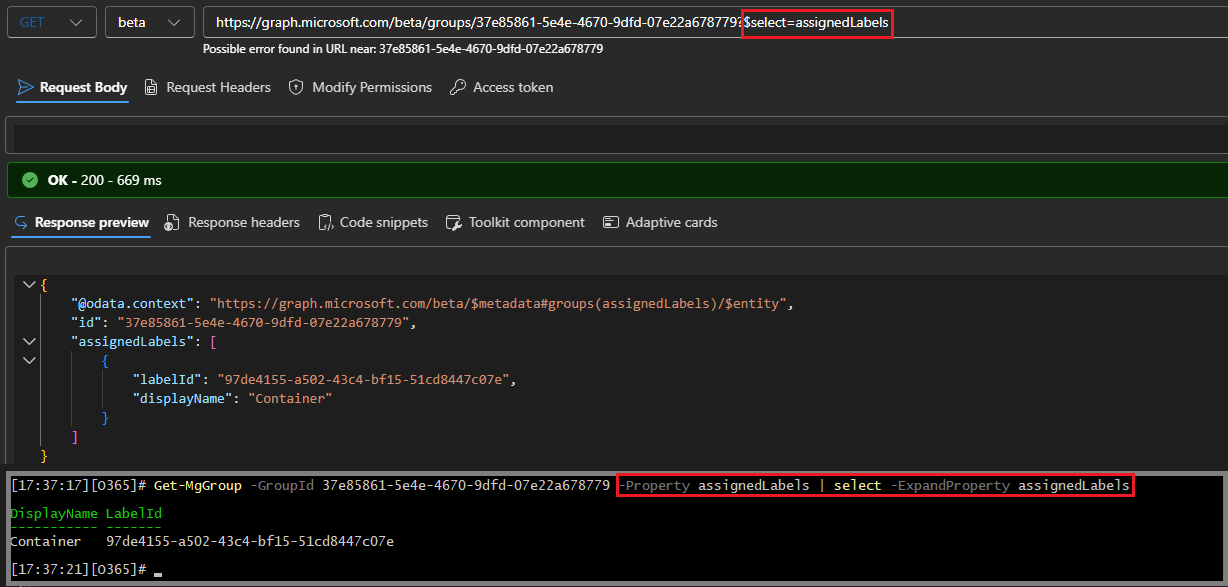
Remember that the assignedLabels property is not returned by default when using the Graph API methods in either /v1.0 or /beta, and the same applies to the corresponding PowerShell cmdlets. Therefore, if you are trying to validate the result of the label assignment operation, you must specifically request the property:
#Retrieve the assignedLabels property for a group
Get-MgGroup -GroupId 37e85861-5e4e-4670-9dfd-07e22a678779 -Property assignedLabels | select -ExpandProperty assignedLabels
GET https://graph.microsoft.com/beta/groups/37e85861-5e4e-4670-9dfd-07e22a678779?$select=assignedLabels
In our next article, we will cover how the restrictions work across the service. But before that here’s one more interesting fact – it looks like we can create Group.Security.Policies setting objects for Microsoft 365 Groups as well. Even if said group is not security-enabled!

1 thought on “Container label support and Guest access controls for Entra ID Security Groups (part 1)”