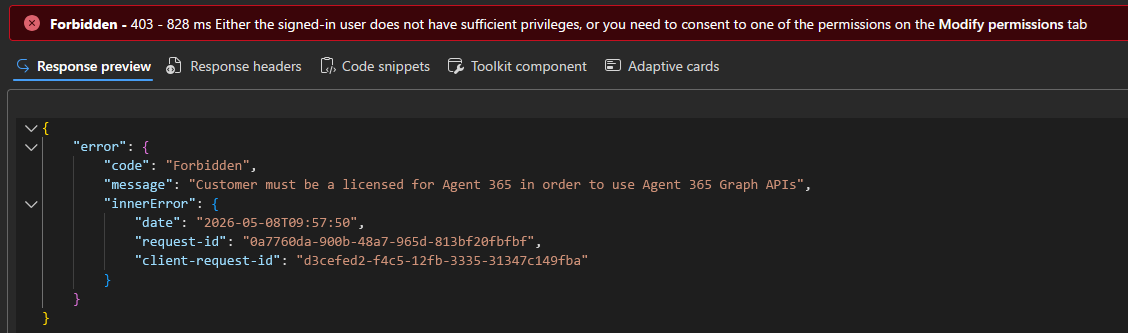
May is here, and both Microsoft 365 E7 and Agent 365 are now a fact of life. We did our initial look at the Agent 365 APIs on Graph last month, with the “GA” bringing some good news and some bad news. Under good news, we now have access to the PATCH and POST methods, allowing us to perform operations such as block or assign a given agent. The bad news is that we need an Agent 365 license in order to leverage any of the endpoints, including the GET/LIST methods. And, none of the API endpoints currently support application permissions, which is a step back from a month ago.
The lack of support for application permissions means that automation is challenging, though we can still explore some basic bulk operations via delegate permissions. The Graph SDK for PowerShell is my preference for such scenarios, though in this case it makes little difference, as neither of the available releases offer cmdlets for these new endpoints just yet. Thus, we rely on the Invoke-MgGraphRequest cmdlet instead, for any of the examples we cover below.
Bulk enable or disable agents
Given the many uncertainties surrounding AI/agents integration across organization’s Microsoft 365 estate, it is reasonable to expect some customers to outright block (some) agents. Luckily, this can now easily be done in bulk via the block method. In the example below, we leverage it to block all non-Microsoft agents (i.e. agents released by third-party vendors).
To start with we of course need an access token with sufficient permissions, namely CopilotPackages.ReadWrite.All. An admin role must also be assigned to the user you are logged in, for example the AI Administrator one. In our scenario, we leverage the SDK’s Connect-MgGraph cmdlet to handle the permission requirements:
Connect-MgGraph -Scopes CopilotPackages.ReadWrite.All
Next, we can fetch a list of all Agents (“copilot packages”):
$packages = Invoke-MgGraphRequest -Method GET -Uri "https://graph.microsoft.com/beta/copilot/admin/catalog/packages?`$filter=supportedHosts/any(x:x eq 'Copilot')" -OutputType PSObject
There are few ways we can filter: we can rely on the Publisher field, or better yet, filter by the type property and a firstParty value. Neither property seems to be supported for server-side filtering though, so we have to do things the stupid way:
#Filter third-party agents
$3p = $packages.value | ? {$_.Type -eq "thirdParty"}
Once we have the list, we can leverage the block method against each agent/package:
#Block all third-party packages
foreach ($package in ($3p | ? {!$_.isBlocked})) {
    Write-Verbose "Blocking package: $($package.Id) ($($package.DisplayName))"
    Invoke-MgGraphRequest -Method POST -Uri "https://graph.microsoft.com/beta/copilot/admin/catalog/packages/$($package.Id)/block" -Verbose:$false
}
To reverse the action and unblock all third-party agents, we can use the following:
#Unblock all third-party packages
foreach ($package in ($3p | ? {$_.isBlocked})) {
    Write-Verbose "Unblocking package: $($package.Id) ($($package.DisplayName))"
    Invoke-MgGraphRequest -Method POST -Uri "https://graph.microsoft.com/beta/copilot/admin/catalog/packages/$($package.Id)/unblock" -Verbose:$false
}
Bulk assigning/deploying agents
The second scenario we want to cover here is the process of assigning (making available) or deploying (installing) agents for a set of users, in bulk. To achieve this, we first need the set of users and the set of agents to work with, accordingly. For users, we can leverage the robust server-side filtering capabilities, which should cover most of the basic scenarios. For example, get the set of (enabled) users within a department:
$users = Get-MgUser -All -Filter "accountEnabled eq true and userType eq 'Member' and department eq 'sales'" -Property Id,DisplayName | select Id,DisplayName
We will only need the user’s Id, so the displayName property is purely optional above and only useful if you want to review the list before executing the code. You can of course adjust the filter and set of properties as needed, for example list only the users with Agent 365 license assigned.
Once the set of users is obtained, we need to prepare a JSON-formatted payload representing a packageAccessEntity object. As explained in our previous article, four properties control access to the agent. Whether the agent is available is controlled via the availableTo and allowedUsersAndGroups properties, whereas deployedTo and acquireUsersAndGroups control the deployment of agents. For example, the following code will prepare a payload for the scenario of deploying agents to the set of users we defined above:
#Set the allowedUsersAndGroups property accordingly
$hash = @{
    deployedTo = "acquiredForSome"
    acquireUsersAndGroups = @(
        foreach ($user in $users) {
            @{
                resourceType = "user"
                resourceId = $user.Id
            }
        }
    )
}
In addition, we will also need the set of agents to assign/deploy. As mentioned already, the filtering options are a bit limited, so use client-side filters for best result (or define the list manually). As above, we only need the Id of the agent, but additional data can be surfaced to help you include/exclude agents as needed. For example, her’s how to get all the agents published by a specific third-party vendor:
$packages1 = $packages.value | ? {$_.Publisher -eq "Atlassian.com"}
With that, we are ready to bulk deploy a set of agents to our list of users. The PATCH method is used for this operation, with one request per agent. As we deploy each agent to the same set of users, we can reuse the payload for each execution:
foreach ($package in $packages1) {
    Write-Verbose "Assigning package $($package.DisplayName)"
    Invoke-MgGraphRequest -Method PATCH -Uri "https://graph.microsoft.com/beta/copilot/admin/catalog/packages/$($package.Id)/" -Body ($hash | ConvertTo-Json) -Verbose:$false
}
Now, it looks like there are currently some replication issues with the Graph API when it comes to the four properties we use to control the assignment/deployment of agents. While the above requests should result in a 204 No content response, no changes in the value of said properties is observed on subsequent GET calls. In contrast, the Agent 365 UI within the M365 admin center reflects the changes just fine:

As a side note, in addition to the aforementioned 403 Forbidden error due to missing Agent 365 SKU (“Customer must be a licensed for Agent 365 in order to use Agent 365 Graph APIs”), you might run into a 405 Method Not Allowed error in scenarios where consent is needed. For example:
{
    "error": {
        "code": "UnknownError",
        "message": "{\"StatusCode\":405,\"Message\":\"Admin consent has not been granted for AAD application bdc49611-ba72-43b9-a868-652243121c10. The following permissions are missing: email, offline_access, openid, profile\"}",
        "innerError": {
            "date": "2026-05-08T09:23:43",
            "request-id": "8e23a844-11f2-4742-a1ad-c41d59d3cfaf",
            "client-request-id": "6f7e3445-e1b8-f2a6-95f7-8287c87ea871"
        }
    }
}
The Agent 365 APIs do not currently offer any way around this, so you need to use the standard Oauth2PermissionGrant methods (see for example this article), or the UI instead. On one hand, this poses challenges for automated scenarios, but on the other one, it is a convenient roadblock that might result in the need of additional approvals and thus prevent inadvertent misuse of the functionality.
The example above can easily be generalized to other scenarios. To make a set of agents available for use, instead of outright installing them, update the payload to the following:
$hash = @{
    availableTo = "allowedForSome"
    allowedUsersAndGroups = @(
        foreach ($user in $users) {
            @{
                resourceType = "user"
                resourceId = $user.Id
            }
        }
    )
}
Some other examples are summarized below:
- To make the agent available to all users, update the value of availableTo to allowedForAll.
- To deploy the agent to all users, update the value of deployedTo to acquiredForAll.
- To revert the availability status changes, update the value of availableTo to allowedForNone.
- To uninstall the agent for all users, update the value of deployedTo to acquiredForNone.
For the all/none scenarios, you do not need to provide a list of allowedUsersAndGroups.
Bulk reassign agent owner
The last scenario we want to cover is regarding bulk reassignment of the owner for a given agent. This is only relevant when a agent has been created by a user in your organization across various experiences in SharePoint, PowerApps and so on (the agent type is shared). If the user leaves the company/his account is removed, the agent is now ownerless.
To get the list of all ownerless agents, we can use the following (again no support for server-side filtering):
$packages = Invoke-MgGraphRequest -Method GET -Uri "https://graph.microsoft.com/beta/copilot/admin/catalog/packages?`$filter=supportedHosts/any(x:x eq 'Copilot')" -OutputType PSObject
$OwnerlessPackages = $packages.value | ? {$_.type -eq 'shared' -and !$_.OwnerId}
You might also have some agents with “null” ownerId value of 00000000-0000-0000-0000-000000000000, feel free to adjust the filter above to include those as well.
To assign a new owner, leverage the reassign method, that is a POST request against the /packages/{id}/reassign endpoint. A JSON payload designating the new owner must be provided. Only a single owner is supported per agent, and no groups are allowed. Here’s an example request:
#Assigning owner to ownerless packages
foreach ($package in $OwnerlessPackages) {
    Write-Verbose "Assigning owner to package $($package.DisplayName)"
    Invoke-MgGraphRequest -Method POST -Uri "https://graph.microsoft.com/beta/copilot/admin/catalog/packages/$($package.Id)/reassign" -Body (@{userId = "xxxxxxxx-xxxx-xxxx-xxxx-xxxxxxxxxxxx"} | ConvertTo-Json) -Verbose:$false -ContentType "application/json"
}
Successful execution should be signaled by a 204 No Content response, though the process seems to fail for me in both the API and the UI… so don’t hold your breath on this one for now 🙂
And with that, we can close off the current article. Once Microsoft rolls out support for application permissions, we can circle back to the Agent API and examine some more robust solutions, suitable for automation.
1 thought on “Primer: bulk actions with the Agent 365 API”