Developers just love identifiers. The only thing they love more is their own flavor of an identifier, I suppose it makes them all feel special. Which is all fine and dandy, until you are forced to navigate the maze yourself. As is the case of Exchange, where we have to deal with several types of identifiers depending on the task at hand, a job not helped by the lack of proper (or any) documentation, deprecations without addressing parity issues, and so on.
We have talked about this previously, for example in this article. At that time, EWS deprecation was yet to be announced, so the new Graph-based translateExchangeIds method was just a novelty to cover. With the impending doom of EWS however, and with no expectations to see support for converting storeId values via the Graph, now is a good time to revisit the topic, and provide some additional details/methods that might help you going forward.
Keep in mind the discussion in this article is focused on folder identifiers only, as the use cases we examine revolve around a typical “admin” (or IT Pro) experience, where PowerShell is the main tool. In other words, we start with the storeId values, as obtained via Get-ExOMailboxFolderStatistics or equivalent cmdlets (Get-MailboxFolderStatistics or Get-MailboxFolder). The storeId is then converted to entryId, which is what MAPI clients use. The entryId is in turn supported by the Graph’s translateExchangeIds method, allowing us to obtain the RestId, which is what the “Outlook” Graph APIs use. Similar steps can be followed for items instead of folders, should the need arise.
As an example, let’s say we want to work with specific folder in my mailbox. The Get-ExOMailboxFolderStatistics cmdlet can give us the starting point, the folder’s storeId value, via the FolderId property:
Get-ExOMailboxFolderStatistics vasil | ? {$_.Name -eq "Xbox"} | select Name,FolderId

Name FolderId
---- --------
Xbox LgAAAAChKSJAhlnUTIHtKSso30ThAQBIPfDMxyP/RYhY8M8xmAPVAAS8XYoAAAAB
One practical use of the StoreId value is for eDiscovery/Content searches via the so-called targeted collections feature. For some reason, Microsoft seems to have scrapped the corresponding documentation, so you can refer to my previous article on the subject, or Tony’s version here. TL;DR – you can use the KeyQL’s folderId keyword to scope the operation to cover only a specific folder (or set of folders, with exclusions also supported). To do that, you’d first need to convert the storeId value, as obtained above, to the expected format. Here’s a sample code to do that:
$folderId = [Convert]::FromBase64String($folderId)

$encoding = [System.Text.Encoding]::GetEncoding("us-ascii")
$nibbler = $encoding.GetBytes("0123456789ABCDEF")

$indexIdBytes = New-Object byte[] 48; $indexIdIdx = 0
$folderId | select -skip 23 -first 24 | % { $indexIdBytes[$indexIdIdx++] = $nibbler[$_ -shr 4]; $indexIdBytes[$indexIdIdx++] = $nibbler[$_ -band 0x0F] }

return $encoding.GetString($indexIdBytes)
In our example, the Xbox folder’s storeId value is transformed as follows:
#storeId
LgAAAAChKSJAhlnUTIHtKSso30ThAQBIPfDMxyP/RYhY8M8xmAPVAAS8XYoAAAAB

#eDiscovery folderId
483DF0CCC723FF458858F0CF319803D50004BC5D8A000000
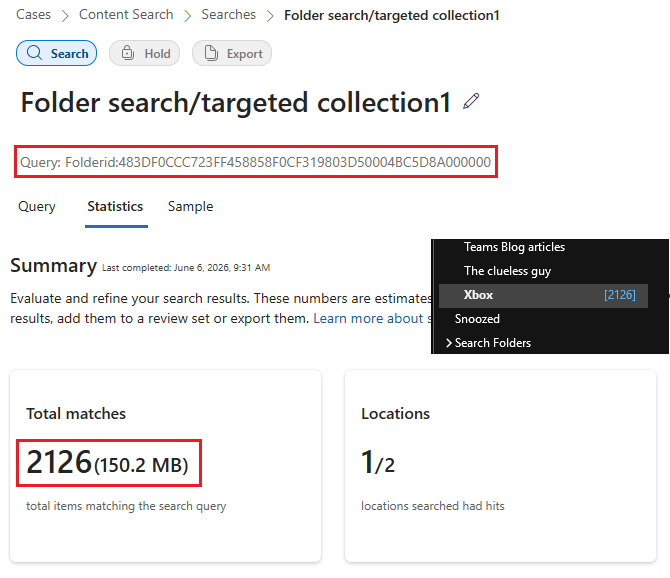
We can now use this value to run scoped eDiscovery search against only the Xbox folder. As illustrated on the screenshot, the results returned by the query match the number of items currently residing in said folder, as reported by Outlook.
Apart from eDiscovery, you might need the identifier in order to perform various operations via the cmdlets from the Graph SDK for PowerShell or the corresponding Graph API methods. While you can use the well-known values for default folders, i.e. Inbox or RecoverableItemsDeletions, working with user-created folders requires yet another type of identifier – RestId. Unfortunately, the translateExchangeIds method does not currently support a way of converting the storeId we obtained via PowerShell to a restId value, so we have to implement an intermediate step here.
The code below is courtesy of by Martin Macháček over at Stack Overflow. It transforms a storeId value to an entryId one.
function FolderIdToEntryId {

    param([Parameter(Mandatory=$true)]$folderId)

    # convert from base64 to bytes
    $folderIdBytes = [Convert]::FromBase64String($folderId)

    # convert byte array to string, remove '-' and ignore first byte
    $folderIdHexString = [System.BitConverter]::ToString($folderIdBytes).Replace('-','')
    $folderIdHexStringLength = $folderIdHexString.Length

    # get hex entry id string by removing first and last byte
    $entryIdHexString = $folderIdHexString.SubString(2,($folderIdHexStringLength-4))

    # convert to byte array - two chars represents one byte
    $entryIdBytes = [byte[]]::new($entryIdHexString.Length / 2)

    For($i=0; $i -lt $entryIdHexString.Length; $i+=2){
        $entryIdTwoChars = $entryIdHexString.Substring($i, 2)
        $entryIdBytes[$i/2] = [convert]::ToByte($entryIdTwoChars, 16)
    }

    # convert bytes to base64 string
    $entryIdBase64 = [Convert]::ToBase64String($entryIdBytes)

    # count how many '=' contains base64 entry id
    $equalCharCount = $entryIdBase64.Length - $entryIdBase64.Replace('=','').Length

    # trim '=', replace '/' with '-', replace '+' with '_' and add number of '=' at the end
    $entryId = $entryIdBase64.TrimEnd('=').Replace('/','_').Replace('+','-')+$equalCharCount

    return $entryId
}
Once we have the entryId value, we can use the Graph translateExchangeIds method to get the restId, or any of the other supported identifiers (keep in mind immutableEntryId and restImmutableEntryId are not supported for folders). One more step is needed to convert the restId to the format used by OWA.
Combining all of these, we can create a simple script to generate a report of all the folders within a given mailbox, along with their Ids. You can download the script from my GitHub repo. You will need both the Exchange Online and Graph modules in order to run it, and the current version only supports delegate permissions. This should still be sufficient to generate the Ids across all mailboxes, as long as the user you authenticate with has the User.ReadBasic.All permission. On Exchange side, the only cmdlet we need is Get-ExOMailboxFolderStatistics.
The script has one mandatory parameter, –Mailbox, to designate the mailbox we are interested in. You can use either a GUID (ExternalDirectoryObjectId) or the primary SMTP address. The latter can only be used if it matches the UPN though, due to the Graph’s design. One additional parameter is supported to signal that you want to process all folders within the mailbox, including those in the non-IPM tree. Keep in mind that in Exchange Online, it’s normal for mailboxes to span thousands and thousands of non-user-accessible folders, so use the corresponding parameter (-IncludeNonIPM) only when you are certain.
Here are some examples on how to run the script:
#Run the script against the user@domain.com mailbox
.\Mailbox_Folder_IDs.ps1' -Mailbox user@domain.com

#Alternatively, you can specify ExternalDirectoryObjectId value as input
.\Mailbox_Folder_IDs.ps1' -Mailbox 4ebd5057-4d61-4ca0-beb7-df3f1ebd1aa7

#Generate IDs for folders in the non-IMP tree
.\Mailbox_Folder_IDs.ps1' -Mailbox user@domain.com -IncludeNonIPM
A basic connectivity function is included within the script, which should also verify that the required Graph API permissions are present (User.ReadBasic.All). As error checking is minimal, and we don’t bother with covering all possible scenarios, feel free to replace it with your preferred method to connect to the service (lines 11-42).
Once connected, the script will fetch all folders within the specified mailbox, including folders in the non-IPM tree when the -IncludeNonIPM switch was used. The returned folder list is then enriched with the eDiscoveryId and EntryId values, for which we don’t need to make any additional calls. The next step is to call the Graph’s translateExchangeIds method against the set of generated entryId values, which is done in batches of 1000. The resulting RestId values are stored in a hashtable and used to enrich the final output.
Speaking of which, output is written to a CSV file within the working directory, containing the following columns:
- Name – the name of the folder.
- FolderType – the folder type.
- Identity – the folder “path”. Keep in mind the mailbox will be designated by the identifier you provided as input, thus you can expect to see GUID’s here, if you provided such.
- FolderId – the storeId value of the folder.
- eDiscoveryId – the value you can use for eDiscovery targeted collection.
- EntryId – the MAPI id
- RestId – the id used by the Graph API
- OWAId – the id used by OWA

In addition, a basic HTML file is generated with the same data, packed in a sortable table. Two small additions are added to the HTML: a button that opens the Graph explorer tool with a query to get the folder in question and another one to navigate to the folder directly in OWA. Keep in mind that the last one will only work for user accessible mail folders, no calendars, no contacts folders, no system ones. And only if you used the UPN/Primary SMTP address as mailbox identifier.
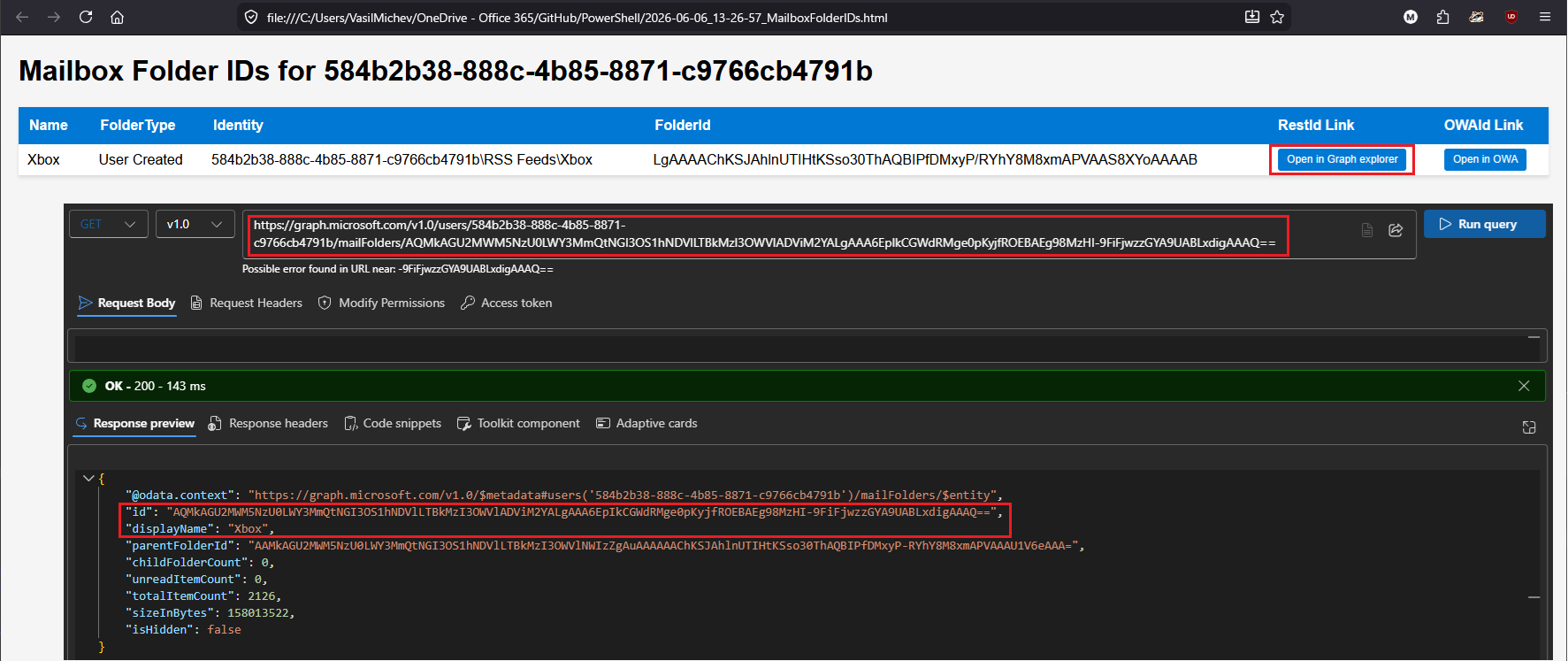
The Open in OWA button will not function properly if you provided an ExternalDirectoryObjectId value as the input. If you plan to use said button always pass the UPN/Primary SMTP address instead. And, as an added bonus, the link will also work for any mailboxes you have been granted Full access permissions to, granted you selected an user-accessible folder. For the Open in Graph button, “delegate” scenarios are only supported when you have Mail.ReadBasic.Shared permissions granted.
And with that, we can close the current article. Let me know what you think about the script. Do you see a need for including any other identifiers? What about support for application permissions? Anything else?
2 thoughts on “Converting Get-MailboxFolderStatistics ids for use with the Graph API”