Over the years, we’ve covered Entra application management policies several times, most recently in this article. If you need a refresher, app management policies allow you to configure various restrictions on application and service principal objects in your tenant, such as controlling the lifetime of client secrets or blocking their use altogether, controlling the audience of the app, imposing restrictions on the set of reply URIs, and more. While the feature launched with Graph API support only, now we have a UI for it, found under the Entra admin center > Enterprise apps > Application policies.
Aside from the “ease of use” angle, another common complaint with regards to app management policies was the inability to exclude certain objects. Granted, even at launch we had the option to configure object-specific policies, but said functionality did not allow us to target newly provisioned apps, as it was tied to the (presence of an) application object itself. Microsoft has now released a new feature that enables exceptions to target the principal creating the object, a user or a service principal, in both the UI and Graph API. Let’s take a look.
Adding an exception via the UI
We start with the UI implementation, which is of course much easier to use. Access the set of app management policies from their usual location under the Entra admin center > Enterprise apps > Application policies. Click on the policy you want to add exceptions to, for example the Block password addition one to control the availability of client secrets. First, toggle its Status, if not enabled already. Next, select the newly introduced All applications with exclusions option under the Applies to group.
You will be presented with two ways to configure exceptions. The Excluded apps tab and the Add applications button is what enables targeting of specific existing application or service principal objects. Existing being the keyword here. This is the equivalent of creating a new appManagementPolicy object and associating it the selected application or service principal, with all the complexity hidden from the UI.
The more interesting scenario is the so-called caller exception, configurable under the Excluded callers tab. By hitting the Add excluded callers button, you can select user(s) or service principal(s) to add as exceptions to the selected policy. The UI does not allow you to select groups, which might seem a bit suspicious, but as we shall see later on, there is a valid reason for it. To finish the process, hit the Save and close button.
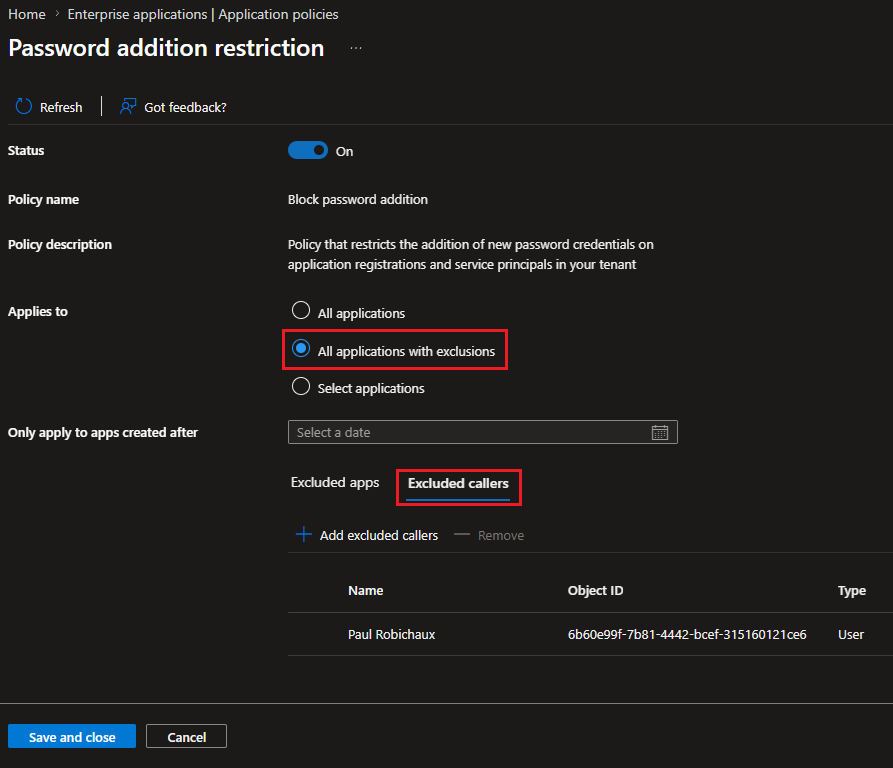 Behind the scenes, the newly added exception is enforced by updating the default app management policy object. Specifically it adds the excludeActors facet and defines a set of up to 5 custom security attributes that link the policy to the selected set of users and/or service principals. Said objects in turn must be stamped by the matching custom security attribute. Herein lies the grief I have with the current version of the UI – it hides all this complexity too well. On one hand, this is a good thing and more or less what we expect, but on the other, there are certain dependencies when it comes to working with custom security attributes that are not made clear at any point of the process, and thus can result in issues. In all fairness, the documentation does address this… if you bother to read it.
Configuring exceptions via the Graph API
Now that we have some basic understanding of how the process works, let’s get our hands dirty and explore the actual Graph API calls that make it all tick. As mentioned above, caller exceptions depend heavily on custom security attributes, thus we’ll need sufficient permissions to work with such. If you have (and plan to use) an existing attribute set, you will only need the CustomSecAttributeAssignment.ReadWrite.All scope. Otherwise, the CustomSecAttributeDefinition.ReadWrite.All one will also be required. And should you need a refresher on working with custom security attributes, check our series here.
As an interesting note, the UI will provision a new custom attribute set named appManagementPolicySet. Within it, a single string-valued attribute is defined, named passwordAdditionExempted to match the restriction type we set. Said attribute is then stamped on any of the objects you selected as part of the process, with a value of true. The cmdlets below can be used to confirm the statements above. As a side note here, queue the mandatory rant of how poorly the Graph SDK handles working with custom security attributes, even in the year 2026!
Get-MgDirectoryCustomSecurityAttributeDefinition -CustomSecurityAttributeDefinitionId appManagementPolicySet_passwordAdditionExempted | fl

Get-MgUser -UserId fe506ef0-235f-43cf-ae0c-e82f833c3e91 -Property customSecurityAttributes | select -ExpandProperty CustomSecurityAttributes | select -ExpandProperty AdditionalProperties | ConvertTo-Json
 The naming convention used with the “built-in” UI flow is perfectly acceptable, however organizations might have their own requirements. Moreover, the principal configuring app management restrictions might not have the necessary permissions to work with custom attribute sets or manage attribute assignments. When valid reasons exist to leverage your own set, just make sure to use a single-valued string one, that is a custom security attribute of String type, with its isCollection property set to false.
As we’ve covered the process of creating custom security attributes before, we will not repeat the steps here. Should you need more information on the process, consult the official documentation. The same applies to the assignment of custom security attributes to user and service principal objects. Just make sure to provide the proper values, unlike the assignment example in the current documentation 🙂
On another tangent, as custom security attributes are still not supported for group objects, we now understand why the UI is not allowing us to select groups when configuring exclusions. Generally speaking, support for groups is not really needed, as we can simply “expand” the membership of the group and stamp the relevant custom security attribute on each user and/or service principal object found therein. But I digress.
Back to the task at hand. Once you have selected the set, custom security attribute and principal(s) for which to configure the exception, you need to patch the default app management policy to instruct it to respect said exceptions. Interestingly, there seem to be no strict validation on this part, as evident by the order of API requests made when configuring exceptions via the UI. In other words, the custom security set/attribute does not need to exist beforehand, so the order you follow is a matter of your personal preference.
Without further ado, here’s how to modify the default app management policy for the scenario at hand. We’ll use the PATCH method against the corresponding /policies/defaultAppManagementPolicy endpoint, available with both the /v1.0 and the /beta branches. The latter is only required if you want to add exceptions for IdentifierURI-related scenarios. In terms of the required permissions, you will need the Policy.ReadWrite.ApplicationConfiguration scope, and an appropriate admin role if using delegate permissions.
Since our scenarios focuses on the preventing the addition of new passwords (client credentials), we will need to modify the passwordCredential configuration. Specifically, we have to configure the excludedActors property, with value pointing to the selected custom security attribute and its expected value. For example, if we select the BlockPasswordCreation attribute out of the Applications set, and we expect the exclude value to be configured, we will use the following payload:
"excludeActors": {
    "customSecurityAttributes": [
        {
            "@odata.type": "#microsoft.graph.customSecurityAttributeStringValueExemption",
            "id": "Applications_BlockPasswordCreation",
            "operator": "equals",
            "value": "exclude"
        }
    ]
}
The excludedActors payload can be configured under any property corresponding to a supported restriction. In our example, we are looking at the restrictionType of passwordAddition. And since we want the exceptions to apply to both application and service principal, we configure it under both sections accordingly. You do not need to include any of the properties and sections you don’t plan to change. Here’s the full request and its associated payload for our scenario:
PATCH https://graph.microsoft.com/v1.0/policies/defaultAppManagementPolicy

{
    "applicationRestrictions": {
        "passwordCredentials": [
            {
                "restrictionType": "passwordAddition",
                "state": "enabled",
                "maxLifetime": null,
                "restrictForAppsCreatedAfterDateTime": "0001-01-01T00:00:00Z",
                "excludeActors": {
                    "customSecurityAttributes": [
                        {
                            "@odata.type": "#microsoft.graph.customSecurityAttributeStringValueExemption",
                            "id": "Applications_BlockPasswordCreation",
                            "operator": "equals",
                            "value": "exclude"
                        }
                    ]
                }
            },
        ]
    },
    "servicePrincipalRestrictions": {
        "passwordCredentials": [
            {
                "restrictionType": "passwordAddition",
                "state": "enabled",
                "maxLifetime": null,
                "restrictForAppsCreatedAfterDateTime": "0001-01-01T00:00:00Z",
                "excludeActors": {
                    "customSecurityAttributes": [
                        {
                            "@odata.type": "#microsoft.graph.customSecurityAttributeStringValueExemption",
                            "id": "Applications_BlockPasswordCreation",
                            "operator": "equals",
                            "value": "exclude"
                        }
                    ]
                }
            },
        ],
    }
}
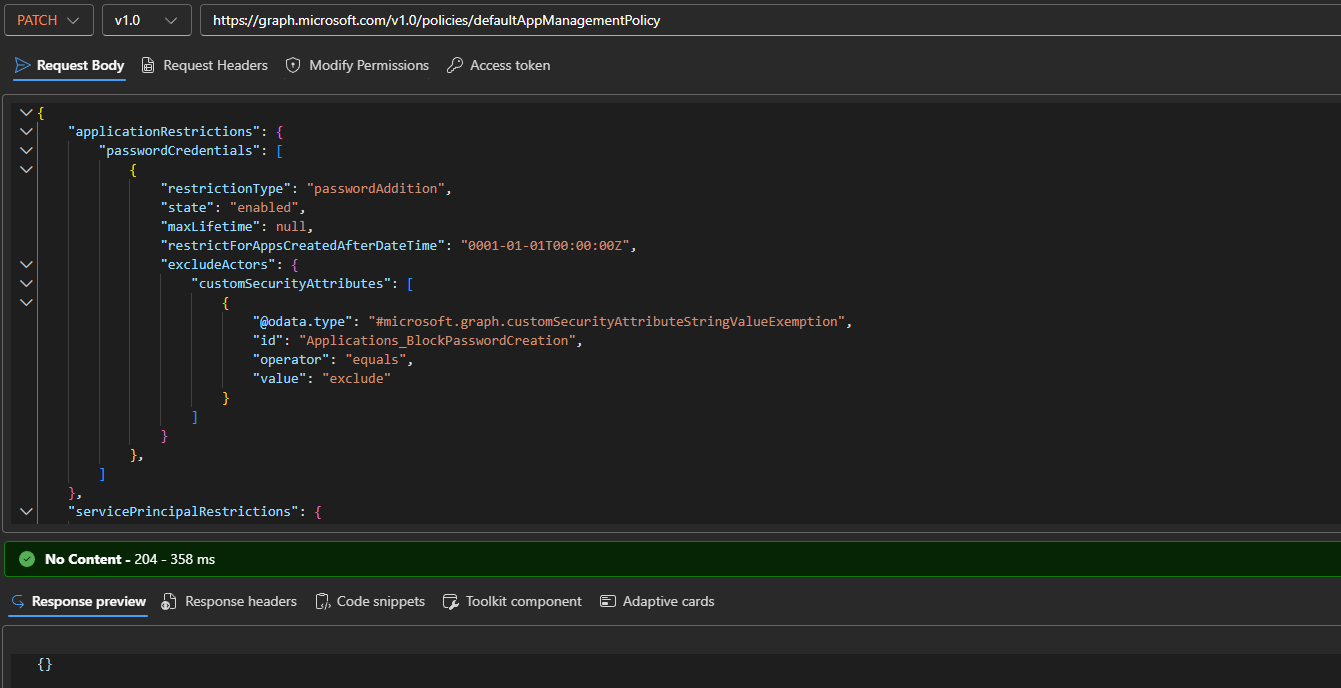
Successful execution is signaled by 204 No Content response, as shown on the screenshot above.
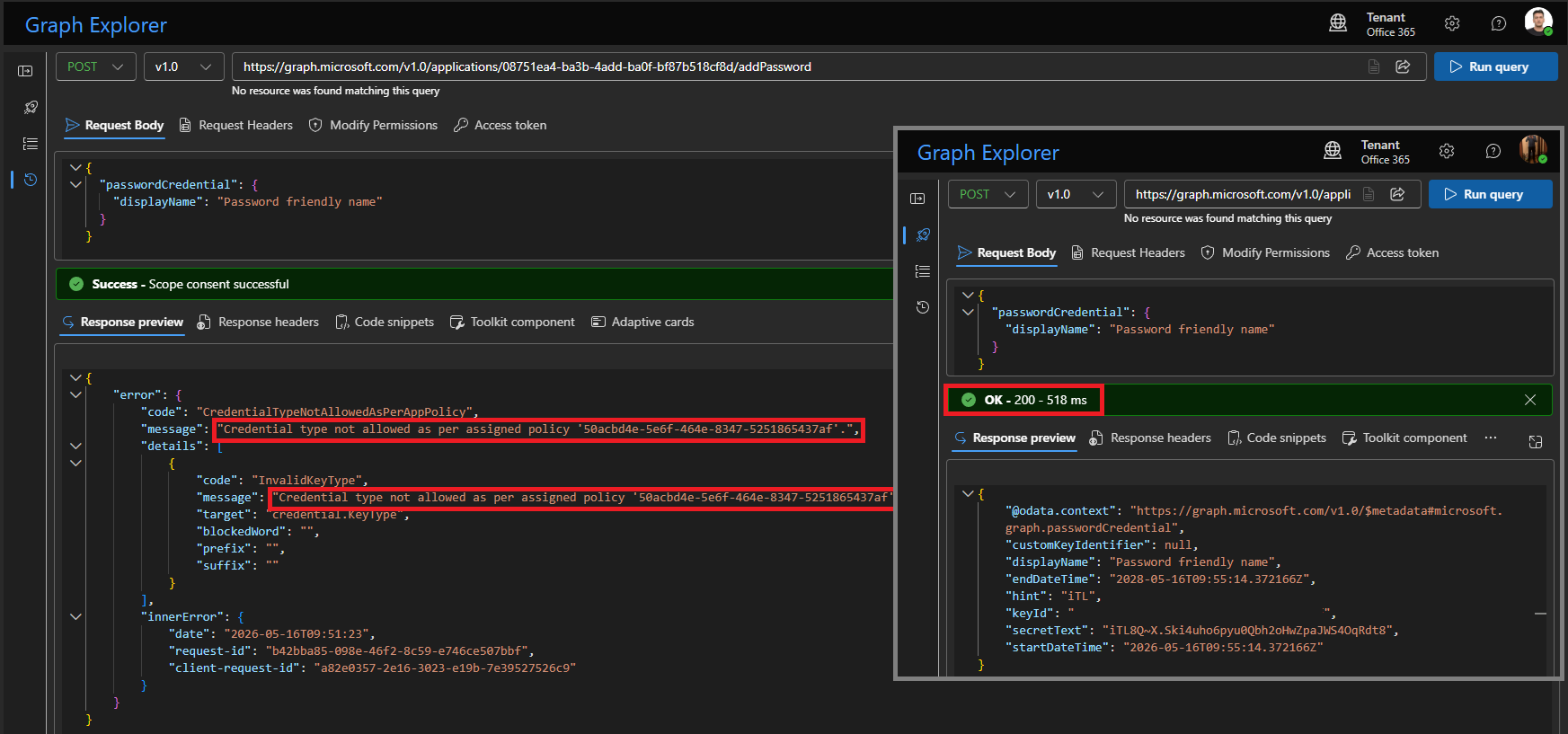
Once changes to the default app management policy take effect, no one apart from users matching the configured exclusions will be able to add new password credentials to either existing or newly provisioned applications and service principals. This is illustrated on the screenshot below, where we’re comparing the behavior for a Global admin and an Owner of the app with the required custom security attribute value set. Unfortunately, it looks like the Entra Admin Center experience has not yet been updated to reflect the exception logic, thus we use Graph explorer to showcase the expected behavior. Either way, it is the underlying Graph API call that matters, and as we can see, the policy blocked the attempt to add a new client secret for a Global admin, while the operation executed with success for user with the correct custom security attribute set!
 Polish needed for the UI experience
Apart from the aforementioned lack of support for exceptions when working with client secrets in the Entra admin center, a more important limitation is currently impacting the feature. If you make changes to the default app management policy via the Graph API, you will be blocked from even viewing the current policy configuration in the UI. The following error is what is shown instead: “The restriction have been modified outside of this interface. To prevent data loss, editing is disabled until restrictions are synchronized.“

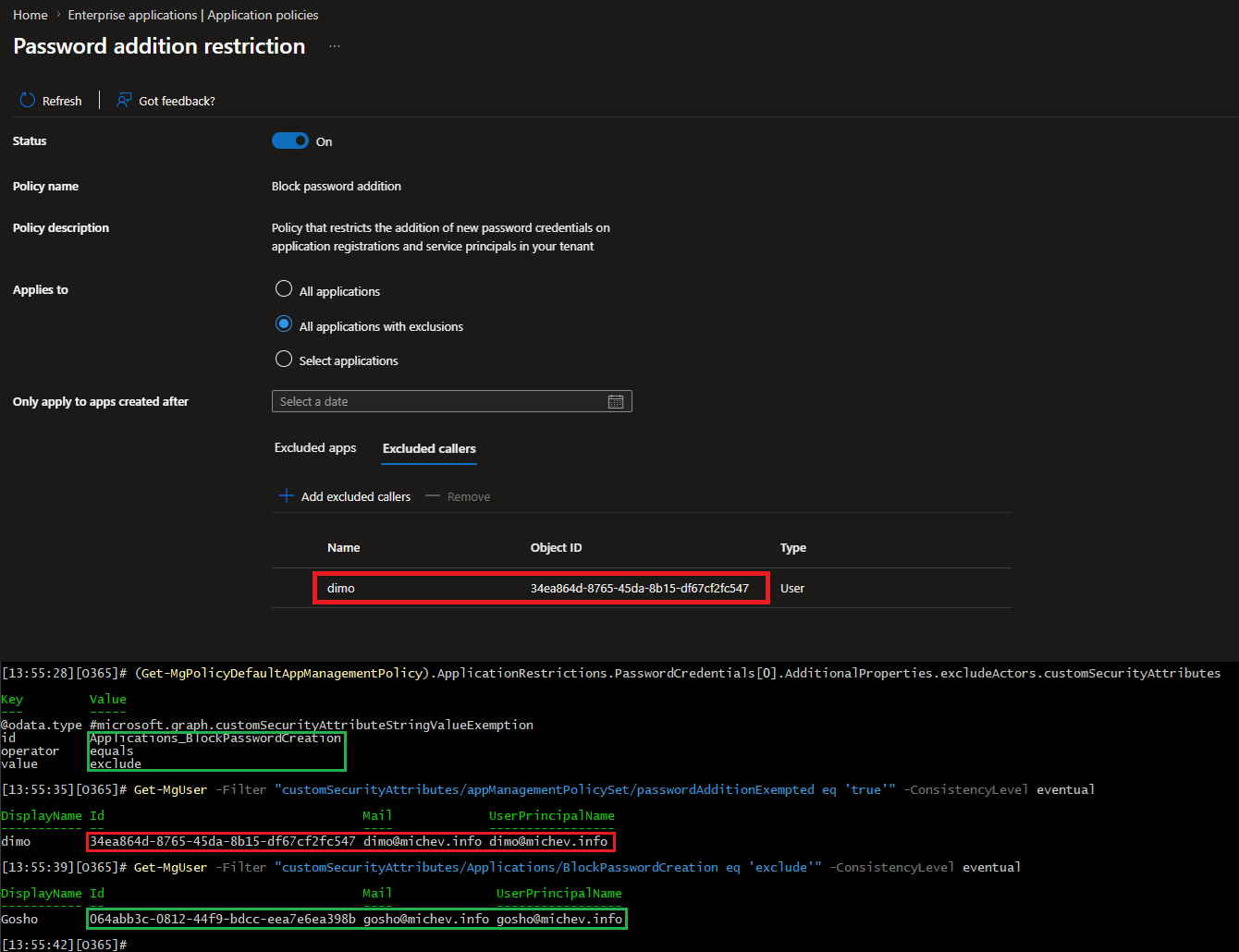
In fact, Microsoft has documented this as a known issue, and is also suggesting a method to resolve it. Unfortunately, there is a bit more to the story. Thing is, the UI is hardcoded to check for the custom security attribute set/attribute/value combo and will not even make an attempt to parse what’s configured on the policy itself. This can easily be verified by observing the network trace in the browser. After fetching the policy, a query is run to verify the presence of the appManagementPolicySet set and the passwordAdditionExempted attribute, followed by a query to filter user objects and service principals that have it stamped with a value of true.
In effect, the UI will only report the proper set of principals configured as excluded callers if you use the hard-coded value for the set/attribute name and its required value. If you use your own, the UI happily report an incorrect set of principals, if at all. This is illustrated on the screenshot below, where the wrong user (one that has the “hardcoded” values) is shown in the UI, instead of the one matching what’s configured on the policy itself.
For the sake of completeness, here’s how to reset the default app management policy after the changes made in our example (that is, changes to the passwordAddition restrictions scenario). As the documentation suggests, you will have to clear all of restrictions of type passwordAddition and symmetricKeyAddition. You can in fact keep anything else, such as the set of URI restrictions in the example payload below:
PATCH https://graph.microsoft.com/v1.0/policies/defaultAppManagementPolicy

{
    "applicationRestrictions": {
        "passwordCredentials": [],
        "keyCredentials": [],
        "identifierUris": {
            "nonDefaultUriAddition": null,
            "uriAdditionWithoutUniqueTenantIdentifier": {
                "state": "enabled",
                "isStateSetByMicrosoft": false,
                "restrictForAppsCreatedAfterDateTime": "0001-01-01T00:00:00Z",
                "excludeAppsReceivingV2Tokens": true,
                "excludeSaml": true,
                "excludeActors": null
            }
        }
    },
    "servicePrincipalRestrictions": {
        "passwordCredentials": [],
        "keyCredentials": []
    }
}
After those changes are made, you should be able to use the UI experience and reconfigure any restrictions as needed.
Summary
We explored the newly released functionality to exclude selected user or service principal objects from any of the restrictions supported by Entra’s app management policies. This is a great addition to an already quite useful feature, allowing for better customizability and addressing some of the most common concerns. It is always good to see continuous improvement within the service, as opposed to having a “minimal viable product” released, and then forgotten to oblivion.
The new functionality comes with somewhat shaky UI support, which can cause problems in scenarios where you want more control or want to automate the configuration via the Graph API. While the official documentation warns you about this, the decision to hardcode the UI to cater to specific scenario only is a bit puzzling, so hopefully we’re seeing just the first iteration of support for excluded callers and the experience gets improved in the future.
1 thought on “Configure excluded callers for Entra application management policies”