In our previous article, we covered the process of assigning a group setting object or Purview “container” label to a security group in order to control whether guest users can be added to its membership. Let’s now see how said restrictions are being enforced across the service.
How Guest access is enforced
We now know about the existence of a directory setting to control guest access for security groups, as well as the equivalent functionality enforceable via Purview sensitivity labels. But what does it all do, exactly?
The experience aligns with what we’ve accustomed to when it comes to controlling Guest access to Microsoft 365 Groups. All the building blocks behave in a similar manner when it comes to Entra ID security groups. Here are the basics:
- The tenant-level directory settings trumps the group-level one. In other words if you want to control guest access on a per-group basis, you need to make sure that the tenant-level setting object has AllowToAddGuests set to true. Only then you can have the per-group settings object take effect.
- You can use either the AllowToAddGuests setting or a sensitivity label to control access, no need to configure both.
- Sensitivity labels will only take effect when EnableMIPLabels is toggled on the tenant-level group settings object, so do remember to configure that if you prefer the label-based method.
- Users with admin roles assigned are exempted from the effect of either the AllowToAddGuests setting or labels. That is, admins can bypass guest access restrictions set by either method. This also includes the tenant-level setting.
With the above in mind, let’s see how guest access restrictions are enforced. To test the behavior as an end user, you can use the My Groups portal, which is the only UI that will allow management of security group membership without an admin role assigned. You must be an owner of the group though, otherwise the Add button will not be visible under the Members page. To test the guest access restrictions, simply use the Add button to add any guest user.
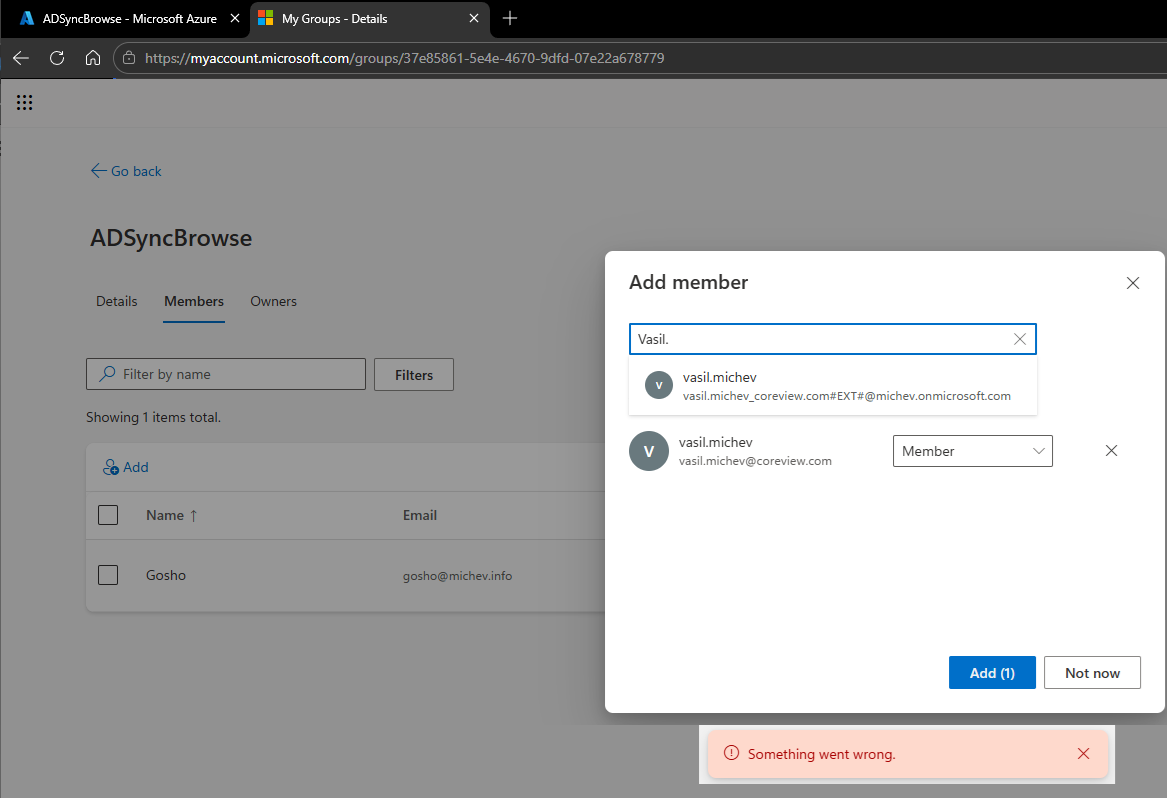 While the UI will still allow you to view/select guest users, hitting the Add button will result in an “Something went wrong.” error, as shown on the screenshot above. Capturing the network trace, or trying the same operation via the Graph API or the equivalent PowerShell cmdlets will reveal the detailed reason:
{
    "error": {
        "code": "Authorization_RequestDenied",
        "message": "Guests users are not allowed to join this Cloud Security Group due to policy setting. paramName: Members, paramValue: , objectType: Microsoft.Online.DirectoryServices.Group",
        "innerError": {
            "date": "2026-05-28T08:17:07",
            "request-id": "48331287-a135-4ab2-9226-b03c5a77bd78",
            "client-request-id": "48331287-a135-4ab2-9226-b03c5a77bd78"
        }
    }
}
In contrast, trying the same operation with an admin user should result in no errors, and the guest user should be added as a member of the security group. As the restrictions are enforced on the backend, we can expect the same outcome regardless of which tool or UI was used for the operation, though variations of the error message shown above can be expected due to the various “wrappers” in use across the service.
It is important to understand that applying guest access restrictions to an existing security group will NOT affect guest users that are already added as members. In fact, trying to apply a sensitivity label with guest restrictions configured to such group will actually fail with an “Label protection policy enforces no guest users allowed in the group” error message. While we can certainly benefit from a better wording on said message, the net effect is that you must manually remove any guest users, in order to assign a label that enforces guest restrictions to it.
This is one place where the experience differs from that of Microsoft 365 Groups, which do allow you to stamp them with any container label, regardless of whether guest users can be found in their current membership list. I suppose we can extend the argument that the adjusting the membership of security groups is a bit more sensitive subject, as they’re often used to grant access to various resources. But even if the label is applied, existing guests will not be removed either way, so perhaps this is just some oversight in designing the feature.
Plus, you can actually assign a group-level directory setting object to a security group with guest users in its membership list. In effect, there is a discrepancy on how the guest access controls are applied on Entra ID security groups with existing guest users. Label assignment will fail, and requires you to first remove any guest users from the group. In contrast, setting objects can be assigned even when guests are found in the membership list. Either method will do nothing with regards to removing existing guest users though, as mentioned above.
Similar behavior is observed for groups with nested membership, but more on that in the next section. Lastly, you will not be able to assign a setting object to a labeled security group. Such operations will result in an “Assigned label does not allow the group guest setting operation” error message. Reversing the operation order however works and you can assign a sensitivity label to a security group that has an existing setting object applied.
You can still end up in situation where both a label and group setting object are applied to the same security group. Either of this controls can prevent adding guest access to the group, even if the same is allowed by its sibling. In other words, controls work in a logical OR configuration, and you don’t need to bother configuring both. But do keep this fact in mind when you’re in need to troubleshoot guest access!
Known limitations and troubleshooting
While Microsoft 365 Groups are primarily intended for collaboration, Entra security groups are first and foremost a security principal, i.e. are used to control access to various functionalities. Therefore, we cannot expect both to enforce the Guest user restrictions in a similar manner. Here’s a (not so short) list of known limitations and differences in behavior:
- No support for mail-enabled security groups, as their source of authority is Exchange Online, not Entra ID.
- No support for distribution lists either, for the same reason.
- Dynamic membership groups are not supported either.
- No support for security groups synced from on-premises AD.
- Labels assigned to security groups cannot be removed or replaced.
- Limited UI support, as mentioned few times already. This might or might not improve in the future.
Some other limitations might result in an error when you try to assign a label. For example, if the selected group has one or more guest users added, the operation will fail with a “Label protection policy enforces no guest users allowed in the group” error message. In other words, do not expect labels to retroactively remove existing guests from groups. Instead, you have to manually remove any guests first, before assigning a label to prevent any future guest additions.
Much along the same line, but even more complex, is the behavior with nested groups. If the selected group has one or more nested groups as members, assigning a label will fail with “Label policy enforces no nested group members must exist” error message. The solution here is to remove any nested groups prior to assigning a label. Do note that a “labeled” group can have nested groups added to it later on, but they must be labeled with the same, or equally restrictive label. In other words, groups that limit guest access cannot have nested groups that allow it, which is what you’d expect. This limitation does not apply to group settings, just to labels!
Changes made to label definitions are another thing to be wary about. If you change an existing label to allow guest access, as in toggle its External user access setting, this will not affect already added guest users. Combine this with the fact that we cannot remove or change the label assigned to a security group, as well as the limited UI support, and we can see how setting objects are the better choice for enforcing guest access restrictions. Sure, they are a bit harder to work with, but our free tool helps with that 🙂
Summary
In summary, we now have two methods to control guest access to Entra ID Security Groups. Both methods leverage existing functionality, now extended to cover security groups. Purview “container” labels offer better UI experience are better aligned with the Microsoft 365 Groups use case, but come with more limitations. Group-based directory setting are harder to assign and manage, but offer a bit more flexibility. Either method will allow you to prevent guest users from being added to security groups, so pick your poison!
1 thought on “Container label support and Guest access controls for Entra ID Security Groups (part 2)”