One of the items I’ve had on my to do list for a while now is MC1338823, a “major update” dubbed Block external domain or user access for SharePoint and OneDrive. While the feature itself is not that hard to cover, we had to wait for its deployment across the service (the current status is still preview), moreover I was kinda busy with the Microsoft 365 for IT Pros technical review. Now that I have some more free time on my hands, and the feature is actually rolled out to my tenant, let’s take it for a spin. Before I forget, you might also see this referenced as Roadmap item #557191.
As hinted above, the feature itself is rather easy to cover – it basically amounts to two new options available when configuring actions for DLP policies scoped to SharePoint Online and/or OneDrive for Business. That last part is important though, as the parent “Restrict access or encrypt the content in Microsoft 365 locations” action will surface the new controls only when the DLP policy is scoped to SPO/ODFB. So, to test the feature, you will either need to create a new DLP policy scoped to SPO and/or ODFB locations, or select an existing one with a similar scope.
Configure the rest of the policy settings as necessary. When configuring rules, you will be presented with the two new actions as shown on the screenshot below, namely the Block access to external domains and users and Block everyone and move file to the quarantine location ones:
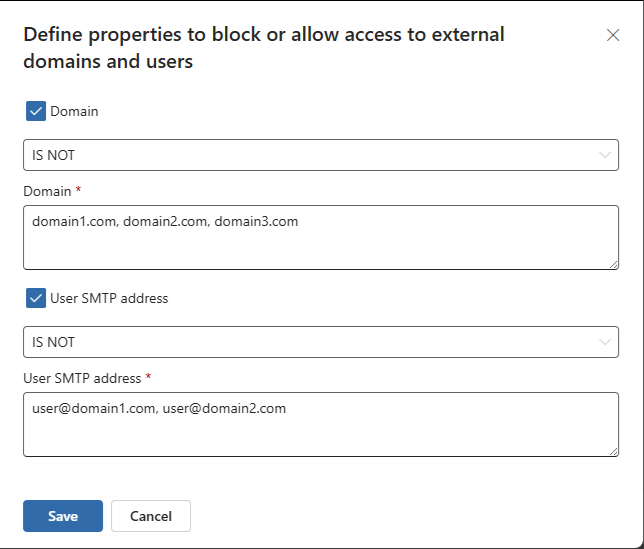
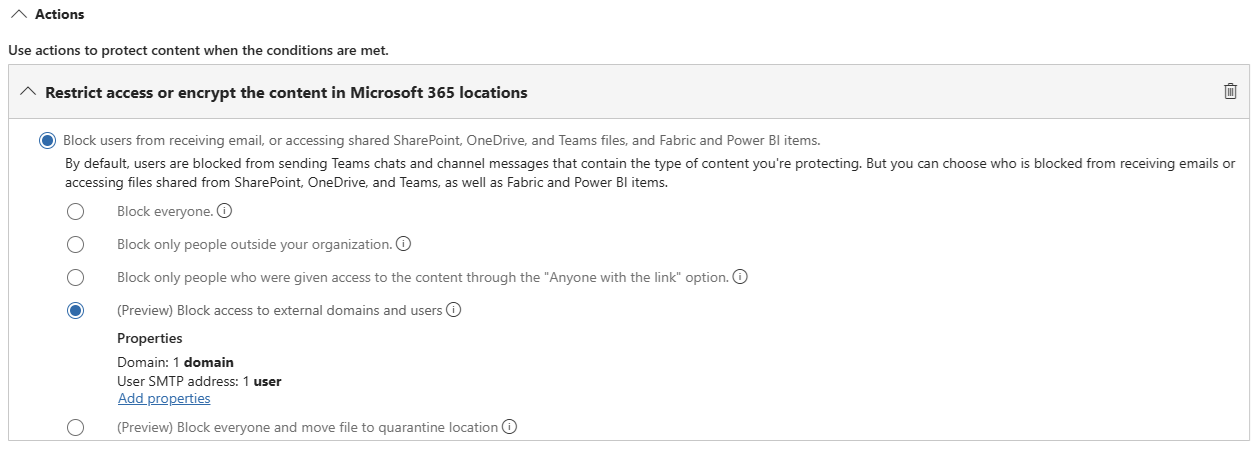 Both actions are currently tagged with the Preview marker, but that should disappear at the GA rollout concludes later this month. Both actions require you to provide additional details before they can be saved. For the Block access to external domains and users action, you will need to specify a list of Domains and/or individual User SMTP addresses against which the rule will be matched. Even though the UI does not make this clear, you can specify multiple values by separating them by commas, i.e. domain1, domain2, domain3. You can also select whether the specified list of entries is to be excluded, by using the IS NOT condition, as shown below. While you can use a combined list of domain and SMTP addresses entries, the same operator must be used for both types.
 For the Block everyone and move file to the quarantine location action, you need to select an existing location in the form of a SPO site, which can be configured as part of the DLP solution settings under the Purview portal > Settings > Data Loss Prevention settings > File quarantine or directly via this link. If a quarantine location has already been defined, it will be automatically populated once you select this action. If not, you will be presented with a link to the aforementioned setting, where you can configure it. The same link can also be used to update the location if needed.
On the backend, these new actions are just another set of properties for the associated DLP rule object. Once the policy has been created, we can use the Get-DlpComplianceRule cmdlet to obtain the necessary information:
Get-DlpComplianceRule -Policy SPO | select Quarantine,BlockDomainsOrUsers,BlockDomains,BlockDomainsExcept,BlockUsers,BlockUsersExcept,RestrictAccess,SPMoveToQuarantineLocation,AdvancedRule


Quarantine                 : False
BlockDomainsOrUsers        : True
BlockDomains               : {}
BlockDomainsExcept         : {coreview.com}
BlockUsers                 : {}
BlockUsersExcept           : {vasil.michev@coreview.com}
RestrictAccess             :
SPMoveToQuarantineLocation : False
AdvancedRule               : {
                               "Version": "1.0",
                               "Condition": {
                                 "Operator": "And",
                                 "SubConditions": [
                                   {
                                     "ConditionName": "ContentExtensionMatchesWords",
                                     "Value": [
                                       "docx",
                                       "xlsx",
                                       "pptx",
                                       "pdf"
                                     ]
                                   }
                                 ]
                               }
                             }
As we can see from the output above, the rule will trigger when any docx, xlsx, pptx or pdf file is shared with any domain or any user outside of my work one. While such rule will rarely make sense in practice, we have deliberately created it in such manner in order to make it as easy as possible to test the end user experience, which we will cover next. Just to finish up on the PowerShell tangent – currently, the New-DlpComplianceRule cmdlet does not expose the necessary parameters to create a rule with the newly introduced actions. Perhaps this will change once the feature is GA, but for the time being, you can only create such a rule by leveraging the UI.
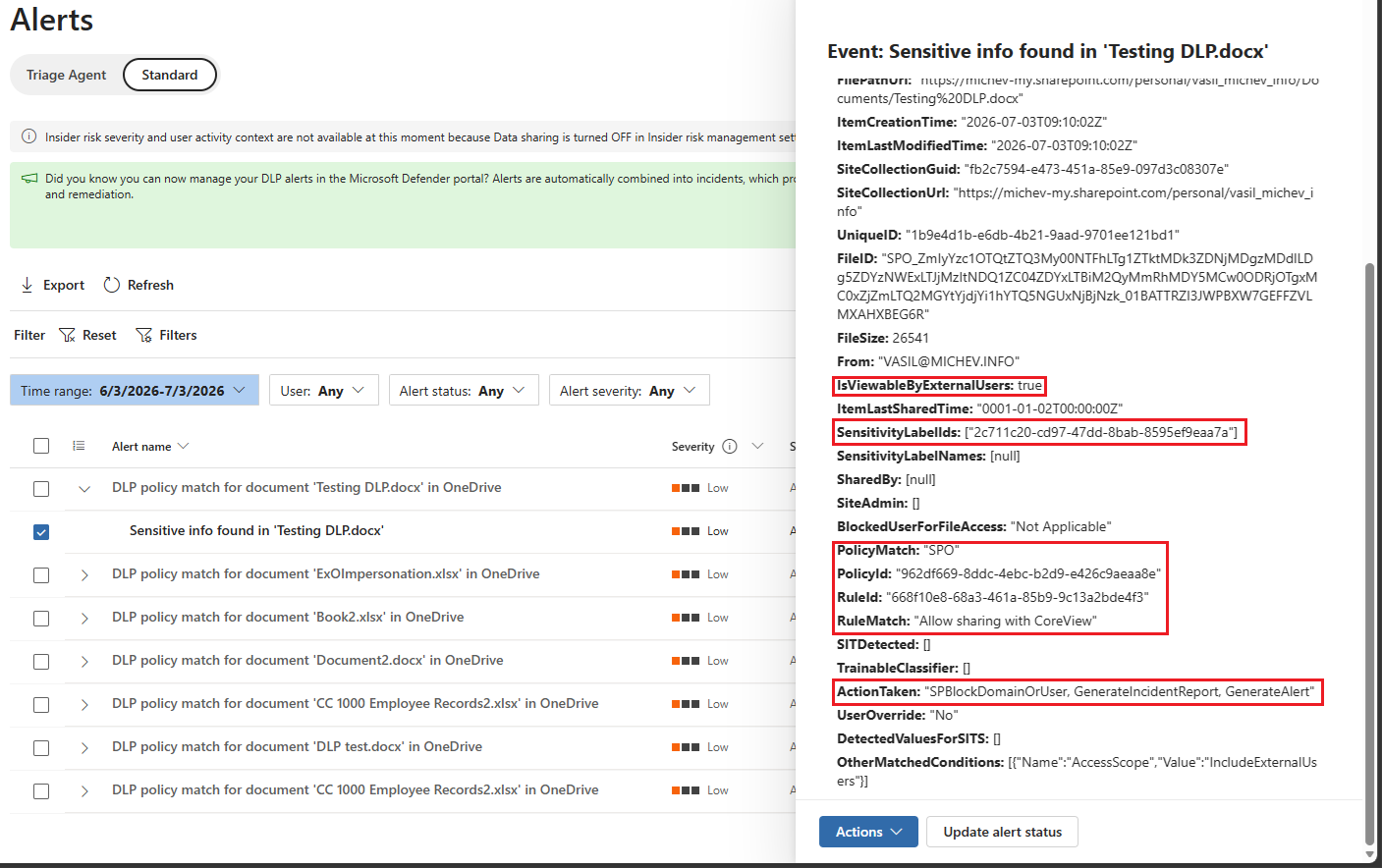
Apart from configuring the policies, administrators will likely be involved in the incident review phase, which is where alerts and email notifications come in play. Not much is new here, and you can expect the same experience as with existing policies and rules. The screenshots below illustrate how an email incident report and an alert entity look like:

Next, few words about the end user experience. When an attempt is made to share a file matching one of the rules in our new DLP policy, offending entries will be removed. On the other hand, if the file is shared with an “allowed” domain or user, the share action will proceed uninterrupted. One important aspect of the end user experience is that you cannot configure user notifications or user overrides for rule with the Block access to external domains and users or Block everyone and move file to the quarantine location action. This includes policy tips configuration as well. As such, the end user experience can suffer.
Things work a bit different if you have configured the “quarantine” action. When such rule is matched, any access to the file is removed, and the file itself is moved to the quarantine location, as configured in the corresponding setting. For example, a file shared from user’s personal ODFB will be copied to a folder named personal, located under the default document library in the designated site. Within it, a subfolder with the matching site path will be created, such as user_domain_com, followed by the library in which the file was located (usually “Documents”). Here’s how it looks like:
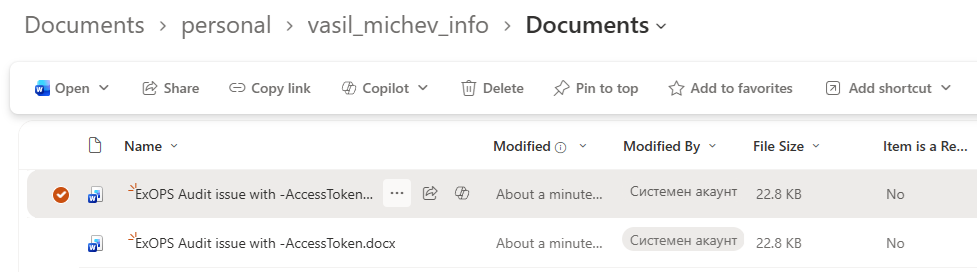
The original copy of the file should in turn be replaced by a txt file, with its content matching the text string we configured as part of the initial setting configuration. In fact, this is the same behavior as used by the Microsoft Defender for Cloud Apps’s “admin quarantine” action, detailed for example here. Or at least that’s the theory. In my tests, the original item remained in place, with all of its sharing permissions untouched as well. By using my “call a friend” card, I was able to confirm that things do work as expected in Tony’s tenant, where the original document got properly replaced by the TXT:

Before closing the article, few caveats you need to be aware of. Internal users cannot be blocked by the new actions, which is more or less what you’d expect, but is still worth mentioning. On a similar note, you cannot specify an ODFB site as location for the quarantine, which is again expected. Make sure to also restrict access to the selected (SPO) site to only the handful of people that will be qualified to work with quarantined items.
The new DLP policy controls work independently of the tenant- and site-wide SPO sharing controls, which can of course also be used to restrict external sharing on a per-domain basis. The benefit said new controls add is the more granular, per-item approach, which can be used to secure specific files, while still enabling collaboration with a given partner (domain). On the same note, items protected by sensitivity labels with encryption also preserve their own behavior – even if you use an “allow” configuration within the DLP rule, the label permissions itself must include the recipient’s domain (or address) for the item’s content to be accessible.
When it comes to the end user experience, the lack of support for policy tips and overrides can lead to some confusion, while the introduction of quarantine policies might outright cause support calls by users “losing” their files. In other words, if you plan to leverage the new actions for your DLP policies, make sure you spend some time educating your users! Better yet, give it some time for Microsoft to flesh out the rough edges in the coming weeks and months.
Lastly, remember that this functionality is still in preview and there might be some rough edges. For example, while the DLP policy configuration process worked more or less as expected in my tenant, the expected outcomes rarely materialized. In the case of “quarantine” policies, the item remained “as is” in the original location, never being replaced by the TXT file, while at the same time a matching copy was diligently placed in the quarantine location. Whether this is due to the ongoing rollout of the feature or due to me not waiting for several days for the new policy to finally sync on the backend, I cannot tell.