Over the past few years, Microsoft has been slowly ramping up the “profile” experience. The recent addition of certifications and awards is what prompted me to refresh my memory on the /profile endpoint, so let’s take a deeper look, shall we.
As a reminder, each user within the Graph is represented not only by its associated user object, but also the profile resource, a set of relationships that surfaces additional metadata, such as the set of projects the user has worked on, for example. With the recent addition of the awards and certifications relationships, there are no less than 20 such additional sets of properties that can be configured for each of your users. Needless to say, that goes well beyond what we are used to seeing in the profile cards for users across the various apps, even though not all of the 20 relationship sets are currently exposed in a UI form.
To expose a user’s profile, you can leverage the /beta/users/{id}/profile endpoint. Few important notes are due here. First, a lack of support for application permissions is immediately apparent, which makes automation trickier. In terms of the actual permissions needed, User.Read.All will do for read operations, and User.ReadWrite.All for write ones. Lastly, all of the endpoints and methods we discuss here are only available under the /beta branch, that is not officially supported.
Here’s how a sample profile looks like. Quite lenghty, even if we dismiss all the @odata.context properties!
GET https://graph.microsoft.com/beta/users/user@domain.com/profile
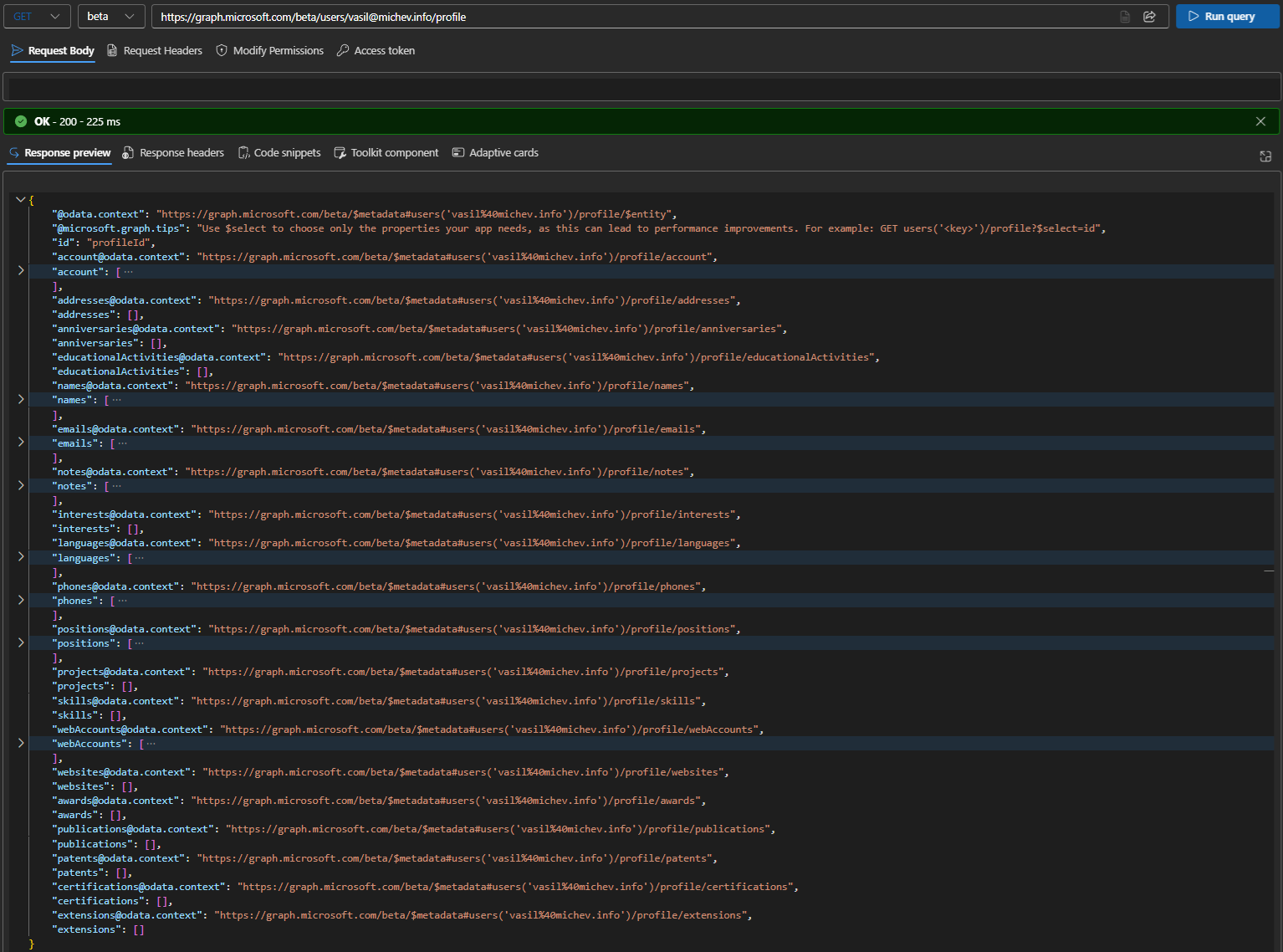 Also note the collaped/highlihted entries – they correspond to (sets of) properties that are automatically populated based on data available within the service, so you’re not starting fresh! For example the Accounts section will be populated with Graph sourced data, whereas the data in the Notes field is surfaced from SharePoint Online. You might also note that each of these properties is a collection, i.e. can store multiple values. Here’s an example for the set of values under my emails field:
Invoke-MgGraphRequest -Uri "https://graph.microsoft.com/beta/users/user@domain.com/profile/emails" | select -ExpandProperty value | select type,address

type address
---- -------
main user@domain.com
work user+test@domain.com
work user@tenant.onmicrosoft.com
work webmaster@domain.com
work postmaster@domain.com
work hostmaster@domain.com
As each of the exposed properties represents a standalone resource, you can query them individually by their corresponding endpoint, such as /emails in the example above. Do note that using $select against a blanket /profile query will return all properties.
The interesting part is of course adding stuff, so let’s see how we can go about adding few awards to my own user profile. We need to issue a POST request against the /profile/awards endpoint, with a JSON payload representing the personAward resource. Unlike other Graph methods, you don’t have to use the ISO-8601 format for dates. Here’s a sample request:
POST https://graph.microsoft.com/beta/me/profile/awards

{
  "description": "This award is given to exceptional technical community leaders who actively share their high quality, real world expertise with others.",
  "displayName": "MVP - Office 365",
  "issuedDate": "01 October 2014",
  "issuingAuthority": "Microsoft",
  "webUrl": "https://mvp.microsoft.com/"
}
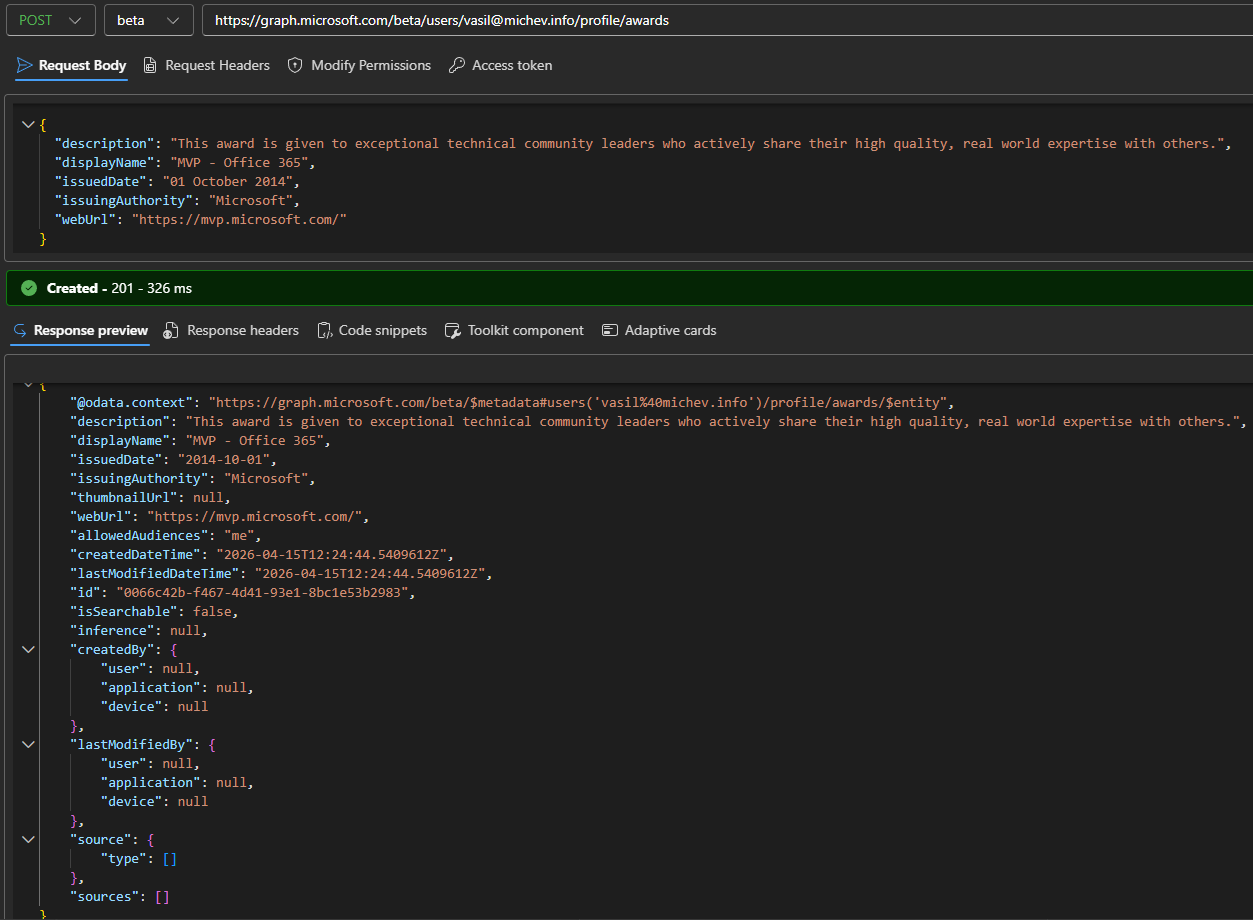 Since this time we used the /me endpoint and did not specify a value for the allowedAudiences property in our request, a issue might arise later on: nobody apart from my own user will be able to see this data. We can remedy this by issuing a new request to PATCH the allowedAudiences value. As mentioned above, each of the profile properties represents a collection, so in our case, we need to also specify the individual award instance (the id value seen above) to PATCH:
PATCH https://graph.microsoft.com/beta/me/profile/awards/0066c42b-f467-4d41-93e1-8bc1e53b2983

{
  "allowedAudiences": "organization"
}
A 204 No Content response signals successful execution, which we can confirm via another GET request, if needed.
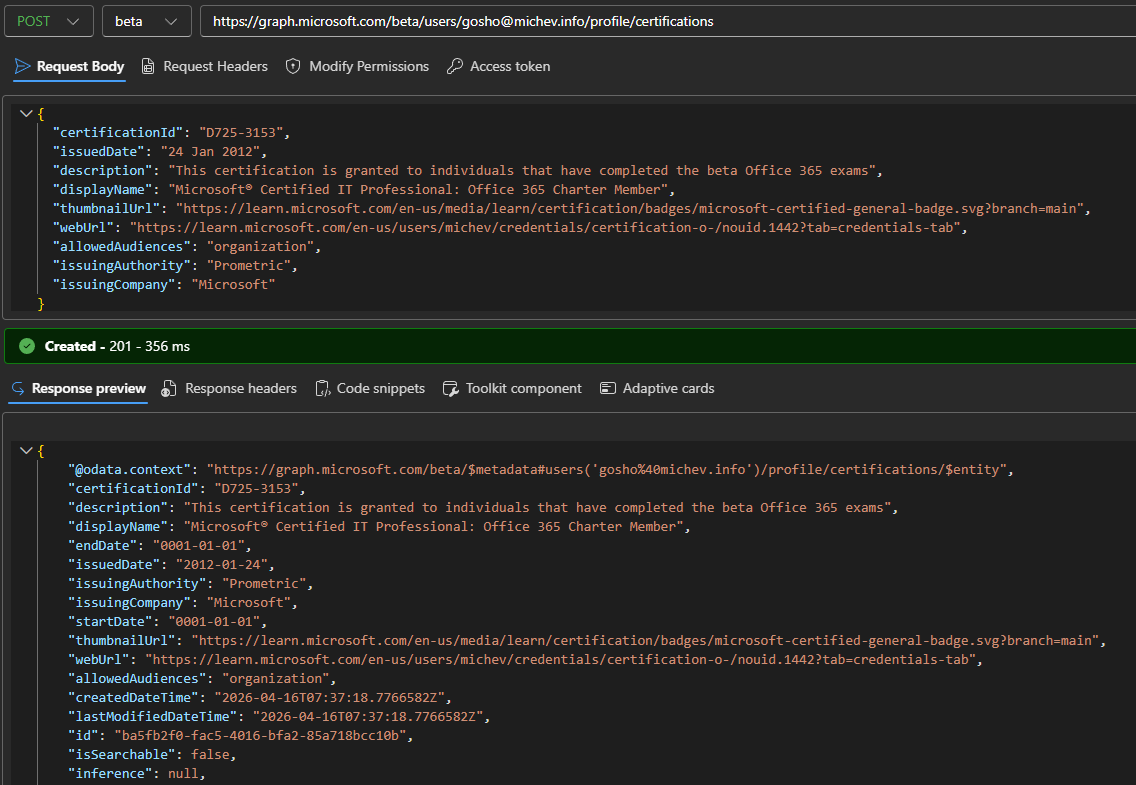
Creating a certification entry works pretty much in the same manner, with the only difference being that few more properties are exposed. Those include the certificationId, a unique identifier representing your achieved certification, a start and end date, and issuingCompany (i.e. PearsonVue on behalf of Microsoft). Here’s an example on how to configure this on behalf of another user (you’ll need User.ReadWrite.All permissions and Global Administrator or People Administrator role):
POST https://graph.microsoft.com/beta/users/user@domain.com/profile/certifications

{
  "certificationId": "D725-3153",
  "issuedDate": "24 Jan 2012",
  "description": "This certification is granted to individuals that have completed the beta Office 365 exams",
  "displayName": "Microsoft® Certified IT Professional: Office 365 Charter Member",
  "thumbnailUrl": "https://learn.microsoft.com/en-us/media/learn/certification/badges/microsoft-certified-general-badge.svg?branch=main",
  "webUrl": "https://learn.microsoft.com/en-us/users/michev/credentials/certification-o-/nouid.1442?tab=credentials-tab",
  "allowedAudiences": "organization",
  "issuingAuthority": "Prometric",
  "issuingCompany": "Microsoft"
}
 Once you configure the desired profile properties, they will be instantaneously visible under the user’s profile card and other experiences. The good news is that you do not have to do anything else, there is no need to manually map fields to the profile card or similar. The screenshot below shows how the Awards and certifications section of the profile card looks like, and you can find more examples in the official documetnation.
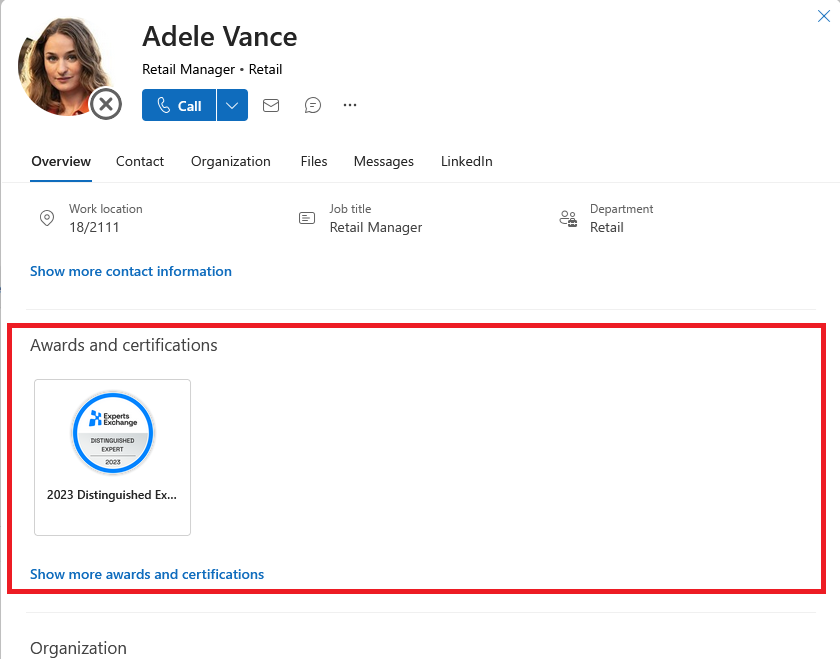
You can click on a given certificate or award entry to bring its detaield description, issued date and a link to the issuer’s site, where applicable. Up to four “badges” are displayed on the Overview tab, with recent achievements (from the past 30 days) highlighted on top of the view. To get the full set, click the Show more awards and certifications link, which takes you to the Contacts tab of the profile card and the corresponding section therein.
Now, thus far we only talked about configuring profile properties on a per-user basis. As we already have the corresponding Graph API methods available, we can of course do this in bulk for all our users, or automate an import of relevant data from an external system. Microsoft is in fact providing such a solution in the form of the Credly connector for Copilot, because of course no automation is ever possible without AI/Copilot.
What Microsoft does not provide is a way for end users to enter their own data (assuming they aren’t going the Graph route, that is). The profile card experience does not allow users to manage awards and certifications and the same holds true for all other “entry points” an end user can leverage. As far as end users are concerned, this is a read-only experience, which in turn diminishes its value a bit.
One last thing before we close the article. You might notice that most of the time, createdBy and lastModifiedBy all have null values, across many of the supported profile properties. This is more or less expected, and you should not rely on these field in any sort of investigation/audit scenarios. At best, you can leverage the source property and the sources GUID for a hint as to where the data originated from, see this table.
1 thought on “Awards, certifications and working with the /profile Graph API endpoint”