Microsoft 365 Groups have been around for over a decade now, and are positioned as the preferred solution for email-based collaboration. On the surface, that holds true, as the combination between “group” and “mailbox” elements allows for better experience in some scenarios. This unfortunately does not hold true across the board, as Microsoft decided to limit the user interface and hide the underlying mailbox-related features. A step in the right direction was made in back in 2022 with the introduction of support for subfolders and rules for Microsoft 365 Groups, as detailed for example in this article.
A more recent addition is the support for the Forward to action for Group rules, which effectively gives us a way to forward messages to both internal and external recipients, without having to add them as members of the groups. In this article, we’ll take a look and how we can configure forwarding for a Microsoft 365 Group via such a rule, and also delve a bit into why this might not always work. We will also cover things on the admin side, such as configuring a mail flow rule to the same effect.
Should you configure forwarding?
First, let us talk about whether you should be configuring forwarding for a Microsoft 365 Group to begin with. Microsoft 365 Groups are designed to serve as a distribution group, and thus will automatically distribute messages addressed to the group address to any of its current members. Therefore, for internal users, it’s usually best to add them as members of the group as an alternative to configuring forwarding. This not only ensures they will get any messages addressed to the group, but grants them access to any of the additional resources available to group members.
On the other hand, Microsoft 365 Groups come with some limitations in terms of the types of object that you can add to their membership list. Even today nesting groups is not supported, and neither is adding objects such as mail contacts. Thus, even when a matching recipient object exists for the address to which you want to distribute messages addressed to the group, it ‘s not always possible to rely on the membership construct.
This brings us to external recipients. While you can invite an external user as a guest and add them to the group, this is not always possible, and has the side effect of polluting the directory with objects you might not otherwise need. Using any of the forwarding methods detailed later in the article allows you to avoid the need for creating a Guest user object (or any recipient object). Keep in mind that any messages forwarded to external recipients are still subject to the tenant’s external forwarding controls, but more on that in a later section.
Another scenario where adding the recipient is a member might not be a good option is when you want to allow a given user access to messages addressed to the group, but not any files shared with it. For such scenarios, forwarding is a better option. Even more interesting are scenarios where you only want to forward a subset of the messages, for example those matching a specific string in the subject or body of the message. Herein, a rule-based forwarding is the best approach, be it Mail flow or Inbox rule. The latter is the only user-driven option, allowing a self-serve experience matching the Group’s paradigm.
Configure a forwarding rule
Without further ado, here is how to configure a rule for a Microsoft 365 Group in order to forward messages addressed to the group. This is the only method that can be used by regular users, and is configurable via the Outlook Web client (or OWA). A prerequisite for using this method is to have the rules functionality enabled for the group. Keep in mind that this step might require admin intervention, as detailed in the official documentation, being an owner of the group is not sufficient! Another thing to keep in mind is that this functionality is not available in the classic Outlook client.
Once you have confirmed that support for rules is enabled for the Microsoft 365 Group in question, we can procced with the rule creation. To do so, navigate to the Groups page in OWA and select the group, then hit the Rules button on the ribbon > Create rule. A new dialog will pop up, where you need to enter a Name for the rule, configure the Condition(s) to trigger it and the Action(s) to take. The screenshot below should serve as an example:

If you want the rule to act on any message addressed to the group, use the Recipient address includes condition and specify the address of the group. To scope the rule to act on specific messages only, use one of the other available conditions. As you have probably noticed by now, a very limited set of conditions is available, so not every scenario will be possible. Lastly, from the Add an action dropdown, select the Forward to entry and enter the address of the intended recipient. If forwarding to internal recipients, you will be able to select the corresponding object from the dropdown menu. For external entries, type in the whole address, then press the Search directory popup, and lastly, the Use this address: one.
You will know the address is accepted if it gets highlighted with a yellow box (if using dark mode) and a little X appears next to it. If the corresponding control remains highlighted in red, such as in the screenshot above, make sure to double check the address you are entering, then press the Use this address: button. Apart from that, no check is made whether the address exists and there is no need to pre-provision a mail contact or another recipient object. Configure any additional actions and exceptions as needed before proceeding to Save the rule.
Troubleshooting forwarding to external recipients
At this point you should have a forwarding rule configured for your Microsoft 365 Group. This does not necessary mean that messages addressed to the group will be forwarded to the intended recipient however, as Microsoft now blocks forwarding to external recipients by default, which also applies to our scenario. If the intended (external) recipient is not receiving any of the messages addressed to the group, this is the most likely cause. You might not even be aware that things are not working as expected, as the resulting non-delivery report message is automatically deleted and you will not get any notification.
In other words, troubleshooting scenarios where the forwarding rule we configured above does not work as expected for an external recipient is only possible by contacting your IT staff. They will likely be aware of the external forwarding controls put in place, and will let you know whether an exception can be added. If the issue is not clear to them, ask them to check the external forwarding controls and run a message trace to confirm that those are indeed the offender. Below is an example of a message trace details for one such forwarded message blocked by external forwarding controls:

To ensure correct delivery, you will have to work with your administrators in order to exclude the Microsoft 365 Group from the external forwarding controls. A similar scenario is observed when forwarding is blocked via remote domains as shown on the screenshot below:

As before, this is something only an administrator can address, so work with your IT support staff.
Configure forwarding as administrator
Thus far we’ve covered the “user” method for configuring forwarding, though as explained above parts of the process are still subject to admin involvement. Troubleshooting is entirely left to admins as well, due to the way NDR messages are handled by Microsoft 365 Groups. But if we have to rely on admis, we might as well consider options for configuring forwarding that are only available to them.
As already mentioned above, Microsoft 365 Group do come with a mailbox, so we can actually configure the regular mailbox-level forwarding settings on them. All you have to do is use the –GroupMailbox switch when issuing the Set-Mailbox cmdlet:
Set-Mailbox group@domain.com -GroupMailbox -ForwardingSmtpAddress user@domain.com -DeliverToMailboxAndForward $true

Get-Mailbox group@domain.com -GroupMailbox | fl *forw*
DeliverToMailboxAndForward : True
ForwardingAddress :
ForwardingSmtpAddress : smtp:user@domain.com

Of course, this form of forwarding is still subject to the external forwarding controls. The only difference with the rule-based scenario we detailed above is that in this case the NDR message will actually be delivered to the original sender, as the email message is treated differently, whereas in the former scenario the forwarded copy is attributed to the group’s address. That, and the fact that you can toggle the DeliverToMailboxAndForward flag, controlling whether a copy of the message will be kept in the group’s mailbox. For most scenarios, you want to keep this set to True.
Another alternative is to configure forwarding via a mail flow rule. This is the most robust method, as it allows for a greater selection of conditions to be leveraged. We also have a choice of action between the Redirect the message to and the Add recipients ones, each with its own uses. And we can add additional actions and exceptions as needed. To configure such rule, head over to the Exchange Admin Center > Mail flow > Rules. Hit the Add a rule button then give it a Name. For the condition, select The message > To or Cc box contains this person and enter the address of the Microsoft 365 Group. For the action, select Redirect the message to > these recipients and enter the desired address.
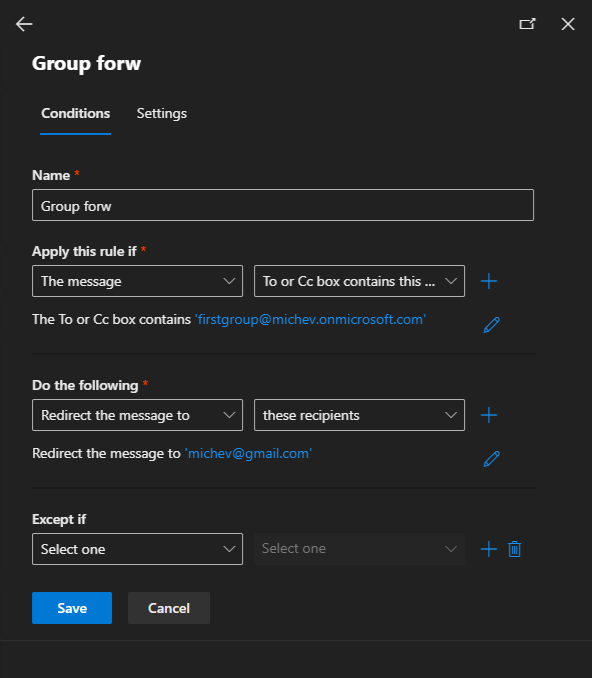
Configure additional conditions, exceptions, actions and rule settings as needed. The values we used above are just one of the ways you can configure forwarding via mail flow rule. If you want to forward only specific messages, configure additional subject, header or message body related conditions as necessary. If you want to keep a copy of the forwarded message, use the Add recipients action instead of the “redirect” one. The list goes on and on, as this is the most robust method.
One last alternative to consider when configuring forwarding to an external recipient(s) is to provision a Guest user account. Depending on the tenant’s configuration this can be achieved with or without admin involvement, but it boils down to simply adding the guest user as a member of the Microsoft 365 Group. One thing to keep in mind for this scenario is the “subscribe” settings for the group, as they control whether messages are delivered to the member’s mailbox. As guest users cannot access the group mailbox directly, this is the only way for them to receive messages addressed to the group. You might need to ask an administrator to add them to the group’s subscribers list. Here’s an example:
Add-UnifiedGroupLinks groupname -LinkType Subscribers -Links guestuser@domain.com
Summary
In this article we explored the various ways to configure forwarding for email messages addressed to a Microsoft 365 Group. A somewhat recent addition enables us to configure Inbox rules, which enables owners of the group to configure forwarding to either internal and external recipients, and scope it to all or some of the messages received by the group via a (limited) set of conditions. While this method relies on some admin-controlled toggles, it allows for self-service.
Forwarding can also be configured by an administrator. Both mailbox-level forwarding and mail flow rules can be used, with the latter providing the most robust experience. Admins are also in control of external forwarding, and none of the methods detailed above will allow for bypass of the existing controls.
1 thought on “How to configure forwarding for a Microsoft 365 Group”