Administrative units (AUs) were introduced all the way back in 2014, when the world was simpler and we talked about Azure Active Directory and Office 365. Intended as the “scoping” mechanism for administrative role assignments, AUs have been a mixed story. Over the years the Entra ID team continued to (slowly) ramp up AUs feature set, for example by adding support for device objects and soft-delete functionality. Their adoption across Microsoft 365 however still leaves a lot to be desired. Even today many of the individual Microsoft 365 workloads have very limited support for AUs, and some don’t support them at all.
Despite the slow adoption of AUs and some internal resistance across the various Microsoft teams, they’re still an important part of the service and we have seen existing solutions, such as Purview DLP, retention policies or sensitivity labels embrace them. As such solutions are designed to cover the entirety of Microsoft 365 though, some problems arise. For example, how do we support SharePoint Online and OneDrive for Business sites, when such objects are unknown to Entra ID and thus are not (natively) supported by AUs either. Well, Microsoft has come up with a workaround, which is what we will talk about in this article. Let’s dig in.
What this functionality is not
Actually, before we go any further, let’s make one thing clear. Entra ID Administrative units DO NOT support adding SPO or ODFB sites as members. Their “representation” in Purview does, effectively “extending” the Entra ID implementation. Those only live in the Purview store and are never synchronized to Entra ID, or any other workload for that matter. Membership of the “original” AU remains unaffected, and the same applies to any Entra ID role assignments. We will talk more about this as we proceed, but it is worth mentioning this upfront.
Along the same lines, the functionality we are describing here has nothing to do with the “standard” extensibility mechanism we have for directory objects within the Graph. There is no relation with Open extensions, and none of the changes you make in Purview will be reflected in Entra ID, including under the /administrativeUnits/{id}/extensions endpoint.
Use the Purview portal to add sites to AU
With the above in mind, login to the Purview portal and under Settings, select Roles and scopes, then Administrative units (preview) or use this direct link. Therein, you will find a list of AUs configured for the tenant, along with some basic details, such as the Name and Membership type. This information comes directly from a Graph API’s /administrativeUnits query. There are no controls to add, remove or manage existing AUs, their membership or role assignments. The description (and tooltip) on the page make it clear that AU management is handled in Entra ID, not Purview.
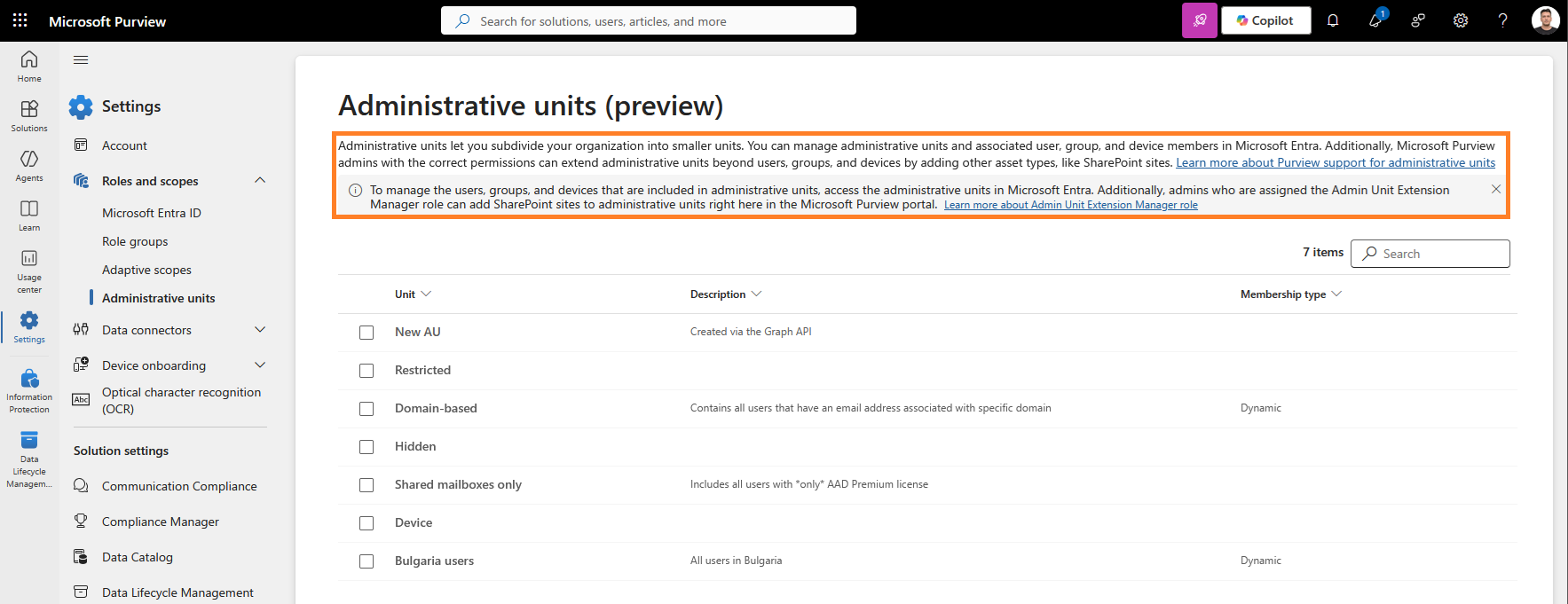 To access the “extension” functionality, click on any existing AU entry. You will be taken to a new page, with Purview-specific details about the selected AU. Those include the membership Query used to populate SPO and ODFB sites as a member of the AU, as well as the query type. No actual sites will be listed here, but more on that later. The description on top of the page will again remind you that changes to “standard” members of the AU are performed outside of the Purview portal.
Adding SharePoint Online and/or OneDrive for Business sites to an AU is facilitated through membership queries, based on one or more properties and their corresponding values. The list of supported properties currently includes: Site Name, Site URL, and the set of 100 RefinableString0-99 properties. Yes, this is the exact same set of properties Adaptive scopes support for sites, so you might find the process familiar. Should you need a refresher on how refinable strings are used, take a look at this article.
Before making changes to the membership query, make sure you have the Admin Unit Extension Manager role assigned. By default, said role is included in the OrganizationManagement, ComplianceAdministrator and PurviewAdministrators Role groups, but if needed you can create custom ones.
With sufficiently permissioned user, you can click the Add SharePoint sites button to configure the membership query. In the example below, we’re using the Site name property, which can be a good choice for sites that follow a naming convention such as the one resulting from a Microsoft 365 Group naming policy. You can add multiple properties as needed, with basic grouping also supported. More robust examples can leverage the set of 100 Refinable string XX properties. Unlike adaptive scopes though, there is no option to use the advanced query builder and the additional options it exposed.
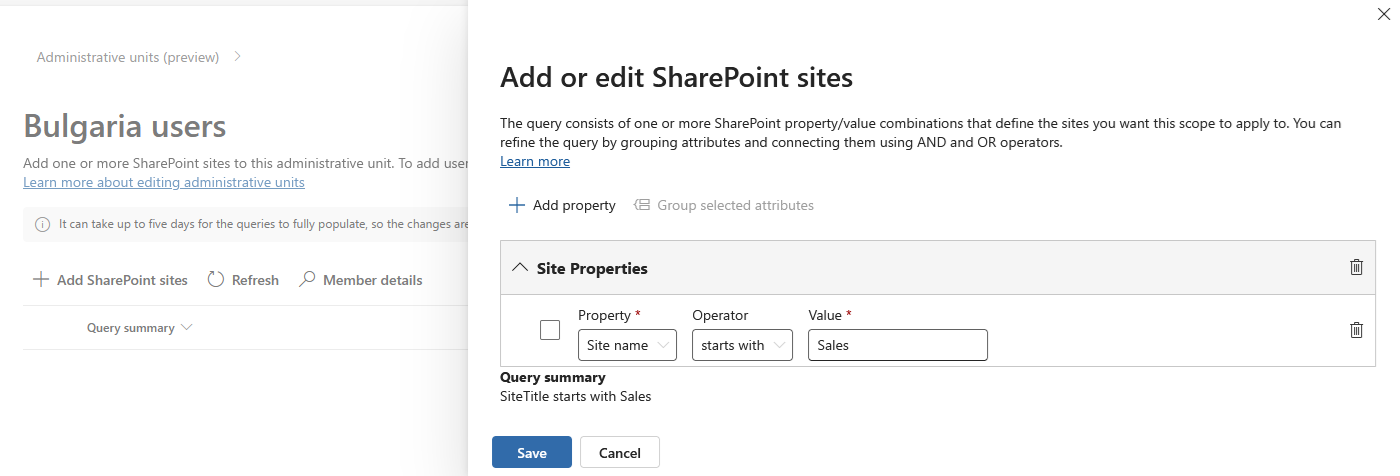
Once you hit the Save button, as well as the additional confirmation dialog that pops up, the query is queued on the backend. It can take up to five days for it to return all the matching site entries, so you’ll need to be patient. At any point, you can click the Member details button to be taken to the corresponding scope page, listing individual sites. The process is again quite similar to that of Adaptive scopes (report). The screenshot below shows results for the completed query and you can even see the Scope label therein, even though we’re working with AUs now.
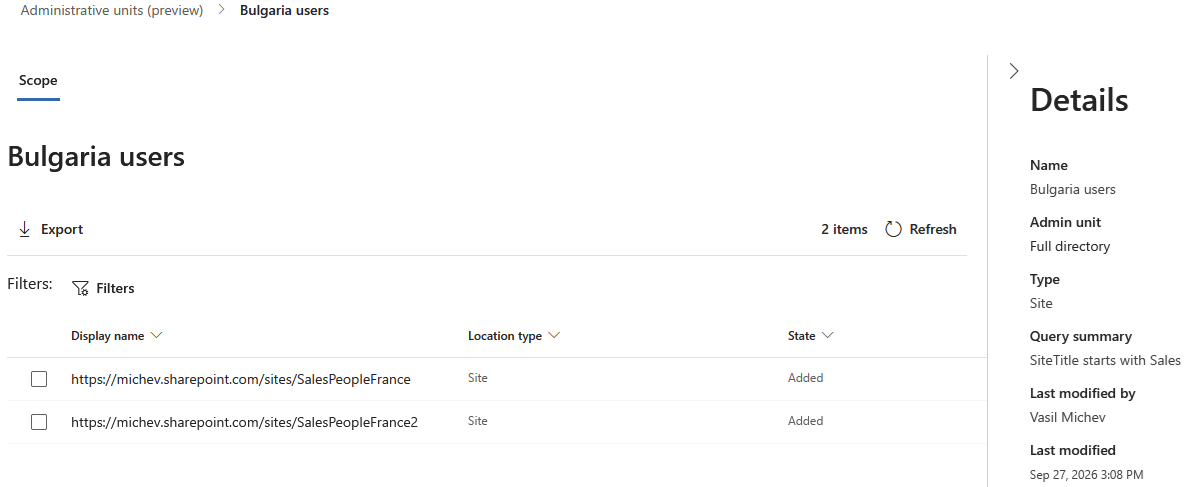 And yes, you can even use AUs with dynamic membership rules. In fact the example we used here leverages such, as evident from the first screenshot above. Remember that the original Entra ID AU object is not touched in any way, Purview is simply “sticking” another membership list on top of the existing (static or dynamic) one.
Some backend details
On the backend, the similarities with adaptive scopes are even more prominent. Technically, we do get a new cmdlet, named Get-AdministrativeUnitExtension. Looking at its metadata though, the cmdlet is a copy of the Get-AdaptiveScope one, with the same exact properties (and even some values). In fact, the biggest difference is the fact that for the latter, a null GUID is returned for the AdministrativeUnit property, whereas Get-AdministrativeUnitExtension output has the property populated with the GUID of the corresponding AU object in Entra ID.
Get-AdministrativeUnitExtension

LocationType                 : Site
FilterConditions             : {"Conditions":[{"Value":"Sales","Operator":"StartsWith","Name":"SiteTitle"}],"Conjunction":"And"}
RawQuery                     :
IsRawQueryEnabled            : False
IsImplicitAdaptiveScope      : True
AdministrativeUnit           : b42de8c9-7062-4cc0-8c85-f6ae79bdb839
ImmutableId                  : e975b345-6f79-4c27-98f4-3a72100c768b
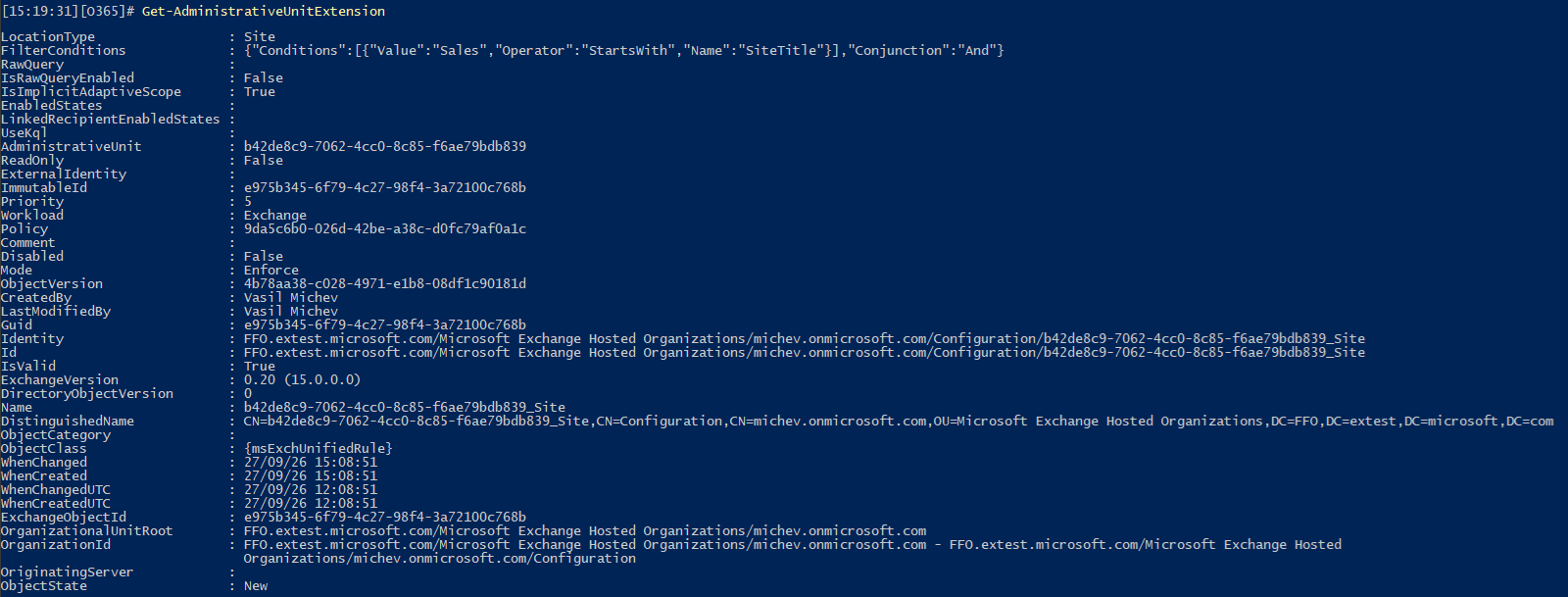
It is therefore unsurprising that you can leverage the Get-AdaptiveScopeMembers cmdlet to list the set of sites that fall into the membership query of our “extended” AU. The obtained set of results will match the one returned in the UI:
Get-AdaptiveScopeMembers e975b345-6f79-4c27-98f4-3a72100c768b
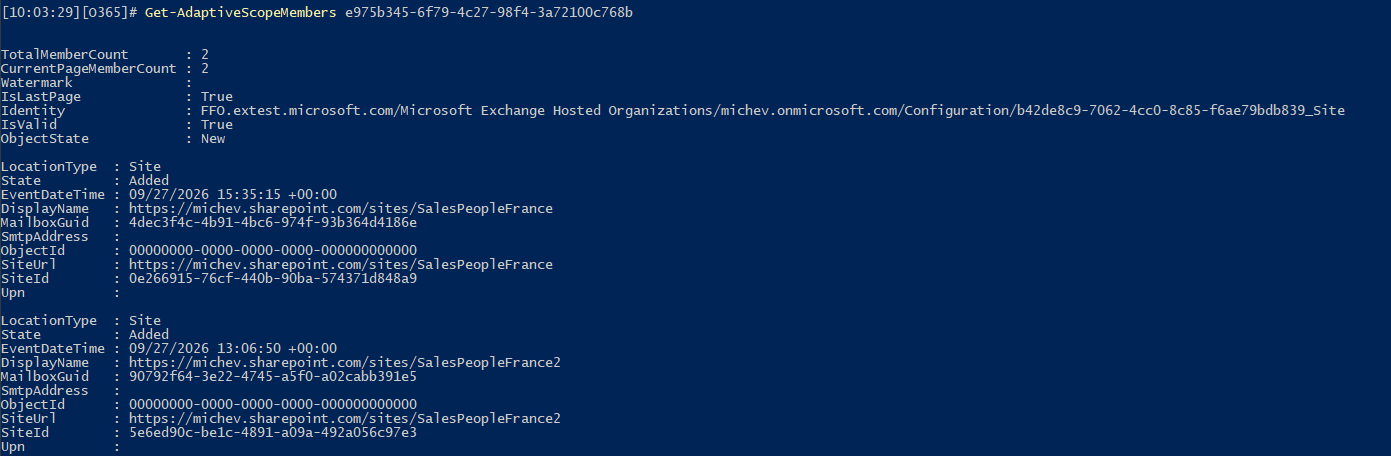 To end up the backend discussion, one can also leverage the New-AdministrativeUnitExtension cmdlet to “extend” existing AUs and the Set-AdministrativeUnitExtension one to make changes to existing “extended” AUs. The latter only allows us to change the filter query, but given how complex some queries can get, you’d probably want to stick to the UI methods on this.
And even more details
Once the configured scope successfully adds the desired sites, you can use the newly “extended” AU within various Purview solutions. For the time being, support is limited to Information Protection auto-labeling policies and Data Loss Prevention. As an example, when a user assigned an AU-scoped Purview role tries to create a new DLP policy, he will only be able to set the scope to one of the assigned AUs. For AUs “extended” to cover SPO/ODFB sites, all sites that match the configured query will automatically fall into the scope of the new DLP policy, with further scope refinements not possible.
Much like working with policies leveraging Adaptive scopes, figuring out to which sites the policy was applied can be tricky. Neither the UI nor PowerShell provides you with a direct list, if fact the Get-DlpCompliancePolicy cmdlet lists the scope as SharePointLocation:{All}. You need to rely on additional properties, such as WorkloadStatistics and ExtendedProperties to get a better picture, but a proper list of sites is nowhere to be found.
#WorkloadStatistics gives us the number of sites:
WorkloadStatistics : {"SharePoint":{"ExpectedLocations":2,"CompletedLocations":2,"FailedLocations":0,"MatchedItemsCount":0,"TotalItemsCount":2},"OneDrive":{}}

#ExtendedProperties lists the corresponding "extended" AU GUID
ExtendedProperties : {"HasBindings":false,"DlpBindings":{"Inclusions":[{"DisplayName":"AdministrativeUnitBinding_4071796E-0AA4-4226-9EE5-ACEF68C04BFE","Name":"b42de8c9-7062-4cc0-8c
85-f6ae79bdb839","ImmutableIdentity":"e975b345-6f79-4c27-98f4-3a72100c768b","Type":6,"Status":2,"Workload":2,"SourceType":null,"SourceTypeDisplayName":null,"Sc
hemaVersion":2,"Resources":null},{...}}
Use the ImmutableIdentity value from above against the Get-AdaptiveScopeMembers cmdlet to fetch all the corresponding events. A better alternative might be to use a “free search” against the ImmutableIdentity value via the Unified Audit log, in order to expose DLP policy processing events, too.
Search-UnifiedAuditLog -StartDate (Get-Date).AddDays(-2) -EndDate (Get-Date).AddDays(1) -FreeText e975b345-6f79-4c27-98f4-3a72100c768b
Lastly, here’s how an “extended” AU using refiners-based query looks like:
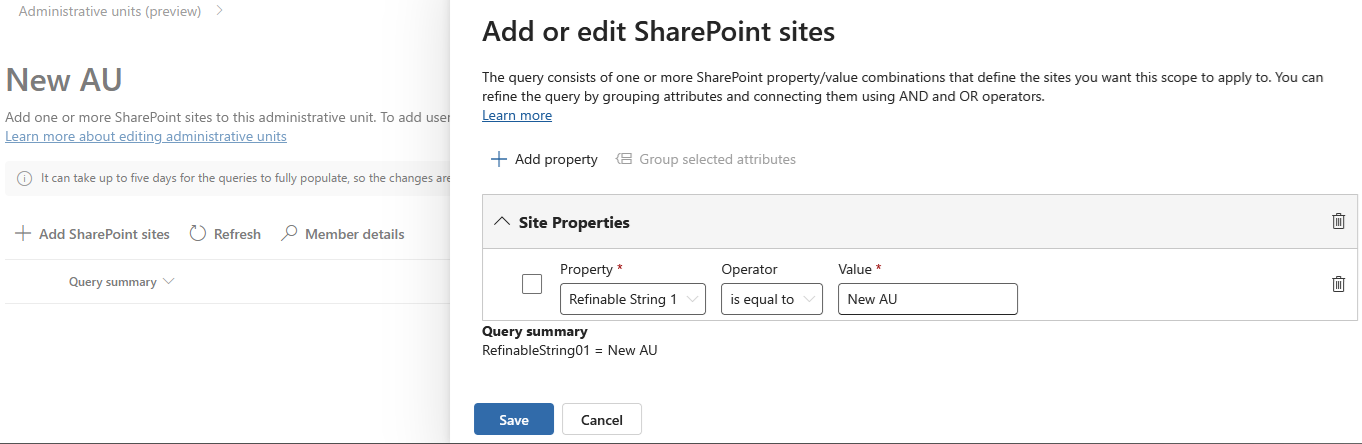
Nothing fancy really, but the screenshot above does not reflect all the preparation work done to configure site property bags, crawled properties and mappings performed in SharePoint Online.
Summary
In summary, we took a look at how Microsoft Purview “extends” Administrative units to add support for SharePoint Online and OneDrive for business sites as members. The implementation ensures that the “original” AU, its membership and roles assigned are not touched and remain fully manageable only on Entra ID side. Instead, Purview gives you a read only view, in a way similar to what Exchange Online does. It then reuses the existing Adaptive scope functionality to “attach” a site-based query to the corresponding AU, allowing supported Purview solutions to treat any matching sites as members of the AU.
This functionality is currently only supported by Information protection auto-label policies and DLP policies. When an AU is assigned as the scope for such, the corresponding policy is effectively scoped to sites matching the “extended” membership, with no further inclusions/exclusions possible. Much like with adaptive scopes, you can use SharePoint managed properties to construct the query. Sites corresponding to shared channels are not currently supported.