It has been a while since we last talked about SharePoint Online’s Data Access Governance reports, and since then Microsoft addressed some of the criticism we expressed previously. We now have a way to programmatically trigger the data collection process and download the results, as part of the SPO PowerShell module cmdlets. We also have some new reports, which you can find under the Sites and files shared via special SharePoint groups section. Let’s take a look.
Generating the reports
To access the new reports, you will need to navigate to the Data access governance page of the SharePoint Online Admin Center. And yes, this is still a premium functionality only available to customers with the SharePoint Advanced Management SKU or equivalent. Next, hit the View reports button from the Sites and files shared via special SharePoint groups section. You will be taken to a new page, where the two new reports reside.
The
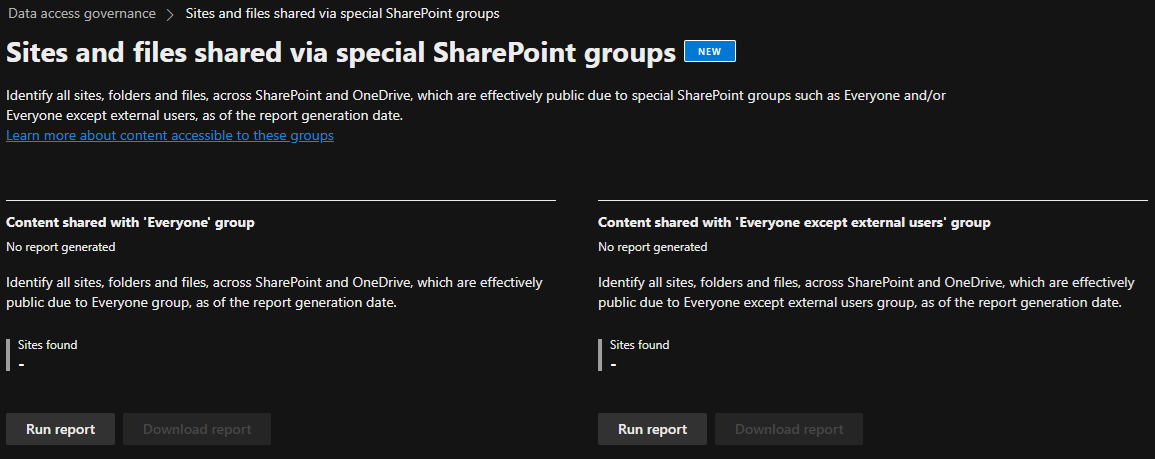 To start the data collection process, click the corresponding Run report button. Do note that you will need the SharePoint Advanced Management admin role assigned first. Alternatively, you can use the SharePoint Online PowerShell module:
#Run the Content shared with 'Everyone' group report
Start-SPODataAccessGovernanceInsight -ReportEntity Everyone -ReportType Snapshot

#Run the Content shared with 'Everyone except external users' group report
Start-SPODataAccessGovernanceInsight -ReportEntity EveryoneExceptExternalUsers -ReportType Snapshot
Both reports include data across your entire SPO/ODFB estate (excluding system files and groups), thus do not need the use of the –Workload parameter. Refer to the official documentation for additional details and examples.
The data collection process runs asynchronously on the backend. There is no progress indicator provided either in the UI nor via PowerShell, but you can check on the report’s status by both methods.
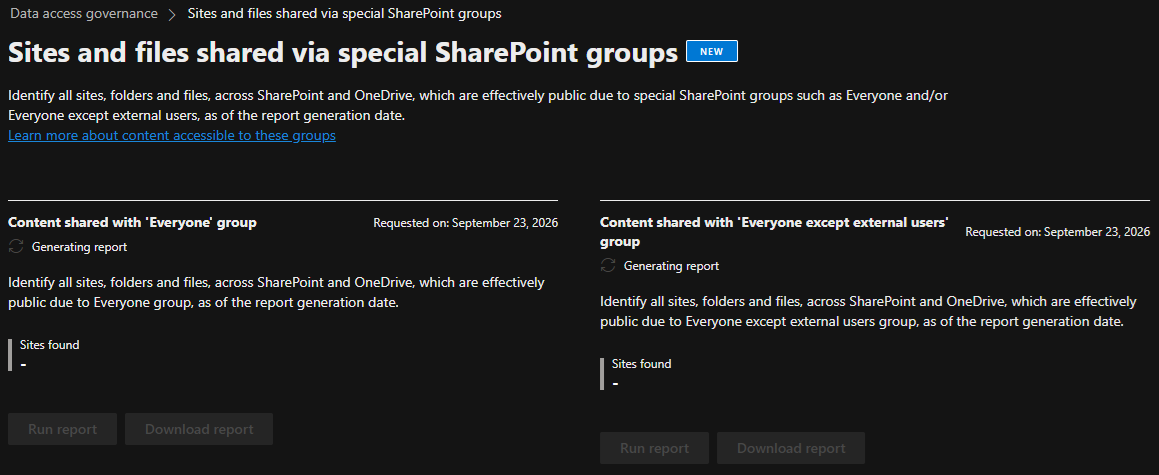
#Check the status of the Content shared with 'Everyone' group report
Get-SPODataAccessGovernanceInsight -ReportEntity Everyone
WARNING: This command is currently in preview and may undergo breaking changes in future releases.

ReportId             : 59079222-c6e5-4c23-a3a5-7f7130572e91
ReportEntity         : Everyone
Status               : InProgress
Workload             :
TriggeredDateTime    : 23/09/26 06:15:07
CreatedDateTime      : 23/09/26 06:15:58
ReportType           : Snapshot
CountOfSitesInReport : 0

#Check the status of the Content shared with 'Everyone except external users' group report
Get-SPODataAccessGovernanceInsight -ReportEntity EveryoneExceptExternalUsers
WARNING: This command is currently in preview and may undergo breaking changes in future releases.

ReportId             : 4da16f97-74bd-4238-ab80-b7fb1b859ca0
ReportEntity         : EveryoneExceptExternalUsers
Status               : InProgress
Workload             :
TriggeredDateTime    : 23/09/26 06:15:16
CreatedDateTime      : 23/09/26 06:16:01
ReportType           : Snapshot
CountOfSitesInReport : 0
Viewing the reports
Once data has been gathered (which can take hours or even days in larger tenants), you can download the resulting CSV files by pressing the corresponding Download report button. Do note that you can only run said reports once every 30 days or so, thus the Run report button remains grayed out.
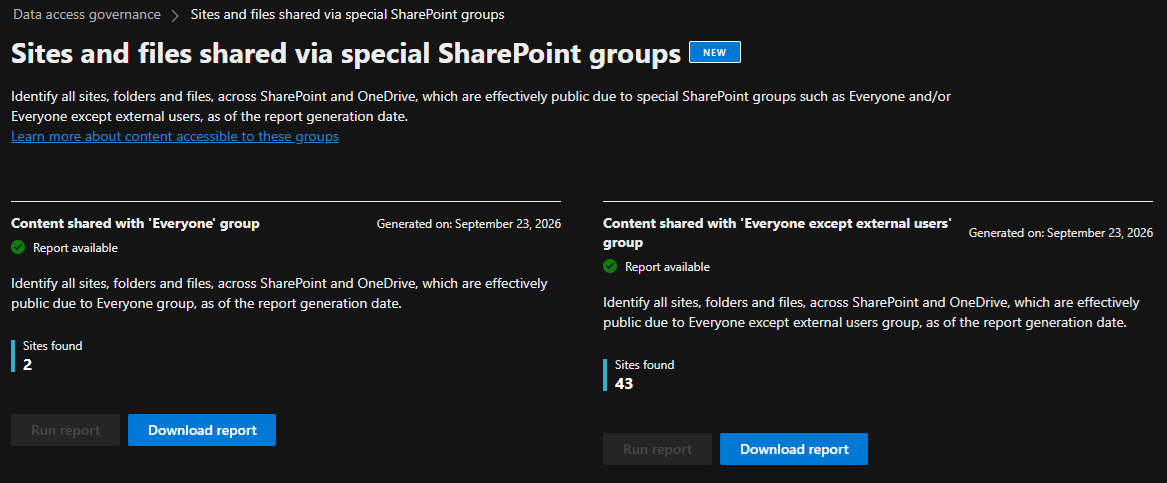
The resulting CSV file can contain maximum of 1 million entries, listing each individual site, file or folder with an offending permission entry stamped. Among the details included are the relative item URL, as well as GUIDs for the tenant, site, web, list, whereas the Recipient and UserPrincipalName column reflect the Everyone or Everyone Except External Users values. For complete list of columns refer to the following table.
 While the resulting CSV files give you all the required details to identify items that might have broader access than intended, the new reports offer nothing in terms of actually addressing the oversharing. This is in stark contrast with the other reports exposed by the DAG functionality, most of which offer detailed pages to review the results, and even expose actions. All you get here is a button to generate the report and a button to download it.
Another issue, clearly visible on the screenshot above, is the lack of proper support for localization. It is mindboggling that in the year of 2026 Microsoft still hasn’t figured out encoding. To be clear, this is more than a simple display issue, as it breaks the PowerShell cmdlet to download the reports:

#Download an already generated report by referencing its ID
Export-SPODataAccessGovernanceInsight -ReportID 4da16f97-74bd-4238-ab80-b7fb1b859ca0 -DownloadPath "D:\Downloads\aaaa.csv"
Do it yourself
This semi-broken implementation begs the question, can we do better than Microsoft? As we know form our previous article, the DAG reports are stored in a list within the “admin” site collection. Which means, we can easily fetch them via PnP. While we can “guesstimate” the file based on its creation timestamp and name, we can also dig a bit deeper and fetch the definition from the Metadata field:
#Connect to PnP via CBA
Connect-PnPOnline -Url "https://tenant-admin.sharepoint.com" -ClientId xxxxxxxx-xxxx-xxxx-xxxx-xxxxxxxxxxxx -CertificateBase64Encoded $base64encodedstring -Tenant tenant.onmicrosoft.com

#Fetch items in the DO_NOT_DELETE_DOCLIB_DATAGOVERNANCE_REPORT_INSTANCE list
$files = Get-PnPListItem -List DO_NOT_DELETE_DOCLIB_DATAGOVERNANCE_REPORT_INSTANCE -Fields Created,FileRef,Title,Metadata

#Find the one(s) matching the report ID as reported via *-SPODataAccessGovernanceInsight cmdlets
$report = &{($files | ? {($($_.FieldValues["Metadata"]) | ConvertFrom-Json).DetailedEEEUId -eq "4da16f97-74bd-4238-ab80-b7fb1b859ca0"} | select -ExpandProperty FieldValues)["FileRef"]} 2>$null

#Fetch the file content and export to CSV
Get-PnPFile $report -AsString | ConvertFrom-Csv | Export-Csv -NTI D:\Downloads\a21.csv -Encoding unicode -QuoteFields *
Do not forget to replace the GUID of the report instance in the code above! The result should match the file exported via the UI, but with proper encoding (you might need Text to Columns first):

Apart from ensuring data is readable, PowerShell can of course be used to generate your own version of the report. A simple call to the Get-SPOSite cmdlet can be used to enumerate all sites. We iterate over each site via the Get-SPOSiteGroup cmdlet to expose groups where the relevant principal (represented by spo-grid-all-users/2175215d-204f-4812-9b98-7a025d7803a2 for Everyone Except External Users) has been added. Here’s the relevant code:
#Enumerate all istes
$sites = Get-SPOSite -IncludePersonalSite:$true

#Report on Everyone Except External Users
$out = foreach ($s in $sites) { &{Get-SPOSiteGroup -Site $s.Url} 2>$null | ? {$_.Users -match "spo-grid-all-users/2175215d-204f-4812-9b98-7a025d7803a2"} | select *,@{n="Url";e={$s.url}}}

$out | ogv -PassThrough

The sample code above does nothing with regards to individual files, it only covers sites. The level of detail is also quite small compared to the built-in report, but you might be surprised just how close the data is.
Summary
In summary, we explored the recently released Content shared with ‘Everyone’ group and Content shared with ‘Everyone except external users’ group reports. Both reports are part of Data Access Governance/SharePoint Advanced Management, and can only be accessed if you have the relevant SKU and role. Much like other DAG reports, you need to generate them on demand via asynchronous operation, which can take some time in larger organizations.
Both reports serve to highlight sites, lists and items that have been exposed to the entire organization, either intentionally or by mistake. One can indeed argue that this is yet another Microsoft-made problem, as you will undoubtedly find many group and Team sites listed within the results, something that was repeatedly brought as potential issue back when Microsoft 365 Groups were first introduced. In turn, having to pay for SAM to address this can be seen as another money grab attempt.
Sadly, no method has been provided to act on the offending sites/items, so the reports are of purely informational value. Any action needs to be manually performed, and best you can do is use the generated report data as input for automation scripts. Which is still better than nothing, but less than I expected.