Oh, Graph. The promised land, and a lesson to never trust empty promises. Even in 2025, still plagued by the lack of a single standard, with each PG within Microsoft doing their own thing, and some ignoring the Graph completely. Add to this crappy autogenerated code, a pain further exacerbated by even crappier (or non-existent) documentation, and it’s all just perfect.
So here I am, writing another rant article after spending the last few hours reading, searching, copiloting, fiddlering, cursing and decompiling in search for a simple answer to an even simpler question: How to set a user’s photo from an image stored on the web? You can find the answer at the end of the article, the rest is a lot of unnecessary details mixed with some rants. I warned you! 🙂
Here’s the problem again. We want to set the profile photo of an Entra/Microsoft 365 user. You should know by now that the old methods of doing so, such as using the Set-UserPhoto cmdlet, were deprecated recently in favor of the Graph method. In particular, we can use the Update profilePhoto method, and the matching Set-MgUserPhotoContent cmdlet. For example:
Set-MgUserPhotoContent -UserId xxxxxxxx-xxxx-xxxx-xxxx-xxxxxxxxxxxx -InFile "C:\Pictures\12345.png"
All good, but what if we do not, or cannot store the images on a local drive and want to instead fetch them from a URL? Well, obviously the -InFile parameter is a “client-side” implementation, as we cannot expect the underlying Graph API method to rely on having access to local files. So we just need to pass the raw image data instead, right? And surely the Graph SDK does provide a parameter to do that?
Quick look at the documentation tells us that this is indeed the case, via the -Data parameter. What the documentation does not tell us is how to use said parameter and what kind of input it expects. Pass a System.IO.FileStream object? No dice. Pass a System.IO.MemoryStream object? Try again. It will either error out or insist that you provide a value for -InFile as well, which kind of defeats the whole purpose.
As by now I know to expect nothing other than crappy cmdlet implementation from the Graph SDK for PowerShell, I turned to the “raw” Graph API request instead. Lo and behold, here is what the documentation says: In the request body, include the binary data of the photo. And in case the above is a bit unclear and you try looking into the examples, here’s what you’ll feast your eyes upon:

You have all the needed information now, no? Oh, and if you take a look at the supposed PowerShell code sample, you’d get to enjoy not only another mention of Binary data for the image, but a non-existent parameter as well. Don’t you just love all this autogenerated crap!
Since I was getting nowhere with the documentation, I turned to searching, and after finding zero relevant results online, in my desperation I even asked some of our beloved AI companions for help. Needless to say, that was another waste of time, so at the end, I turned to good old reverse engineering practices. Starting with a Fiddler trace to examine the exact format of the payload used by the cmdlet/Graph API method:
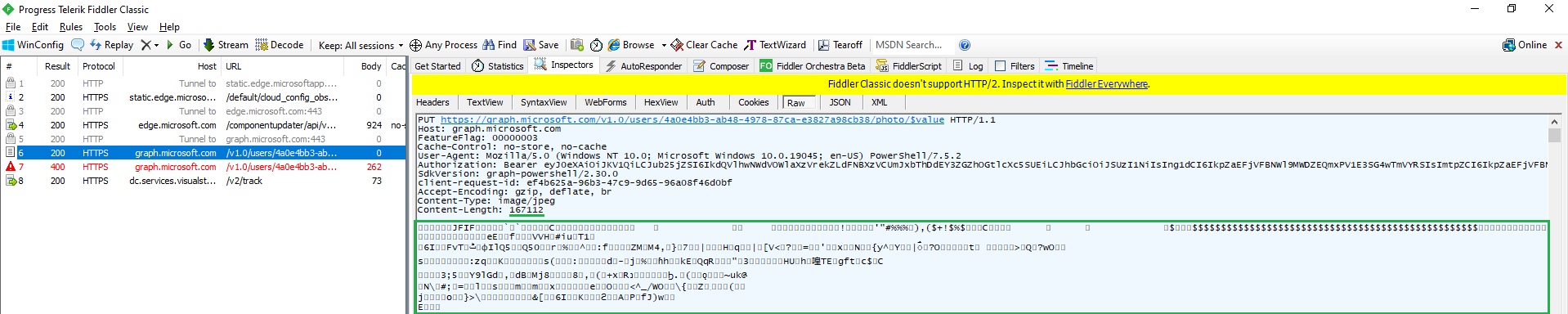
The screenshot above captures the request corresponding to successful execution of the Set-MgUserPhotoContent cmdlet. If you take a look at the payload part, enclosed in the green box, you can see the aforementioned Binary data for the image, which looks an awful lot like an object generated via the Get-Content cmdlet. Yet, passing a raw Graph API request with such a payload resulted in errors, as shown below:

While comparing binary data is not that simple, the similarities are there. One thing that stands out is the discrepancy in the content length value, which gives a helpful hint. Sadly, attempting to leverage the knowledge obtained from the above traces with the Set-MgUserPhotoContent cmdlet resulted in zero success. So at that point, I simply gave up on it an turned to good old Invoke-MgGraphRequest instead.
Without further ado, here are some examples on how you can set user’s photo via Set-MgUserPhotoContent:
$bytes = [System.IO.File]::ReadAllBytes("D:\Downloads\1.jpg")
$stream = [System.IO.MemoryStream]::new($bytes)
Invoke-MgGraphRequest -Method PUT -Uri "https://graph.microsoft.com/v1.0/users/xxxxxxxx-xxxx-xxxx-xxxx-xxxxxxxxxxxx/photo/`$value" -Body $stream -ContentType 'image/jpeg'
Alternative approach via StreamReader:
$image3 = [System.IO.StreamReader]::new("D:\Downloads\1.jpg").BaseStream

Invoke-MgGraphRequest -Method PUT -Uri "https://graph.microsoft.com/v1.0/users/xxxxxxxx-xxxx-xxxx-xxxx-xxxxxxxxxxxx/photo/`$value" -Body $image3 -ContentType 'image/jpeg'
And, at long last, how to set user’s photo directly from a image URL, by leveraging the raw content stream property:
#Fetch the image
$image4 = Invoke-WebRequest -Uri "https://upload.wikimedia.org/wikipedia/commons/thumb/8/8d/Tabby_Kitten_on_Blue_Throw.jpg/1024px-Tabby_Kitten_on_Blue_Throw.jpg"

#Set it as user's profile photo
Invoke-MgGraphRequest -Method PUT -Uri "https://graph.microsoft.com/v1.0/users/xxxxxxxx-xxxx-xxxx-xxxx-xxxxxxxxxxxx/photo/`$value" -Body $image4.RawContentStream -ContentType 'image/jpeg'
At the end of the day, even after spending some time decompiling, I could not figure out how exactly the -Data parameter of the Set-MgUserPhotoContent cmdlet is supposed to work, and what it accepts as input. So I decided that ranting about it is the wisest decision here, especially now that the task we set to achieve was finally accomplished.
One last thing to note is that you might need to leverage the -UseBasicParsing parameter of the Invoke-WebRequest cmdlet, depending on the version of PowerShell you are using. And with that, we can close this article. Hopefully the information in it will help some other poor soul, and teach those “PhD level” AIs a thing or two.
///UPDATE. As a bonus tip, here’s how to set the photo from an image stored in SPO/ODFB. There are in fact many ways to get the raw image data, but let’s stick to one that makes most sense for the average Joe. That is, instead of having to provide a siteId, listId/driveId and itemId, we can use the Search API, or the corresponding Invoke-MgQuerySearch cmdlet, to fetch the item’s details by its URL (via a “path” query). Simply make sure to request the driveItem entity type.
Once we have the set of Ids that identify the image, we can use the Get-MgDriveItem or the Get-MgSiteListItemDriveItem cmdlet to fetch its ‘@microsoft.graph.downloadUrl’ facet. This gives us a pre-authenticated download URL that we can then use with the Invoke-WebRequest cmdlet to fetch the image, without worrying about authentication.
I’d argue you’re still setting it from a local source, just one that is in memory and not a local file.