In one of the most meaningful updates we’ve received in a while, Exchange Online now allows admins to “reassign” meetings to a new organizer. This is tremendously helpful in scenarios where the existing organizer is no longer available, be it due to them leaving the company, an extended leave, or something else. In effect, this complements the previous functionality that allows admins to cancel future meetings. Let’s dig in.
Meet the Invoke-ChangeMeetingOrganizer cmdlet
The feature is rolling out as part of Roadmap item #554937. For some reason, the Roadmap item doesn’t mention the cmdlet name itself, which is dubbed Invoke-ChangeMeetingOrganizer. The Invoke-ChangeMeetingOrganizer cmdlet is available in Exchange Online only at present, and you must be assigned either the User Options or Mail Recipients roles in order to use it. As Microsoft hints in the roadmap item above, a future update plans to bring support for user-initiated flow as well, so end users might also “see” the cmdlet already, but without all the required parameters.
Speaking of which, the Invoke-ChangeMeetingOrganizer cmdlet supports the following set of parameters:
- Identity – used to designate the mailbox currently “hosting” the meeting. You can use any of the “standard” identifiers, such as alias, primary SMTP address, UPN and so on. Mandatory.
- Subject – used to specify the meeting for which to change the organizer for via a human-readable identifier.
- EventId – the unique identifier for the meeting.
- NewOrganizer – the SMTP address of the new organizer. You cannot use values such as the alias here. Mandatory.
- TransferSeriesStartDate – optional, used to specify the “cutoff” data for recurring meetings. If you don’t provide a value for this parameter, the transfer starts from the next occurrence.
- WhatIf – preview the effect of the cmdlet, without making any changes
As evident from the list of supported parameters, there are two ways in which you can specify the identity of the meeting you want to change organizer for. The “easy” method is to specify the meeting’s subject, via the -Subject parameter. While much friendlier, this method cannot guarantee an unique resolution of the meeting identity, as it’s perfectly acceptable for multiple meetings to have the same subject. In such scenarios the cmdlet will not make any changes, but will instead output the list of matching meetings (see the example below). Another important thing to note here is that the match is a wildcard one, that is every meeting with subject that includes the string you specify will be returned.
Therefore, it is preferable to specify an unique-valued identifier for the meeting, such as the EventId. To fetch the EventId value for any given meeting, an administrator can query the Graph API’s /events endpoint or leverage the Get-MgUserEvent cmdlet from the Graph SDK for PowerShell. Creative use of the Invoke-ChangeMeetingOrganizer cmdlet can also help, but only in scenarios where you can come up with a subject string matching more than one meetings, as a list of matches is only returned when multiple hits occur.
Note that we are talking about the EventId (or Id as returned by the Graph API) value here. This is a mailbox-specific value (even changes when you move the item to a different folder) and will differ across recipients/attendees. The globally unique identifier, UID, is the more useful property, and likely what gets updated on the backend, though this complexity is hidden. The cmdlet takes care of “resolving” the subject or EventId provided to the proper UID.
Lastly, it is important to understand the limitations of the cmdlet. First, the mailbox of the current organizer must still exist, the cmdlet won’t work if the mailbox has been deleted. This matches the behavior of the Remove-CalendarEvents cmdlet, so it should not come as any surprise, but it’s worth mentioning nevertheless. The meeting must occur in the future, you cannot make changes to past meetings. More importantly, the meeting must reside in the default calendar, any additional calendars are not covered. Similarly, you cannot change the organizer for a meeting in a shared or group mailbox.
How to change the meeting organizer
Now that we have a basic understanding of how the Invoke-ChangeMeetingOrganizer cmdlet works and what (some) of the limitations are, let’s take a look at few examples. We mentioned the importance, and difficulties of getting the EventId value of the meeting in question, so let’s start with some simpler, Subject-based examples. Here’s what the behavior of the cmdlet looks like when you use the –Subject parameter with a value that matches multiple meetings:
#Example with multiple matching meetings
Invoke-ChangeMeetingOrganizer -Identity vasil -Subject "Test meeting" -NewOrganizer user@domain.com

====================================================================================================
Multiple upcoming calendar events organized by 'vasil' match subject 'Test meeting'. Copy the MeetingId (or EventId) of the meeting you want from the list below and run the command: Invoke-ChangeMeetingOrganizer -Identity "vasil" -MeetingId <MeetingId> -NewOrganizer "user@domain.com"
====================================================================================================

Subject : Test meeting
StartTime : 08/06/2026 07:00:00
EndTime : 08/06/2026 07:30:00
TimeZone : tzone://Microsoft/Utc
MeetingId : 040000008200E00074C5B7101A82E0080000000060CEF011EC0DDD0100000000000000001000000058C159B329FD1B4E8AFDF43FD5173C8C
EventId : AAMkAGU2MWM5NzU0LWY3MmQtNGI3OS1hNDVlLTBkMzI3OWVlNWIzZgBGAAAAAAChKSJAhlnUTIHtKSso30ThBwBIPfDMxyP-RYhY8M8xmAPVAAAAAAEOAABIPfDMxyP-RYhY8M8xmAPVAAjmeg67AAA=
Recurrence :

Subject : Test meeting #2
StartTime : 08/06/2026 06:30:00
EndTime : 08/06/2026 07:00:00
TimeZone : tzone://Microsoft/Utc
MeetingId : 040000008200E00074C5B7101A82E00800000000008AB2F4EB0DDD01000000000000000010000000FAAD9A2D38ABFF40B3012A79F41DF3EF
EventId : AAMkAGU2MWM5NzU0LWY3MmQtNGI3OS1hNDVlLTBkMzI3OWVlNWIzZgBGAAAAAAChKSJAhlnUTIHtKSso30ThBwBIPfDMxyP-RYhY8M8xmAPVAAAAAAEOAABIPfDMxyP-RYhY8M8xmAPVAAjmeg66AAA=
Recurrence :

Subject : Test meeting
StartTime : 08/06/2026 06:00:00
EndTime : 08/06/2026 06:30:00
TimeZone : tzone://Microsoft/Utc
MeetingId : 040000008200E00074C5B7101A82E00800000000B07E0CD3EB0DDD01000000000000000010000000650FB34C309BB14AA567AAED14380789
EventId : AAMkAGU2MWM5NzU0LWY3MmQtNGI3OS1hNDVlLTBkMzI3OWVlNWIzZgBGAAAAAAChKSJAhlnUTIHtKSso30ThBwBIPfDMxyP-RYhY8M8xmAPVAAAAAAEOAABIPfDMxyP-RYhY8M8xmAPVAAjmeg65AAA=
Recurrence :
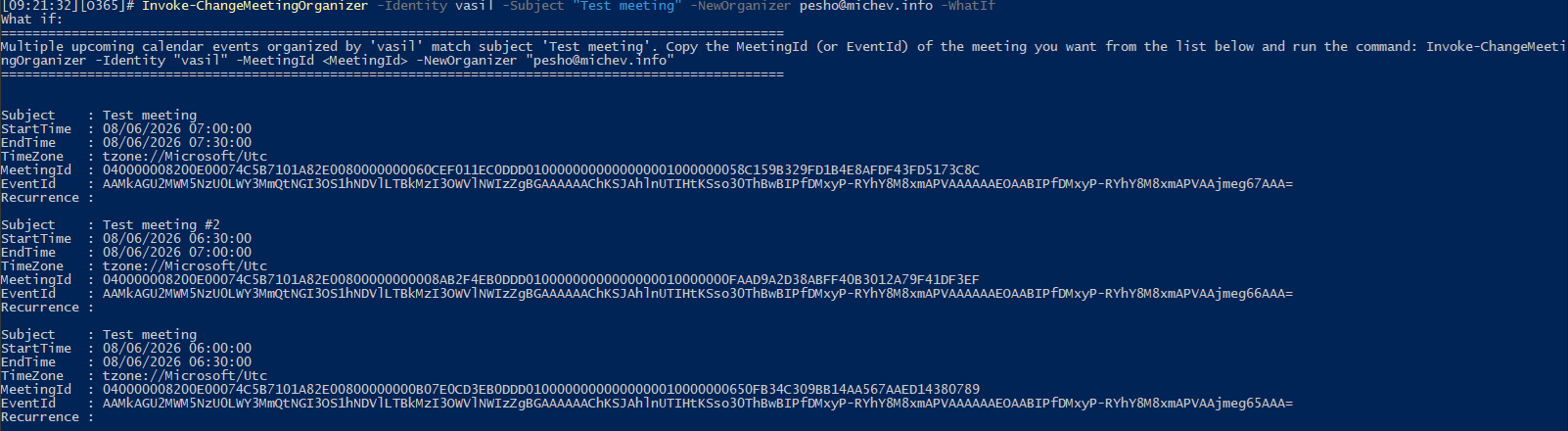
Instead of changing the meeting organizer, in such scenarios the cmdlet will output the list of matching meetings and advise you to re-run the it with a unique-valued identifier (note that the -MeetingId parameter referenced in the message from the screenshot above doesn’t exist, the actual parameter name is -EventId). Still, this behavior can indeed be “abused” to get the EventId value for the meeting in question, saving us the trouble of using the Graph API or other methods.
Without further ado, here’s a “working” example, where the original meeting organizer gets replaced:
#Change organizer of an event by Id
Invoke-ChangeMeetingOrganizer -Identity vasil -EventId "AAMkAGU2MWM5NzU0LWY3MmQtNGI3OS1hNDVlLTBkMzI3OWVlNWIzZgBGAAAAAAChKSJAhlnUTIHtKSso30ThBwBIPfDMxyP-RYhY8M8xmAPVAAAAAAEOAABIPfDMxyP-RYhY8M8xmAPVAAjmeg66AAA=" -NewOrganizer user@domain.com
Note that the Invoke-ChangeMeetingOrganizer cmdlet does not generate any output on successful execution.
Once the cmdlet is run, several things will happen. First, a meeting cancelation message is sent from the original organizer’s mailbox to all the attendees. This can potentially include the newly designated organizer, if he was added to the attendee list. The cancelation message is then followed by a new meeting request, sent on behalf of the new organizer via newly introduced system mailbox. In my case, Microsoft System Attendant <DU4PR03MB10910-SA@eurprd03.prod.outlook.com>. This new meeting request will feature all original attendees, minus the original organizer.

For attendees within your tenant, such updates should all happen silently and there is no need for attendees to re-respond to the invitation. In addition, any “client-side” settings they have made, such as configuring a category for the meeting or using a different reminder, are automatically preserved. For external attendees, the process is less pleasant one, as they need to re-RSVP and reapply any client-side changes to match the original meeting’s behavior.
Online meetings, including those hosted in Microsoft Teams, will need to be updated with new online meeting join blob. This is needed because the new organizer will not have permissions to manage, or even join the original online meeting. Similarly, for any files shared via OneDrive for Business links, a new link should be generated and the original one removed.
The screenshot below illustrates the series of message exchanges that ensure the event gets updated across all attendees. The bottom three are the cancelation message, send from the original organizer’s mailbox (vasil) to the original set of attendees. It is followed by a message sent from the Microsoft System Attendant on behalf of the new organizer to himself to effectively create a copy of the event in his mailbox (the highlighted entry). Afterwards, each of the remaining attendees, apart from the original organizer, gets an meeting update message with the up to date organizer information:

For recurring meetings, expect to see additional messages across instances. In addition every series exception will also get its own set of cancelation and invitation messages.
Lastly, since meeting updates are handled by proper mail flow exchange, as we can see from the screenshot above, expect all the usual suspects to act on them. Forwarding, transport rules, mail flow rules, delegate configuration can all affect message update delivery, and message trace should be one of the first troubleshooting steps you try if the functionality does not seem to work as expected. For example, the “Failed” status above is caused by delegate configuration, causing messages addressed to the new organizer’s mailbox to be delivered to a different recipient.
And just to make it clear, you can indeed use the cmdlet by referencing a (single) event by its subject:
#Change organizer of an event by subject
Invoke-ChangeMeetingOrganizer -Identity vasil -Subject "Test meeting #" -NewOrganizer user@domain.com
Additional scenarios and notes
We already touched on using Message Trace as means of understanding how the organizer change functionality works. Apart from that, an entry should be present in the Unified Audit Log for each execution of Invoke-ChangeMeetingOrganizer. More event types, such as Update or Send, should also be generated, albeit with the familiar delays. The big issue is correlating the entries, as the message identifiers will differ. In most cases we will likely need to leverage the data exposed via message trace to find related audit log entries.
Speaking of identifiers, once the meeting organizer has been updated, for all intents and purposes you are working with new event. You can check the event’s UID value to confirm that (and EventId is location-specific by design). This makes things a bit difficult to track, but it is the expected behavior, as after all we did receive a meeting cancelation for the original event.
Switching gears a bit, here is what happens if you try to transfer the meeting to an unsupported organizer, such as a shared mailbox:
#Try to change the meeting organizer to unsupported recipient
Invoke-ChangeMeetingOrganizer -Identity vasil -Subject "Test meeting #" -NewOrganizer shared@domain.com
Write-ErrorMessage : ||Your request can't be completed. Both organizers must be users in the same organization hosted in Office 365.
 While the above error message is not exactly properly worded, we can use it as a nice Segway to mention yet another, albeit a bit obvious limitation of the Invoke-ChangeMeetingOrganizer cmdlet. Namely, you can’t cross tenant boundaries with it, as in the new organizer must be a valid recipient object within the same tenant.
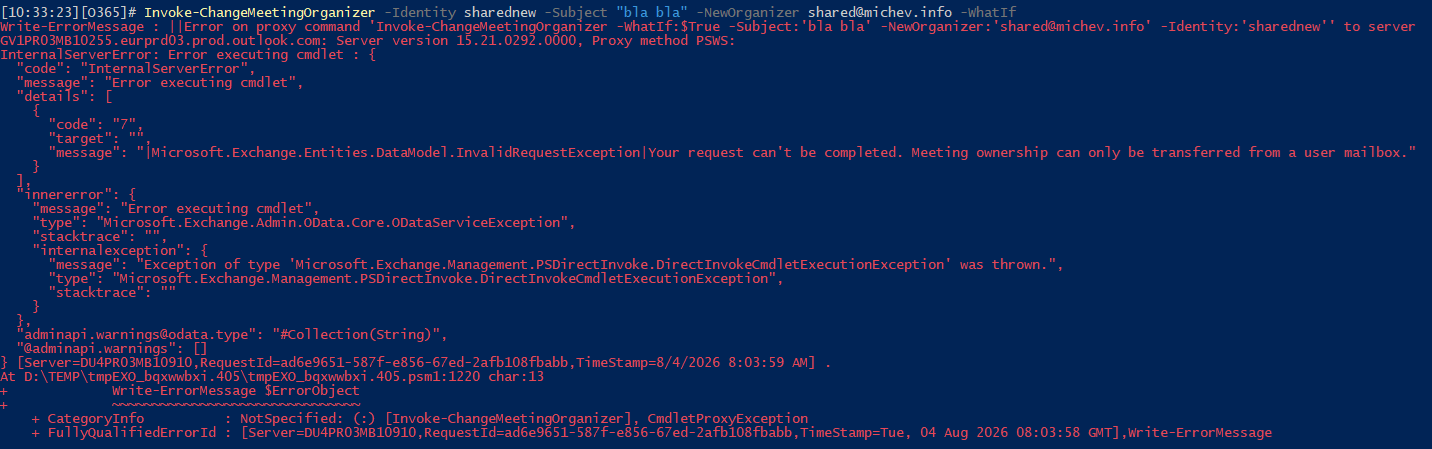
Similarly, if the original organizer of the meeting is set to a shared/room mailbox you will not be able to leverage the Invoke-ChangeMeetingOrganizer cmdlet to transfer it:
#The cmdlet fails when the meeting organizer is an unsupported recipient
Invoke-ChangeMeetingOrganizer -Identity sharednew -Subject "bla bla" -NewOrganizer user@domain.com
Another important thing to note is that Invoke-ChangeMeetingOrganizer is supported for non-interactive scenarios, too. Of course, you need to make sure the corresponding service principal object has access to the cmdlet (as mentioned above, the User Options or Mail Recipients built-in roles would do). There seem to be slight differences in the behavior, such as no WhatIf message being returned, but the important thing is that the actual change of organizer works!
 And speaking of automated execution, one obvious scenario we’d want to address is to transfer all the meetings organized by a specific user. The Invoke-ChangeMeetingOrganizer cmdlet does not support bulk actions, but PowerShell itself makes this a breeze, as long as we can provide the proper identifiers. But since this article is long enough as it is, we will cover the “bulk” scenario in an upcoming post 🙂
Summary
In summary, Microsoft is rolling out one of the coolest “quality of life” improvements we have received in a while. Being able to change the organizer of (future) meetings is something that most organizations will greatly appreciate, even though not all possible scenarios can be addressed currently. The limitations are unfortunate, but Microsoft will likely improve the feature. But even in its current form, it’s still a much welcome addition to the service. Plus, we already have a commitment to address self-service scenarios, which likely means we will also get some UI implementation!
1 thought on “How to use the Invoke-ChangeMeetingOrganizer cmdlet to change the meeting organizer”