Shared mailboxes remain widely used in many scenarios, and thus when Microsoft GA’d the new Outlook without providing proper support for them, it caused some uproar. Some time and engineering effort later and we are finally at a point where things are looking much better on that front. While some gaps remain, if you have been delaying the switch to the new client because of dependencies on shared mailbox access, you should consider giving it a try now.
In this article, I’ll guide you over the process of adding a shared mailbox as an additional account in the New Outlook client, and outline some of the differences in how things work compared to the classic Outlook client. As in our previous article, we will only be addressing the Full Access scenario, where you have been granted unrestricted, mailbox-level access, as opposed to folder-level sharing. This is sometimes also referred to “Read and manage” access, e.g. within the Mi365 Admin Center.
Apart from the Full Access permission requirement, you must have your own (or the delegate’s) mailbox added in Outlook. A shared mailbox cannot be added on its own, or rather, it can, but the requirements for doing that are quite steep. This has the added side effect of putting an end to the “change the shared mailbox’s password and use it as a free replacement for user mailbox” scenarios, so bad news for some folks. I will add some additional notes on “standalone” scenarios at the end of the article, if you are interested. For now, let’s focus on the common scenarios.
Add a shared mailbox as account
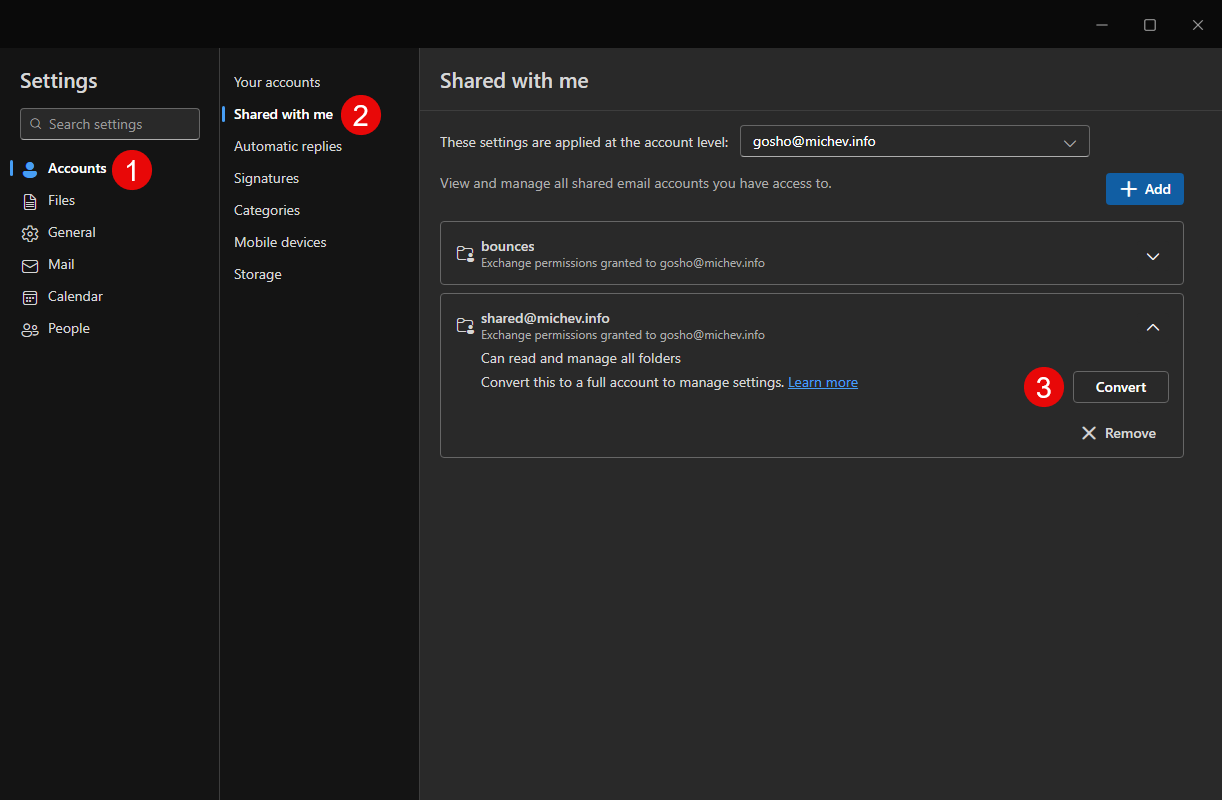
If you have been granted Full access to a shared mailbox (without automapping), you will need to follow the steps below in order to add the shared mailbox to Outlook. As mentioned above, your (aka the delegate) mailbox must be added to Outlook beforehand, as its credentials will be used to access the shared mailbox. If the above two prerequisites are met, all you need to do is open Outlook’s Settings dialog (the Gear icon) and access the Accounts > Shared with me page. Do not use the Add account button (found under Your Accounts), as it will not work. We will talk more about that in latter section.

A small note is due here. Your Outlook profile might already have multiple (primary) accounts added to it. The functionality we are detailing here is account dependent, so you need to make sure you have selected the correct account. This is done via the These settings are applied at the account level dropdown, as visible on the screenshot above. The reason why it is so important is because Outlook will automatically leverage the credentials (access token) for the selected user in order to validate access to the shared mailbox. This is all done behind the scenes, you will not be presented with a login prompt.
Anyway. On the Shared with me settings page, hit the +Add button. You will be presented with the Add a shared mailbox account dialog, where you will need to provide the address of the shared mailbox you are trying to add. The experience here has some rough edges, but in general you would type the email address, then hit the Search directory popup menu item and finally, the Use this address: (email address) one. If a valid entry is found, it will be highlighted in yellow, as shown below (if using the dark theme, the highlight is much less prominent with the light theme).
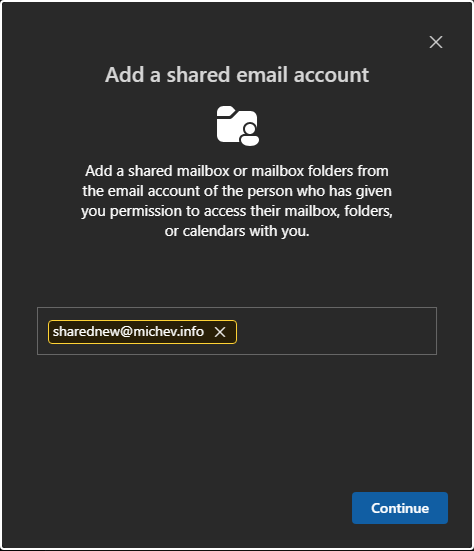
In some cases, the process is made a bit easier by the “suggested contacts” entries shown when you initially place the cursor in the text box, but you get a total of five such entries, and not necessarily mailboxes to which you have been granted access, or have accessed recently for that matter. In addition, searching for partial values, such as sharednew in the example above, doesn’t always return results. For the best experience, you might consider copy/pasting the full address.
Once you get the highlighted entry, similar to the one shown on the screenshot above, you can press the Continue button. A permission verification is performed at this point and if everything checks out, the shared mailbox will be added to Outlook, as an additional account, and you will be prompted to restart the client.

After the restart, the shared mailbox will appear on the left nav pane, where you can work with it much like with any regular mailbox. You will also be able to configure Inbox rules, set Out Of Office replies, manage categories, and more. In addition, the mailbox will also appear under the Your Accounts page in Settings. That said, there are still some missing features that Microsoft plans to add in the coming weeks/months, as mentioned in this article.
“Convert” previously added shared mailbox to show up as account
Now, you might have added the shared mailbox before this functionality was rolled out, or at a point in time where you only had folder-level permissions on the mailbox. In such scenarios the mailbox will appear on the left nav pane and you will be able to work with items in the mailbox, but some functionalities will not be available. Another example where this holds true is for automapped mailboxes (we will talk more about these in the next section). In previous version of Outlook, we referred to this as having the mailbox added as additional mailbox (vs having it added as additional account).
If the need arises to leverage any of the missing functionalities, the new Outlook client allows you to easily “convert” between the two modes. To do so, access the Accounts > Shared with me settings page. Make sure to select the correct account if you have multiple ones added to the profile. Locate and expand the shared mailbox entry on this page, then hit the Convert button. You will be presented with a “checking permissions” dialog and if everything checks out, the same prompt to restart Outlook as the one we saw in the previous section.
After the restart, the mailbox will now appear under the Your Accounts page in Settings, much like in the above scenario. As the shared mailbox is accessed in “account” mode now, you will be able to access all the additional (currently supported) functionalities this mode exposes.
Should you change your mind, you can revert to the previous mode by accessing the Accounts > Shared with me settings page, locating and expanding the shared mailbox entry then hitting the … button to surface another menu with the Use as shared folder button. Hitting said button will complete the process. Why exactly Microsoft chose to bury this action under additional menu is beyond me…

Work with automapped mailboxes
Apart from manually adding a shared mailbox, the new Outlook client also supports the automapping functionality, where a shared mailbox is “attached” as an additional resource to your own mailbox and will appear automatically in clients. In fact, this is the default behavior when access is granted via Full access permissions in the Microsoft 365 Admin Center, Exchange Online Admin Center and even via PowerShell. Automapping alleviates the manual steps of adding the shared mailbox, but might not always be the desired behavior, e.g. when you have been granted access to a dozen mailboxes.
Apart from making sure users can access automapped mailboxes, the new Outlook client further improves the experience by showing a banner under the mailbox’s entry in the Shared with me settings page, informing the user that this mailbox was indeed auto-added because of admin decision. The same banner serves to explain why the Remove button is grayed out for such entries. As a notable improvement, the new Outlook client allows you to work around this by introducing the Hide in folder list button, effectively allowing you to remove automapped mailboxes from your profile.

At any point, you can reverse the decision to hide the automapped mailbox by reopening the Shared with me settings page and hitting the Show in folder list button. Note however that said buttons, as well as the banner shown on the screenshot above, will only be visible if the auto-mapped mailbox is NOT converted to an account.
Should you want to expose the full set of functionalities on the automapped mailbox and convert it to an account, you’ll have to hit the corresponding Convert button. At this point, Outlook will verify whether you have the appropriate permissions on the mailbox and if everything checks out, prompt you to restart the client. After the restart, the automapped mailbox will act just as a manually added account, as described in the previous sections, which you can confirm by checking for the presence of its entry under the Your accounts settings page.
Some additional notes
I mentioned already that you can no longer have a standalone shared mailbox in an Outlook profile, that is a shared mailbox that is added without the accompanying delegate account, or accessed in direct mode, by leveraging its credentials. While the classic version allowed for both these scenarios, the new Outlook client will block them. This applies to both the initial setup (i.e. new profile) and adding additional accounts (the Add Account button). Example error message is shown below:
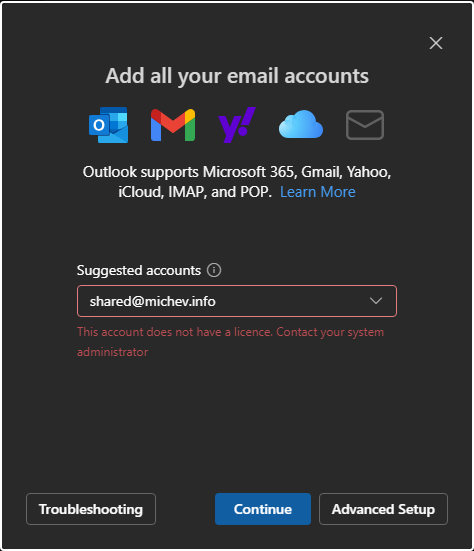
The wording of the error message brings the question whether we can replicate this behavior with a shared mailbox that has a license assigned. Good news and bad news here. Yes, you CAN configure a shared mailbox as the primary/only account in the new Outlook client. The requirement for that however is rather steep – the corresponding user account must have a valid license for the Microsoft 365 desktop apps, i.e. it must meet the licensing requirements for the new Outlook client as detailed for example in this article. For a shared mailbox, this is an overkill… but possible, as shown below:

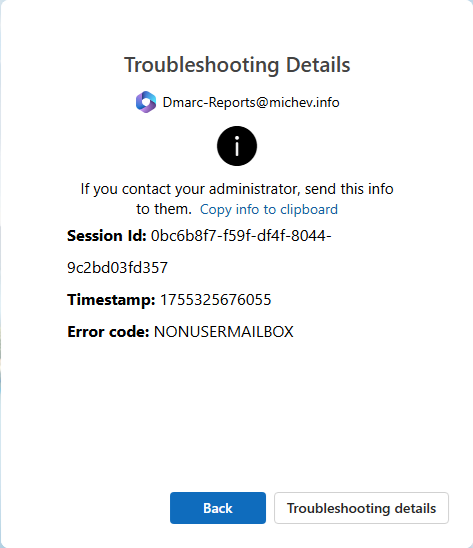
Unfortunately, an Exchange Online license on its own is not enough. In my tests, attempts to add a shared mailbox with only an Exchange license always resulted in an error (see examples below). The same configuration does work with OWA though, so the block is on the Outlook client side. To get around it, you either have to assign an SKU containing the Microsoft 365 desktop apps service plan to the shared mailbox, or add another appropriately licensed account in Outlook.


Keep in mind that all discussions in this section are about adding a shared mailbox in direct mode. None of these caveats will apply to scenarios where you already have the delegate’s mailbox added to Outlook, such as the ones we discussed in the first few sections of the article. I am simply providing details related to scenarios that were possible in the classic Outlook client.
So, while you’ll probably end up leveraging the license for another user, said user does not necessarily need to be a “delegate” account in order to facilitate access to the shared mailbox. Consider the following scenario: the user Pesho is already added to Outlook and is providing its license. We want to also add a shared mailbox, Shared, to which Pesho does not have access. To facilitate access we will leverage another user, Gosho, with Full access permissions on the shared mailbox. Following the steps from the above sections, we procced to add Gosho, and subsequently Shared, as accounts in Outlook.
At this point, access to the shared mailbox is enabled, however we also have an additional artefact of having Gosho‘s mailbox configured in Outlook. As discussed, we do need at least one “regular” account configured due to the licensing requirements, but it does not necessarily need to be the account that has access to the shared mailbox. So in this scenario, we can proceed to remove Gosho‘s account from Outlook and end up with the following:
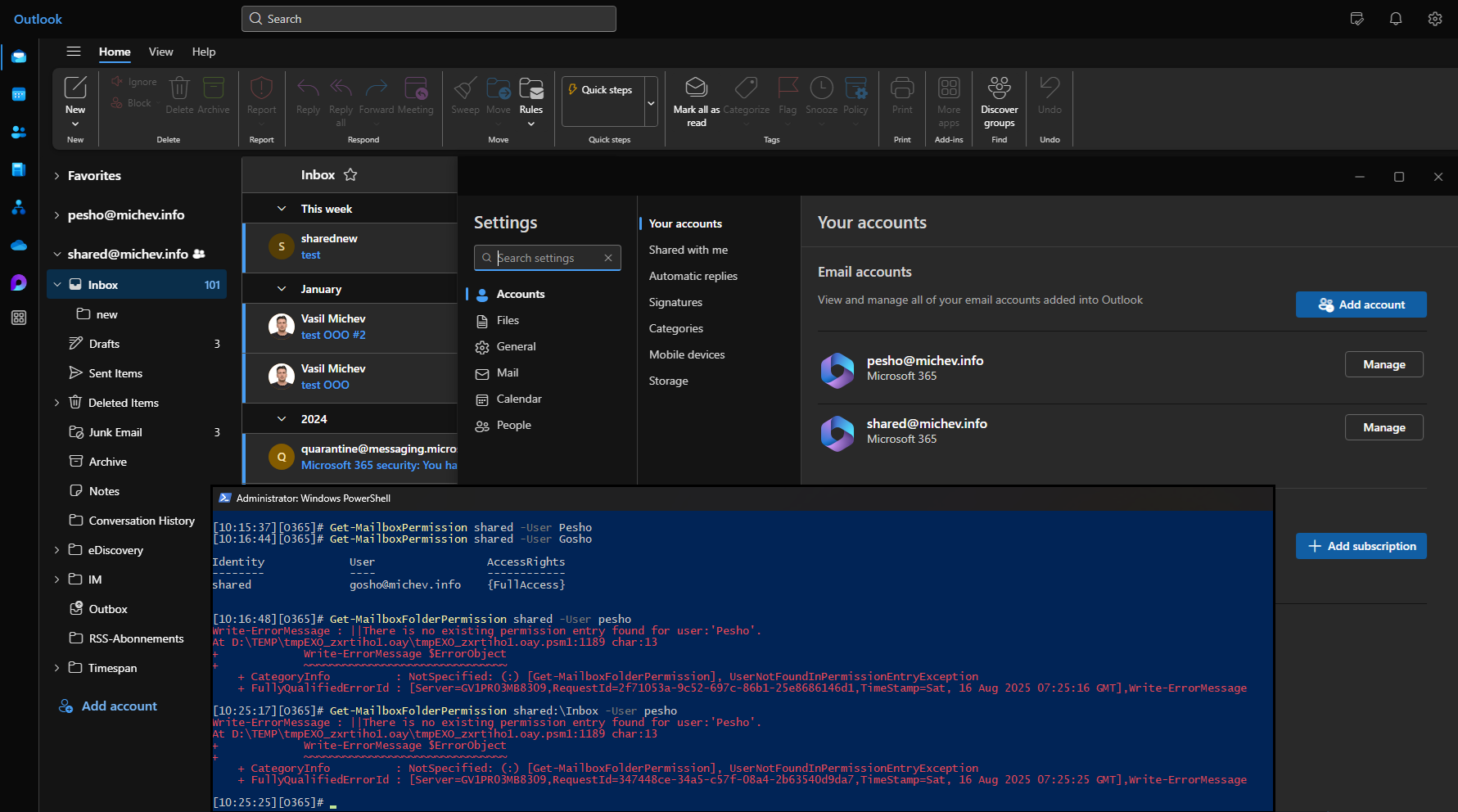
The composite screenshot above illustrates that we can access items within the Shared mailbox, while at the same time there is no matching delegate account added to Outlook. The PowerShell output clearly shows that Pesho does not have sufficient permissions, and the access is granted by Outlook caching the credentials of the Gosho user we added/removed previously. A scenario that is unlikely to have any merit in real life situations, but it serves to illustrate how the new Outlook client handles shared mailbox access and more importantly (and annoyingly), token caching.
In case you are wondering whether we can further extend this scenario by also removing the Pesho account, the answer is no. While said account does not provide us with the permissions to access the shared mailbox, it is what enables us to configure Exchange Online mailboxes in Outlook, thanks to its license. Thus, removing it is not possible as the corresponding Remove button is grayed out, with the following tooltip text:
This account is providing its license to shared@domain.com. To remove this account, please remove that account first.
In other words, we can reconfirm the statement that only a shared mailbox with a license for the Microsoft 365 desktop apps can be configured as a standalone account in the new Outlook client.
Summary
And with that, I believe it’s time to close the article. You should now have a better understanding of Outlook’s recently added support for configuring shared mailboxes as accounts and the benefits this functionality bring. As mentioned, there are still some enhancements on Microsoft’s backlog, so things will only get better going forward. The only downside is that Outlook no longer allows you to have a standalone shared mailbox in a profile, which is probably related to Microsoft’s attempts to stop the misuses we’ve seen in the past. Sadly, this also affects scenarios with licensed shared mailboxes, which now need the full E3/E5 license in order to be configured as standalone accounts… but we explored a possible workaround above.
Hi Vasil, what about sharing Contacts from the Shared Mailbox, liken in this Post from the legacy Outlook.
https://learn.microsoft.com/en-us/answers/questions/322864/make-shared-mailbox-items-available-in-global-addr
Is there any change abount using a Shared Mailbox as a Global Contact Folder as replacement for a PF Folder?
That functionality is not available in the New Outlook client, afaik.
Hi Vasil, thank you for the detailed article. Do you know of a way to prevent automatic conversion to a standalone account centrally (Intune?) for the new outlook? Without removing full access permissions…
I haven’t looked into that, sorry.